
Zoom, pan and rotate the view
Zoom from 1% to 3200% with the Zoom tool, keys and zoom control, move around with the Hand tool, and turn the canvas with Rotate View without changing the image.
Zooming, panning and rotating the view change only how you see the document. They never change pixels, history or exported files.
#Zoom
The zoom level is a true percentage: at 100% one image pixel fills one screen pixel. You can zoom from 1% to 3200%. Zooming in and out steps through presets such as 25%, 33.33%, 50%, 66.67%, 100%, 150%, 200%, 300% and 400%. From 200% upwards, pixels are drawn as crisp squares.
| To | Do this |
|---|---|
| Zoom in or out | Press + or - (also with Ctrl), use View > Zoom in / Zoom out, or the buttons and slider of the zoom control at the bottom of the canvas. |
| Zoom around a point | Ctrl + mouse wheel, or pinch on a trackpad. The point under the pointer stays in place. |
| Zoom on a touch screen | Spread two fingers on the canvas to zoom in, pinch them together to zoom out. The point between your fingers stays under them. |
| Fit the whole image | Press 0 or Ctrl+0, or choose View > Fit to screen. Fitting never enlarges past 100%. |
| See actual pixels | Press 1 or Ctrl+1, or choose View > Actual size. |
The editor handles these Ctrl shortcuts itself, so they do not zoom the browser page. New and opened documents start fitted to the screen, and your draft remembers its zoom.
#Zoom tool
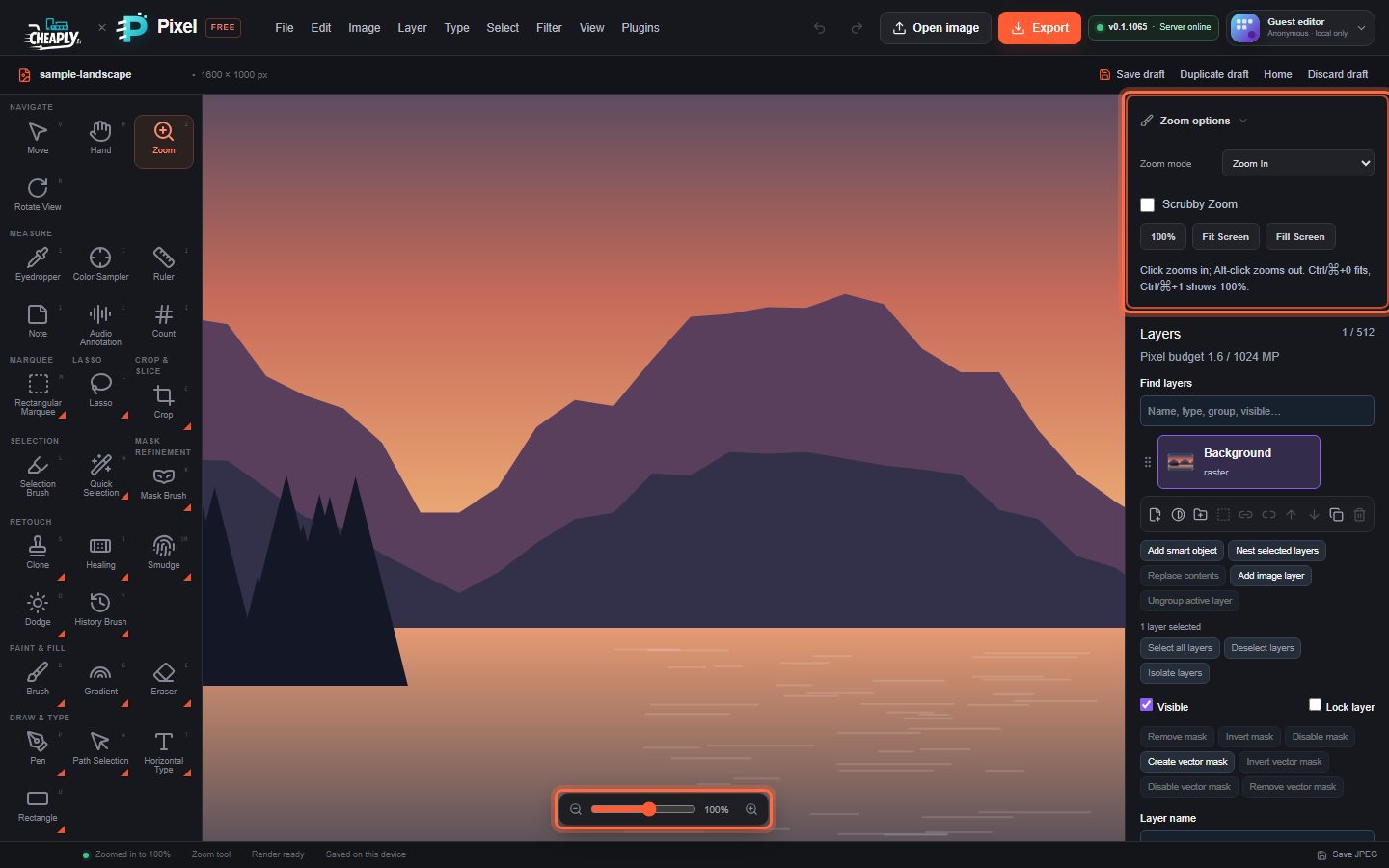
Choose Zoom (Z) and click the image to zoom in around that point. Alt-click zooms out.
| Option | What it does |
|---|---|
| Zoom mode | Zoom In or Zoom Out: what a plain click does. Alt reverses it. |
| Scrubby Zoom | When ticked, drag right to zoom in smoothly and left to zoom out (the zoom doubles about every 160 screen pixels of drag). A click still steps. |
| 100% | Shows actual pixels. |
| Fit Screen | Shows the whole image. |
| Fill Screen | Zooms so the image fills the canvas area in both directions; one side may overflow. |
#Pan
When the image is larger than the canvas area, scroll bars appear.
- Scroll with the mouse wheel or trackpad (Shift + wheel scrolls sideways in most browsers).
- Or choose Hand (H) and drag the image. The Hand tool has no options.
- With any other tool, hold Space and drag with the mouse or pen to pan without switching tools. The pointer turns into a hand while Space is held. This does not work while you are typing in a text box. See Canvas cursors.
- On a touch screen, drag with two fingers. A second finger cancels a stroke or drag the first finger had started, without adding an undo step.
#Rotate the view
Turning the canvas can make drawing at awkward angles more comfortable.
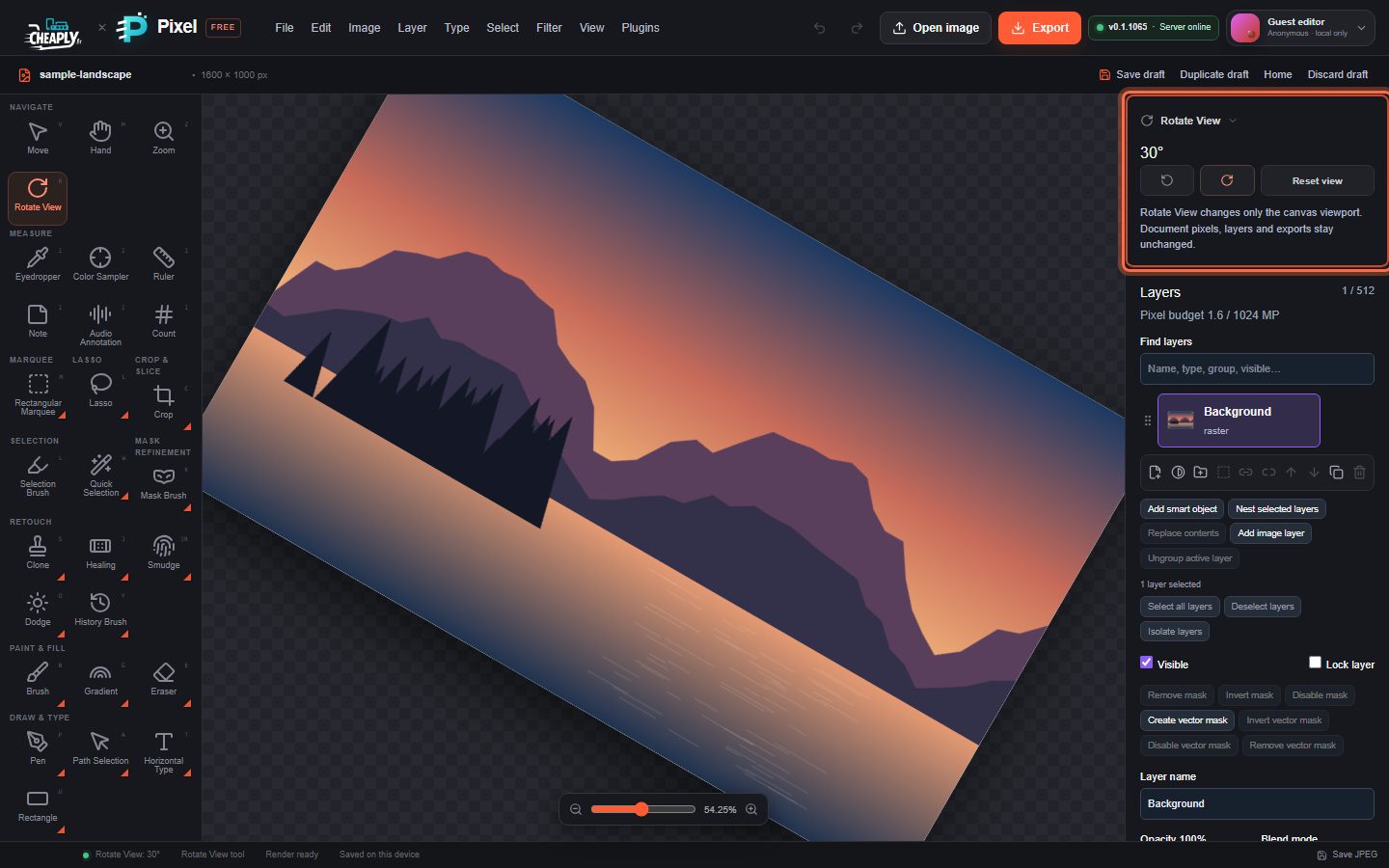
- Choose Rotate View (R) and drag around the centre of the canvas to turn it. Press Esc during the drag to cancel.
- Or click the rotate buttons in the Rotate View options, which turn the view by 15° steps, or use View > Rotate View left 15° and View > Rotate View right 15°.
- Click Reset view, or choose View > Reset Rotate View, to return to 0°.
The current angle is shown in the options. Tools keep working on the rotated canvas: you paint where you see the pointer.
Still stuck? See Troubleshooting or report a problem.