
Link and lock layers
Lock layers to protect them from accidental changes, and link layers so a position change on one applies to the others.
Locking protects a finished layer while you work on the rest of the document. Linking ties layers together so they keep their relative position.
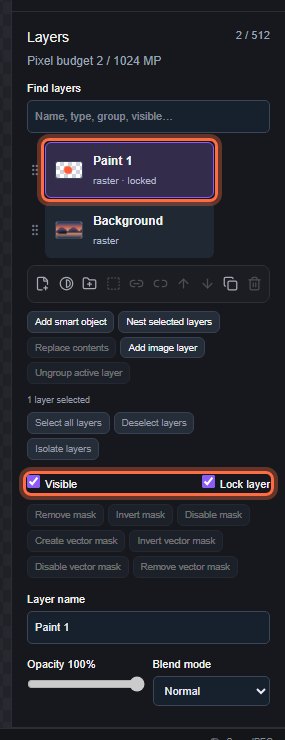
#Lock a layer
Select the layer and tick Lock layer in the Layers panel. You can also choose Lock in the row menu. The row shows "· locked" under the layer name.
To lock or unlock several layers at once, select them and choose Layer > Lock Layers…. If any selected layer is unlocked, all of them are locked; if all of them are already locked, they are unlocked.
While a layer is locked, you cannot paint on it, move or transform it, change its name, opacity, blend mode, masks or styles, delete it, duplicate it or reorder it. You can still show or hide it with Visible.
To lock a whole folder, tick the lock checkbox on its folder row. Every layer in a locked folder is protected, and its own lock settings cannot be changed until you unlock the folder. See Layer groups.
#The Background layer
A Background layer in a new white or coloured document has a locked position: it cannot be moved, and the Eraser paints the background colour on it. This is not the same as Lock layer. To make it a normal layer, choose Layer > Layer from Background or rename it. See Layer types.
#Link layers
- Select two or more unlocked layers (see Find and select layers).
- Choose Layer > Link Layers. The status bar says "Linked … layers for synchronized transforms".
When you move one linked layer, the other linked layers move by the same amount:
- Move tool: drag a linked layer on the canvas. All its linked layers move with it, and the whole move is one undo step. The status bar says how many layers moved, for example "3 layers moved".
- Layer X and Layer Y in the Layer details panel (under More panels): type a new position for one linked layer.
Each layer keeps its own pixels, opacity, blend mode, masks and settings. If one of the layers that would move is locked or is a Background layer, nothing moves and the status bar says "Unlock every selected and linked layer before moving them together".
- Layer > Select Linked Layers selects every layer linked to the selected one.
- Layer > Unlink Layers removes the link from the selected layers. It does not change any pixels.
The Layers panel does not show a link symbol on linked rows. Use Select Linked Layers to see which layers are linked.
Smart objects have a separate kind of link that shares their contents. See Smart objects.
Still stuck? See Troubleshooting or report a problem.