
Generative Fill, Generate Image and other local "AI" commands
What Generative Fill, Generate Image, Prompt to Edit, Generative Upscale and Reflection Removal really do: offline, deterministic approximations that never call an AI model.
Several commands in PixelForge have names you may know from AI-powered editors. In PixelForge they are local approximations: they run entirely in your browser, are deterministic (the same input always gives the same result), never upload your image or text and never call an AI model or online service. They do not understand what is in your picture or follow free-form instructions.
This page explains what each one actually does, so you can decide when it is useful.
#Generative Fill
Edit > Generative Fill… fills the active selection with texture sampled from the pixels around it.
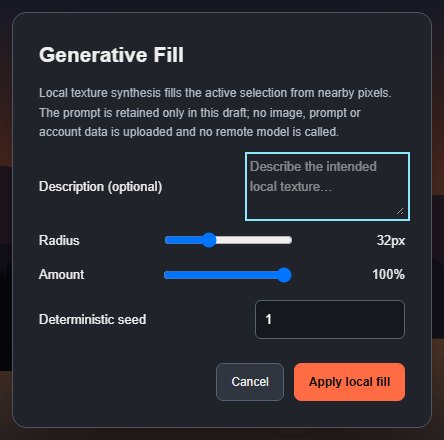
- Make a selection on a visible, unlocked pixel layer.
- Choose Edit > Generative Fill….
- Set the options and click Apply local fill.
| Option | What it does |
|---|---|
| Description (optional) | A note kept with the draft. It does not change the result. |
| Radius | How far outside the selection to look for texture. |
| Amount | How strongly the fill covers the selection. |
| Deterministic seed | Picks a different variation of the sampled texture. |
The fill is stored as an editable operation, so it survives undo, reload and project files. Up to eight can be stored per layer. For removing objects, also try Content-Aware Fill.
#Generate Image
Edit > Generate Image… adds a new layer called "Generated Image" with an abstract pattern.
- Local description: a few keywords choose the style and colours. Words like stripes, bands or lines give stripes; dots, bubbles or polka give dots; noise, grain, speckle or texture give noise; anything else gives a gradient. The colour names black, white, red, orange, yellow, green, teal, blue, purple and pink set the first two colours.
- Width and Height: 32–1,024 px, at most one megapixel in total.
- Deterministic seed: picks a variation.
Click Generate local image. It cannot draw objects, people or scenes.
#Prompt to Edit
Edit > Prompt to Edit… turns a short instruction (up to 240 characters) into editable colour and tone adjustments on the active layer. It recognises a fixed list of requests: brighten or darken, more or less contrast, saturate or desaturate, grayscale, warm or cool, green or magenta tint, hue rotate, sharpen and soften, with up to four in one instruction. For example, "Make it warmer and slightly brighter". Unrecognised wording is rejected without changing the image.
#Generative Upscale
Image > Generative Upscale… enlarges the whole document 2× or 4× with a detail-preserving resampler (Automatic or Bilinear). It does not invent new detail. The dialog previews the new size; 4× is only offered when the result stays within 16,000 px per side and 16 megapixels. Layers, masks and selections stay editable, and one undo restores the original size. See also Image and canvas size.
#Reflection Removal
Edit > Reflection Removal… softens small, bright, colourless glare spots (for example small reflections on glasses) by blending them with the pixels around them. It is applied as an editable filter effect, inside the selection if there is one. It does not detect reflections in a scene and leaves coloured or large reflections unchanged.
#Related commands
- Remove a background hides edge-connected backdrop colours with a mask.
- Neural filters are local filter approximations in the Filter menu.
- Select subjects and objects covers the selection commands.
Still stuck? See Troubleshooting or report a problem.