
Select rectangles and ellipses with the marquee tools
Use Rectangular, Elliptical, Single Row and Single Column Marquee, with Fixed Ratio, Fixed Size and feathered edges.
The marquee tools select regular shapes. They share one toolbar button in the Marquee group. Press and hold it, or right-click it, to choose a different marquee. Press M to select the family, and press M again to step through the four tools (Shift+M steps backwards).
| Tool | What it selects |
|---|---|
| Rectangular Marquee | A rectangle |
| Elliptical Marquee | An ellipse or circle |
| Single Row Marquee | A one-pixel-high row across the whole canvas |
| Single Column Marquee | A one-pixel-wide column down the whole canvas |
#Make a marquee selection
- Choose Rectangular Marquee or Elliptical Marquee.
- Check Selection mode in the sidebar (Replace, Add, Subtract or Intersect). See Selection basics.
- Drag across the image. The selection appears with a dashed outline when you release.
For Single Row and Single Column Marquee, click where you want the row or column.
#Options
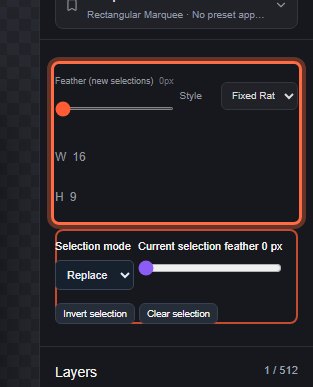
| Option | What it does |
|---|---|
| Feather (new selections) | Softens the edge of the next selections you make, from 0 to 1,000 px. It does not change the current selection. Not shown for Single Row and Single Column. |
| Style | Normal follows your drag. Fixed Ratio keeps the W : H proportion you enter; the box follows the larger side of your drag. Fixed Size makes a selection of exactly W × H document pixels starting where you press; a single click is enough. |
| W and H | The ratio or size used by Fixed Ratio and Fixed Size. |
Style and the W and H fields are available for the Rectangular and Elliptical Marquee only. These options are saved with your editor settings in the draft, so they come back when you reopen it.
To soften a selection you have already made, use Current selection feather in Selection options or Select > Feather… (see Modify selections).
Still stuck? See Troubleshooting or report a problem.