
Open and place files
Open a file as a new document, add images as layers by dropping, pasting or with Add image layer, and place a reference image.
There are two ways to bring a file in: open it as a new document, or place it as a new layer in the document you are working on.
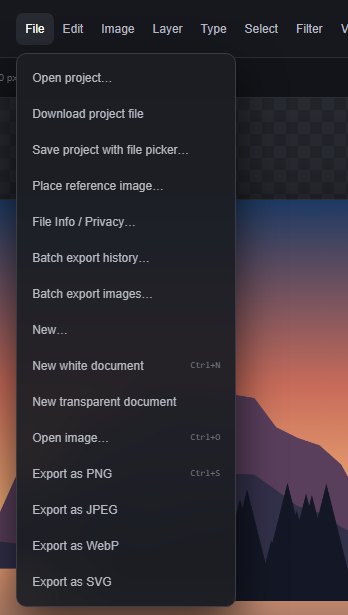
#Open a file as a new document
- Click Open image in the top bar or choose File > Open image… (Ctrl+O).
- Or hold Shift while you drop a file on the editor.
The file opens as a new draft. Your previous document stays saved in this browser. To open a PixelForge project file, use File > Open project… instead (see Project files).
#Add an image as a layer
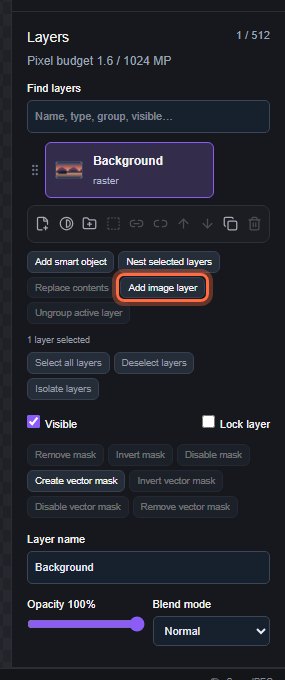
Any of these adds the image as a new layer above the selected layer, in one undo step:
- Drag and drop one or more image files onto the canvas. Each image is centred where you drop it. Dropping on the Layers panel puts the new layers at the drop line.
- Click Add image layer in the Layers panel and pick a file.
- Paste an image you copied in another app or web page with Ctrl+V, or choose Edit > Paste Image from Clipboard. The browser may ask for permission to read the clipboard.
SVG files placed this way arrive as editable shape and text layers. PSD and PSB files dropped on the editor always open as a new document, and a dropped .pixelforge file opens as a project. Files that cannot be placed are skipped with a message.
#Place a file as a smart object
Layer > New Smart Object… asks for a file and places it as a smart object, which you can transform without losing its original pixels. See Smart objects.
#Place a reference image
File > Place reference image… shows a picture over your work as a guide, for example a sketch to trace or colours to match. It is not a layer and is never included in exports. See Reference image.
#Limits
The same limits apply to every way of bringing an image in: 16 megapixels and 16,000 pixels per side, 64 MB per file, and at most 512 layers per document. See Supported file formats and Large documents.
Still stuck? See Troubleshooting or report a problem.