
Replace an area with the Patch tool
Select an area and drag it to a clean spot to replace it with tone-matched pixels, copy it to a new place, or paint a patch from a source point.
The Patch tool replaces a selected area with pixels from another part of the same layer. It works well for larger marks than Spot Healing can handle, as long as there is a similar, clean area nearby to copy from.
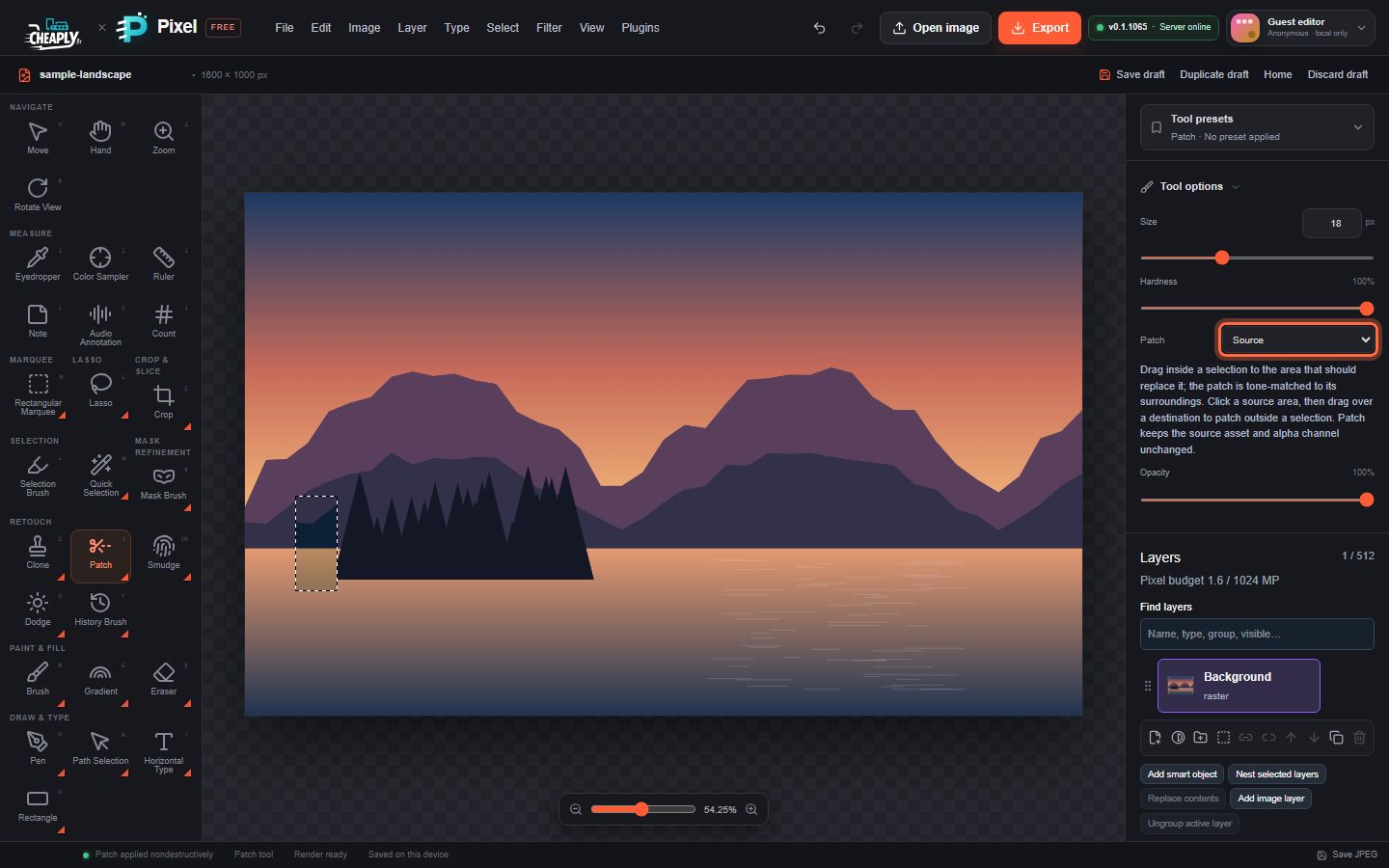
#Patch a selection
- Select the area to fix with any selection tool, a little larger than the defect. See Selection basics.
- Choose Patch: press and hold (or right-click) the Healing button in the Retouch group, press J until it is selected, or choose Edit > Patch Tool.
- Make sure Patch is set to Source.
- Press inside the selection and drag to a clean area. Release when the area under the selection looks right.
The selected area is replaced with the pixels from where you released. Their brightness and colour are adjusted to match the pixels around the original selection, so the patch blends in.
#Patch modes
| Mode | What happens when you drag the selection |
|---|---|
| Source (default) | The selected area is replaced by the pixels at the place you drag to, tone-matched to the surroundings. |
| Destination | The selected pixels are copied, unchanged, to the place you drag to. The original stays. |
| Brush | The drag does not move the selection; the tool works as a patch brush (below). |
#Paint a patch without a selection
With Brush mode, or when there is no selection, or when you press outside the selection:
- Click once on the clean area to use as the source.
- Drag over the area to fix. Pixels are copied from the source with the same offset, using the brush Size, Hardness and Opacity.
#Good to know
- Patch strokes are stored with the layer as editable operations, so the original pixels are kept. Undo, reload and project files keep them. A layer can hold up to 64 Patch strokes.
- The tone match is a simple local adjustment: it works best when the source and the surroundings have similar texture. It does not reconstruct perspective or recognise objects.
- A drag of zero pixels does nothing. Press Esc during a drag to cancel it.
- Patch works on visible, unlocked pixel layers and does not use Paint symmetry.
Still stuck? See Troubleshooting or report a problem.