
Smart objects
Embed an image or nest layers as a smart object, so you can scale and transform it without losing quality, swap its contents and link copies together.
A smart object is a layer that keeps its original image. When you scale, rotate or distort it, PixelForge redraws it from that original, so shrinking it and enlarging it again does not blur it. You can also swap the image inside while keeping the size, position and effects, which is handy for mock-ups and templates.
#Create a smart object
There are two ways:
- From an image file: click Add smart object in the Layers panel, or choose Layer > New Smart Object…, then choose an image. It is added as a new smart object layer.
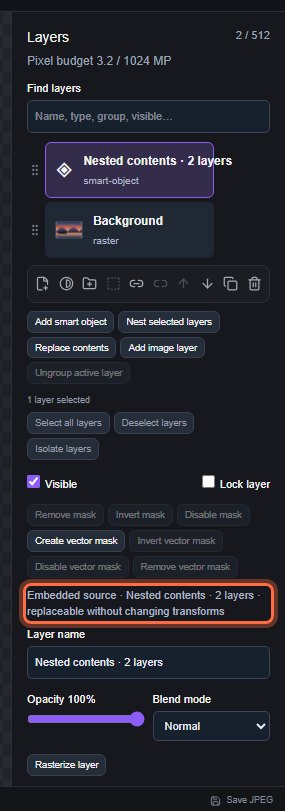
- From existing layers: select one or more layers that are not in a folder and are unlocked, then click Nest selected layers or choose Layer > Nest Selected Layers as Smart Object. The layers are replaced by one smart object named "Nested contents" with the number of layers.
The Layers panel shows "Embedded source" and the source name for the selected smart object. Its type in the list is "smart-object".
#What you can do with it
Smart objects take the same settings as other layers: transforms, opacity and blend mode, layer masks, vector masks, layer styles and adjustments. They can be clipped to a base layer (Clipping masks).
To apply editable filters, see Smart filters.
#Replace the contents
- Select the smart object.
- Click Replace contents, or choose Layer > Replace Contents….
- Choose a new image.
The layer keeps its name, position, transform, opacity, blend mode, styles, mask and adjustments. Only the image changes. If the smart object was made by nesting layers, the nested layers are replaced by the new image.
With an artboard, Replace smart object and fit swaps the image and fits it to the active artboard.
#Link copies
Linked smart objects share one image, so replacing the contents of one updates all of them, while each keeps its own size and position.
- Select two or more smart objects.
- Choose Layer > Link Smart Object Contents.
Layer > Select Linked Layers selects every smart object linked to the selected one, and Layer > Unlink Smart Object Contents removes the link. These links live inside your document; they do not watch or update from files on your computer.
#Turn it back into pixels
Layer > Rasterize (or Rasterize layer in the Layers panel) turns the smart object into a normal image layer with its current look. Undo brings the smart object back.
#Limits
- You cannot open a smart object to edit the layers inside it. To change nested content, undo the nesting, or replace the contents.
- Smart objects can be nested up to four levels deep.
- Retouching tools that edit pixels directly, such as painting, need a normal image layer. Rasterize first, or paint on a new layer above.
- Smart objects are embedded copies. Linking to external files is not available.
Still stuck? See Troubleshooting or report a problem.