
Curves
Shape tone and colour precisely with up to 14 points on the RGB, Red, Green and Blue curves of a layer.
Curves maps every input brightness to an output brightness. Raising part of the curve brightens those tones; lowering it darkens them. A gentle S-shape adds contrast, and the separate Red, Green and Blue curves shift colour in the shadows, midtones or highlights.
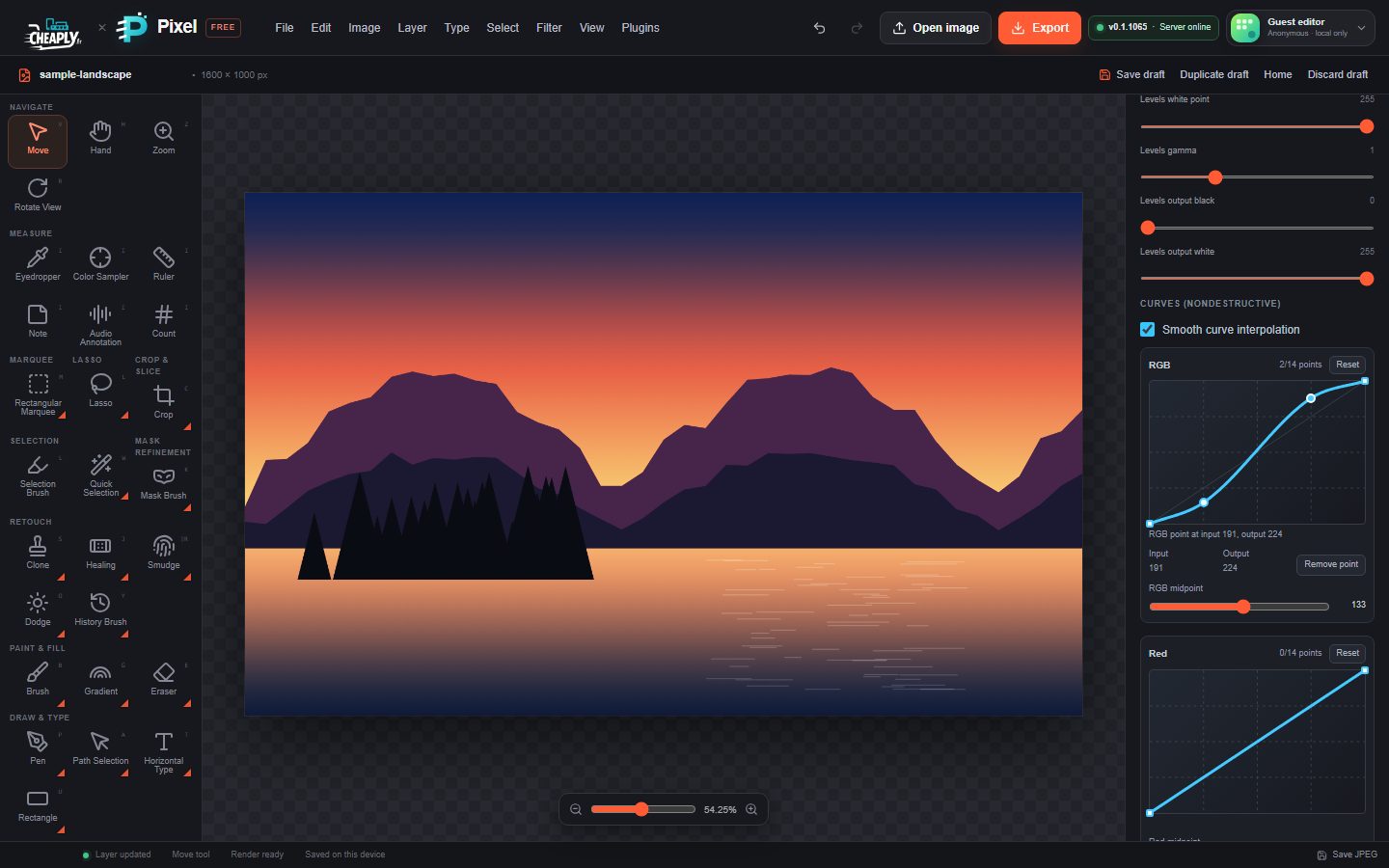
#Open Curves
Select a layer (or an adjustment layer) and choose Image > Curves…. The Adjust selected layer panel opens at Curves (nondestructive). There are four editors: RGB (all channels together), then Red, Green and Blue. The colour curves are applied after the RGB curve.
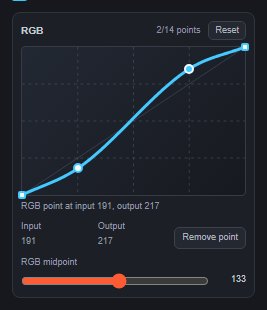
#Make an S-curve
- In the RGB editor, click the graph about a quarter of the way along, a little below the diagonal line. A point is added.
- Click about three quarters of the way along, a little above the diagonal.
- Drag either point to fine-tune. The canvas updates as you drag.
#Edit points
| To | Do this |
|---|---|
| Add a point | Click or tap an empty spot on the graph. Each curve holds up to 14 points besides its two ends; the counter shows, for example, "2/14 points". |
| Move a point | Drag it. A point cannot pass its neighbours. The black and white endpoints move up and down only. |
| Type exact values | Select a point and edit its Input and Output fields. For endpoints only Output can change. |
| Nudge with the keyboard | Focus a point and press the arrow keys to move it by 1, or Shift+arrow to move it by 10. |
| Remove a point | Drag it off the graph, double-click it, press Delete or Backspace, or click Remove point. Endpoints cannot be removed. |
| Start over | Click Reset on that editor. |
Each click, key press or drag is one undo step.
#Options
| Option | What it does |
|---|---|
| Smooth curve interpolation | On (the default): a smooth curve passes through every point without overshooting. Off: straight lines join the points. |
| RGB / Red / Green / Blue midpoint | A simple slider that shows the curve's output at input 128; moving it adds or moves a point at input 128. Handy on a phone, or when you only need a midtone change. |
Still stuck? See Troubleshooting or report a problem.