
Warp text and put text on a path
Bend type into an arc, bulge or flag with Warp Text, or run it along a curve drawn with the Pen tools, while keeping it editable.
Both commands keep the text editable: you can still retype it, change the font or move it, and the warp or path follows.
#Warp text
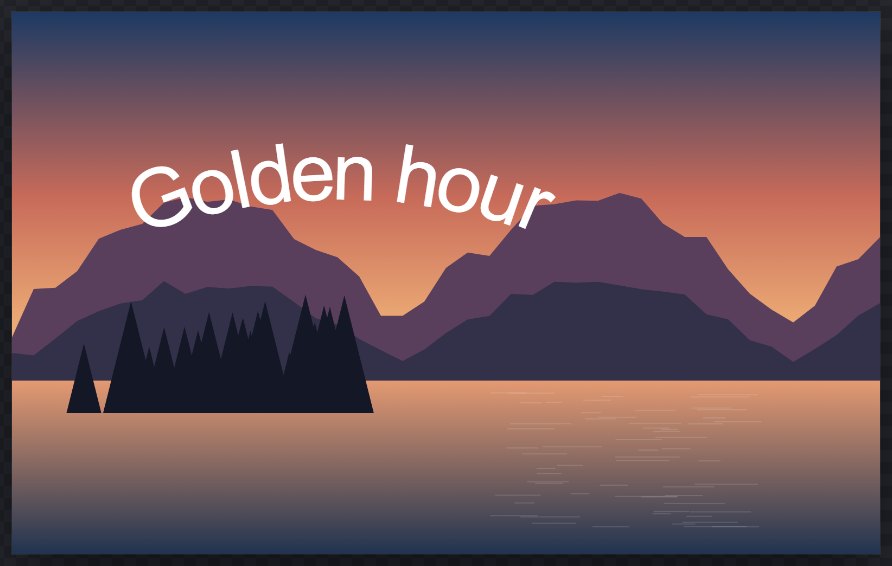
- Select a type layer.
- Choose Type > Warp Text…, or click Warp in the Type options bar.
- In the Warp Text dialog, set:
- Warp style: None, Arc, Bulge or Flag.
- Bend: from −100 to 100. Negative values bend the other way.
- Vertical distortion: from −100 to 100.
- Click Warp or press Enter. A value outside −100 to 100 is marked in red and Warp stays unavailable until you fix it.
The warp is one undoable step. To remove it, run Warp Text… again and choose None.
#Put text on a path
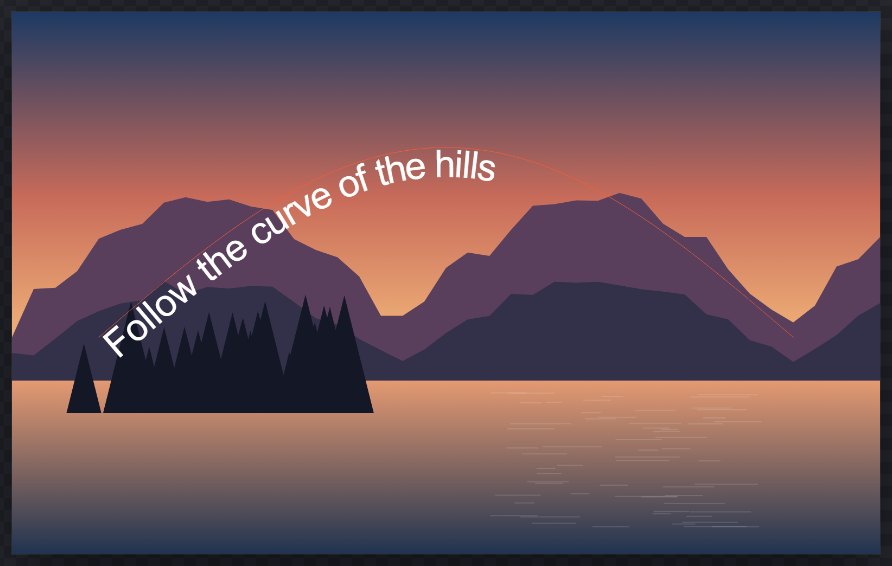
- Draw the path with the Pen tools, for example a curve with the Freeform Pen. Set Pen mode to Path (work path, no fill) if you only want the path as a guide.
- Add the text with the Horizontal Type tool and make sure the type layer is selected.
- Choose Type > Text on Path…. The command is available when the document has at least one path layer.
- In the Text on Path dialog, set:
- Path layer: choose the path by its layer name. The first path (or the path the text already follows) is selected.
- Path offset: how far along the path the text starts, in pixels.
- Reverse text direction along the path: tick it to run the text the other way.
- Click Attach or press Enter.
The text follows the path's first contour. If you edit or move the path afterwards, the text moves with it.
Limits:
- Text on a path is horizontal type on one line; line breaks are ignored.
- Text that is longer than the path is cut off at the end.
- Only the layer's base style is used; per-character styling is not shown along the path.
Still stuck? See Troubleshooting or report a problem.