
Selection basics
What a selection is, how the marching ants, selection modes, Select All, Deselect, Reselect and Inverse work, and what a selection limits.
A selection marks the part of the image you want to work on. While a selection is active, painting, filling, clearing, filters and many other edits change only the selected pixels and leave the rest alone. Selections never change pixels by themselves.
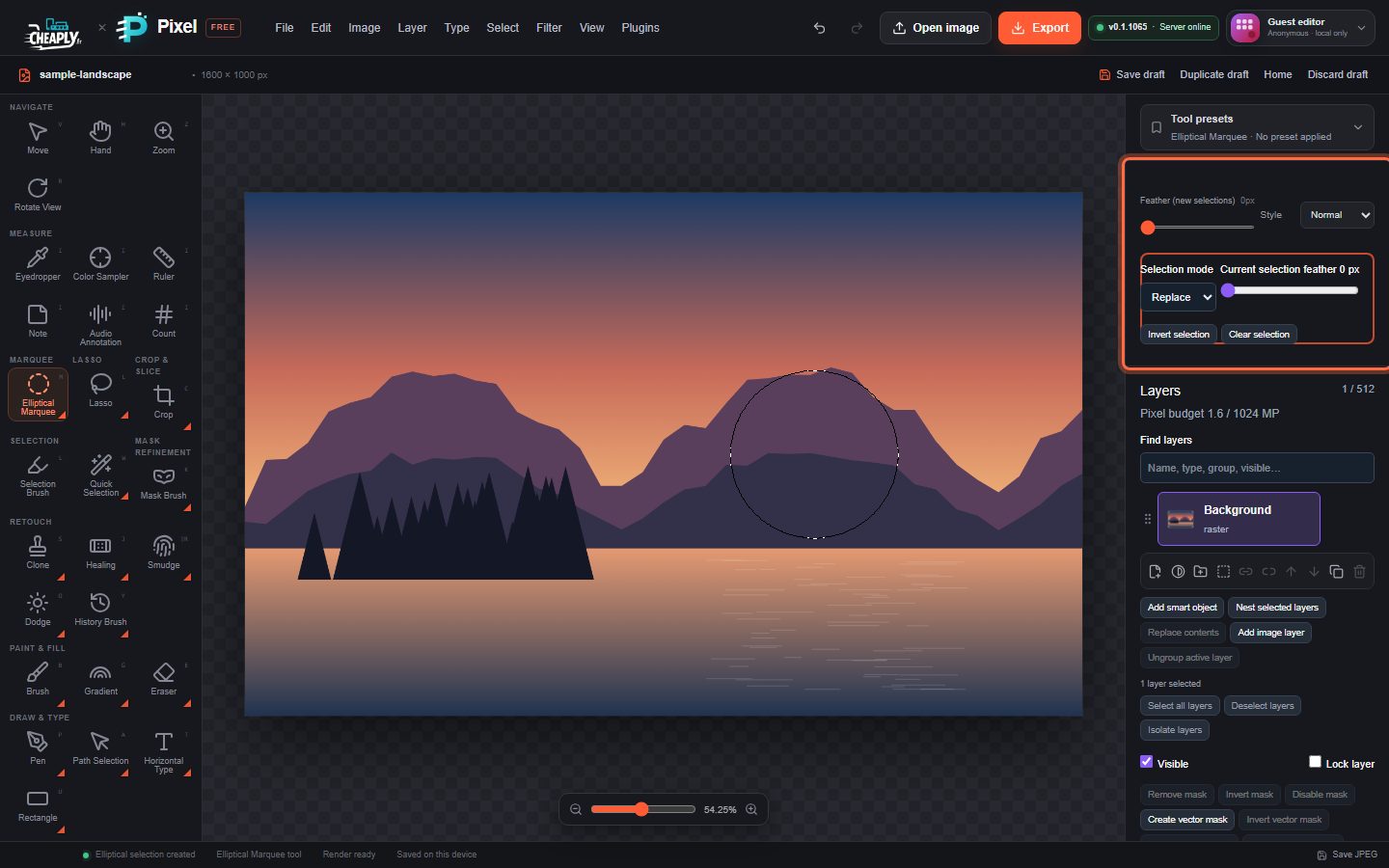
#The selection outline
Every selection is shown with an animated dashed outline, often called "marching ants". It is drawn wherever the selection crosses 50% coverage, so a soft (feathered) selection shows its outline in the middle of its soft edge. Separate islands and holes each get their own outline. If your system asks for reduced motion, the dashes stay still.
A selection can be partly selected: pixels at a feathered edge, or picked by colour tools such as Color Range, can be selected at, say, 40%. Edits then apply at that strength.
#Ways to make a selection
| Tool or command | Best for |
|---|---|
| Marquee tools (M) | Rectangles, ellipses, single rows or columns |
| Lasso tools (L) | Freehand, straight-edged or edge-following shapes |
| Quick Selection and Magic Wand (W) | Areas of similar colour |
| Selection Brush | Painting a selection by hand |
| Select > Subject, Sky, Object Selection… and Focus Area… | A quick automatic starting point |
| Select > Color Range… and Similar | Every pixel of a colour, anywhere in the image |
| Quick Mask (Q) | Painting a selection as a red overlay |
#Selection mode: add, subtract and intersect
The selection tools and commands share one Selection mode, in Selection options in the properties sidebar:
| Mode | Result |
|---|---|
| Replace | The new selection replaces the current one. |
| Add | The new selection is added to the current one. |
| Subtract | The new selection is removed from the current one. |
| Intersect | Only the area covered by both is kept. |
The mode stays set until you change it, and it also applies to Quick Selection, Magic Wand, Color Range, Similar, Subject, Sky, Object Selection and Focus Area.
#Everyday commands
| Command | Shortcut | What it does |
|---|---|---|
| Select > All | Ctrl+A | Selects the whole canvas. |
| Select > Deselect | Ctrl+D | Removes the selection. |
| Select > Reselect | Brings back the last selection after you deselected it. | |
| Select > Inverse | Ctrl+Shift+I | Swaps selected and unselected areas. |
| Edit > Clear | Delete or Backspace | Makes the selected pixels of the active raster layer transparent. The selection stays. |
The Invert selection and Clear selection buttons in Selection options do the same as Inverse and Deselect. Clear selection removes the selection only; it does not erase pixels.
When a selection exists, Selection options also shows Current selection feather, a slider from 0 to 100 px that softens the edge of the current selection. See Modify selections for larger values.
#What a selection limits
- Painting, erasing and retouching tools paint only inside the selection.
- Edit > Fill…, Edit > Stroke Selection… and Clear use the selection.
- Select > Mask from Selection turns the selection into a layer mask. See Save and load selections.
If a selection ends up covering no pixels, for example a lasso drawn completely outside the canvas, it still counts as a selection. Fill, Clear and Stroke then change nothing and show No pixels are selected. Press Ctrl+D to deselect.
Still stuck? See Troubleshooting or report a problem.