
Add text
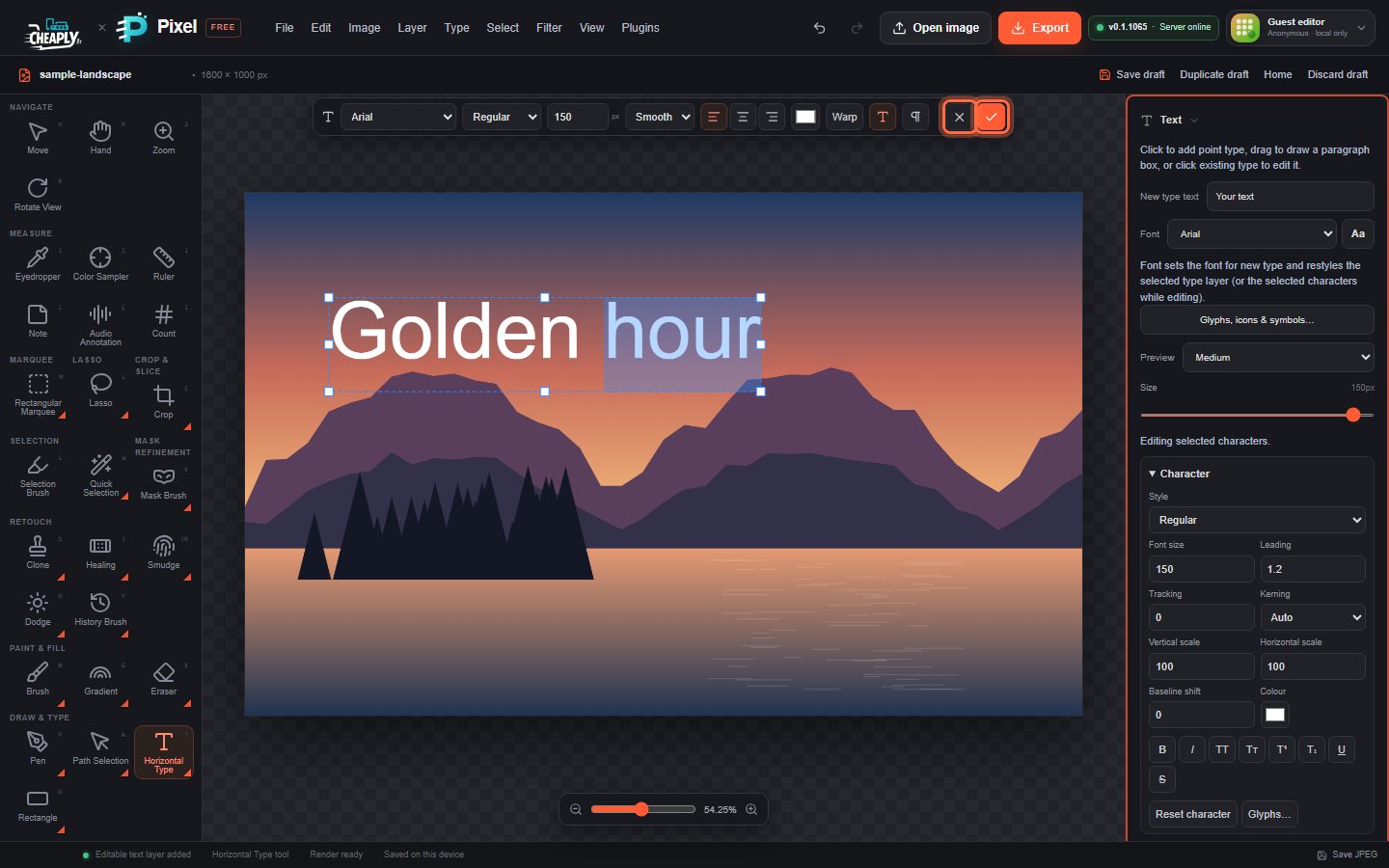
Add point or paragraph type with the Horizontal Type tool, type straight onto the canvas and commit it as an editable type layer.
The Horizontal Type tool adds text as a type layer. The text stays editable: you can retype it, change its font, size and colour, or restyle single words at any time. Type is only turned into pixels when you export the image or choose Type > Rasterize Type Layer.
#Add a line of text (point type)
- Choose Horizontal Type in the Draw & Type group of the toolbar, or choose Type > Text Tool.
- Optionally pick the font, style, size and colour in the Type options bar above the canvas. These become the settings for the new type.
- Click the canvas where the text should start. The click point is the start of the first line.
- Type your text. Press Enter to start a new line. Point type never wraps on its own.
- Commit the text: click the ✓ button (Commit type) in the Type options bar, press Ctrl+Enter, or click outside the text.
The new layer appears in the Layers panel with a T badge and is named after its first words. After you commit, the editor switches to the Move tool so you can position the text straight away.
#Add a block of text (paragraph type)
- Choose Horizontal Type.
- Drag on the canvas to draw a text box.
- Type. Lines wrap at the edge of the box.
See Edit text on the canvas to resize the box or switch between point and paragraph text.
#Cancel or undo
- Press Esc or click ✕ (Cancel type editing) to throw away the text you are typing. A new layer is removed; an existing layer goes back to how it was.
- Committing creates one history step, so a single Ctrl+Z removes a new type layer with everything you typed.
- If you commit empty text, no layer is kept.
#The sidebar Text section
While a type tool is active, the Text section of the properties sidebar holds:
| Control | What it does |
|---|---|
| New type text | The starting text for new type. It is selected when you click the canvas, so whatever you type replaces it. Leave it empty to start from a blank line. |
| Font | The font family. It sets the font for new type and restyles the selected type layer, or the selected characters while you edit. Aa opens the font browser. |
| Glyphs, icons & symbols… | Opens the glyph browser. See Fonts, glyphs and icons. |
| Preview | Size of the font names in the font list (Small, Medium or Large). It does not change your text. |
| Size | The font size in pixels. |
Below these are the Character, Paragraph and Type presets groups, described in Character and paragraph settings and Type presets and default styles.
#Quick placeholder text
Type > Paste Lorem Ipsum adds a ready-made paragraph of placeholder text as a new type layer, in the current font and colour. Use it to try a layout before the real copy is ready.
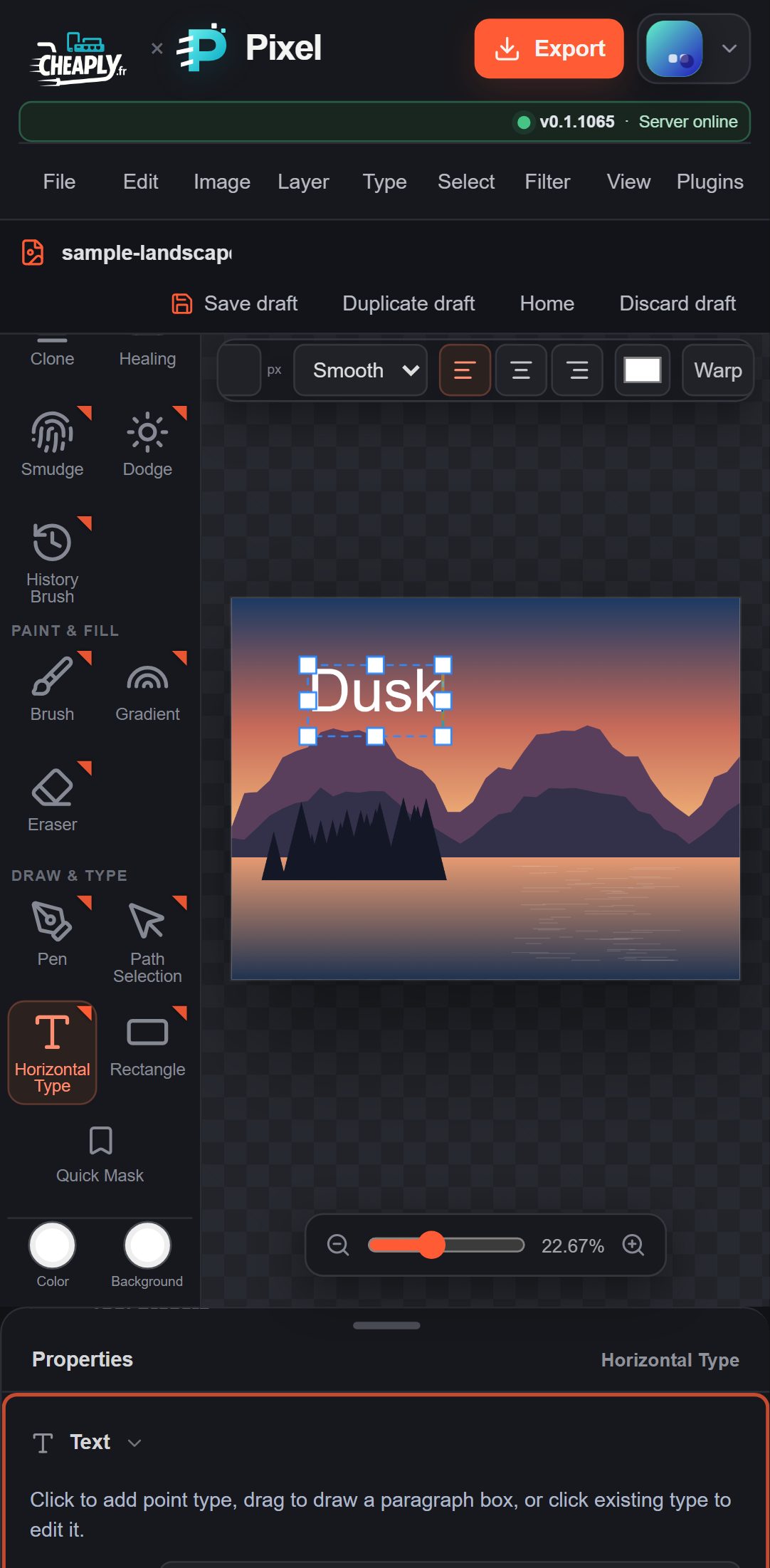
On a phone, the on-screen keyboard opens when you start typing on the canvas.
Still stuck? See Troubleshooting or report a problem.