
Content-Aware Fill and Content-Aware Move
Fill a selection from the pixels around it, or move a selected area and fill the gap it leaves, with two local, editable cleanup commands.
Edit > Content-Aware Fill… and Edit > Content-Aware Move… are cleanup commands for small objects on simple backgrounds. Both run locally in your browser, keep the original pixels and stay editable through undo, reload and project files.
They fill from the colours just outside the selection. They do not recognise objects, rebuild perspective or invent new detail, so they work best on skies, walls, water and other plain areas.
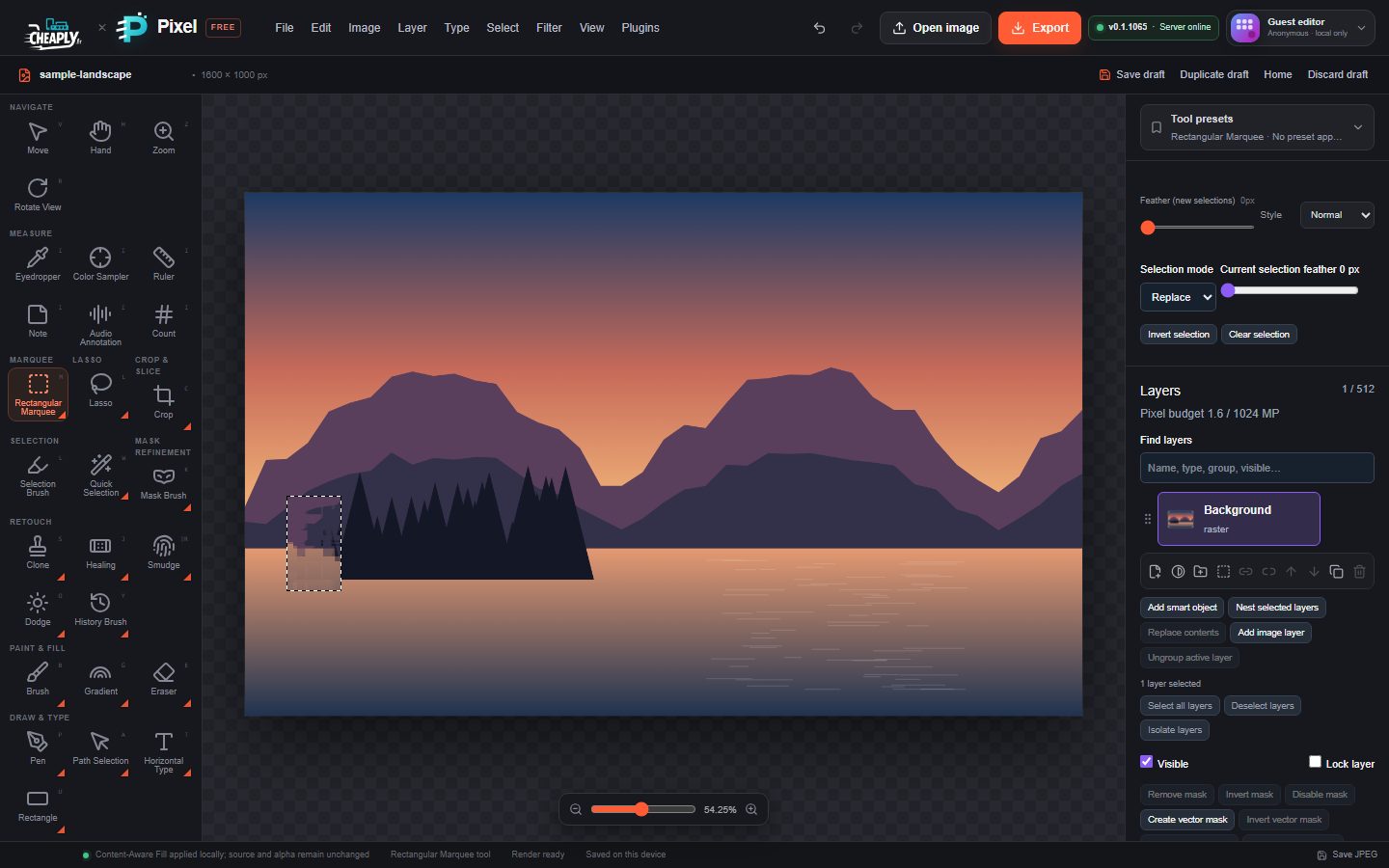
#Content-Aware Fill
- Select the object to remove on a visible, unlocked pixel layer. Leave a small margin of background around it.
- Choose Edit > Content-Aware Fill…. The fill is applied straight away at full strength and the status bar shows "Content-Aware Fill applied locally; source and alpha remain unchanged".
Each pixel in the selection takes the typical colour of the nearest unselected pixels around it. Undo removes the fill.
How far the fill looks for surrounding colour depends on the size of the selection: about half its width or height, whichever is larger, and at most 128 px. Brush settings such as Size and Opacity have no effect. A selection up to about 250 px across is filled throughout.
The status bar tells you when the fill could not do everything:
- "Content-Aware Fill applied locally to N% of the selection; the rest has no unselected pixels within … px": the selection is so large that its middle is more than 128 px from any unselected pixel. That part is left as it was. Fill a large area in smaller pieces.
- "Content-Aware Fill found no unselected pixels around the selection; nothing changed": there is nothing outside the selection to copy from, for example after Select > All.
Limits: up to 16 Content-Aware Fill operations per layer.
#Content-Aware Move
Content-Aware Move moves the selected pixels by a fixed distance and fills the place they came from.
- Select the object on a visible, unlocked pixel layer.
- Choose Edit > Content-Aware Move….
- In the Content-Aware Move dialog, enter Move horizontally (positive moves right, 24 px to start) and Move vertically (positive moves down) in pixels, then click Move or press Enter. Distances can be up to ±4,096 px; a value outside that range is marked in red and Move stays unavailable until you fix it.
- The selected pixels are moved and the gap is filled at full strength from the surrounding colours, searching as far as Content-Aware Fill does for the same selection.
Click Cancel or press Esc to leave the image unchanged. Up to 16 moves can be stored per layer.
#Choosing the right tool
| Problem | Try |
|---|---|
| Dust, spots, small blemishes | Spot Healing |
| A mark with a matching clean area nearby | Patch tool |
| Detailed texture to copy exactly | Clone tool |
| A small object on a plain background | Content-Aware Fill |
| Stretching a photo while protecting subjects | Content-Aware Scale |
Still stuck? See Troubleshooting or report a problem.