
Privacy and your data
What stays on your device, what is stored in your browser, what is sent over the network, and how to remove your data.
PixelForge is built to work locally. Your images are opened, edited and exported inside your browser, and nothing you edit is uploaded unless you sign in and choose to save a cloud project.
#What stays on your device
- Images and documents. Files you open are read by your browser, not sent to a server.
- Drafts. Your work autosaves in this browser's storage (IndexedDB), together with a cache of rendered layers that speeds up reopening.
- Preferences. Toolbar layout, shortcuts, presets, saved action recipes and similar settings are stored in this browser.
- Exports and project files. They are created in the browser and saved straight to your device.
- Tools with "AI" or "Generative" in their name. They run locally with built-in methods; your image and any prompt you type are not sent anywhere.
#What is sent over the network
- Loading the app. Your browser downloads the editor, fonts and other files from photoeditor.cheaply.fr, like any website.
- Status checks. The editor regularly asks the PixelForge server which version is current, to show the status in the top bar and offer updates. These requests contain no document data.
- Account check. The editor asks the Cheaply account service whether you are signed in.
- Cloud projects, only when you choose them. Save to my projects and Update cloud project upload the editable document to your private Cheaply library. The File > File Info / Privacy… fields and audio annotations are not uploaded. See Cloud projects.
- Usage statistics, only if you allow them. See below.
#Usage statistics
The first time you visit, a Help improve Cheaply Photo Editor notice asks whether to allow anonymous usage statistics. It has two buttons, No thanks and Allow, which you can also reach with Tab and press with Enter or Space.
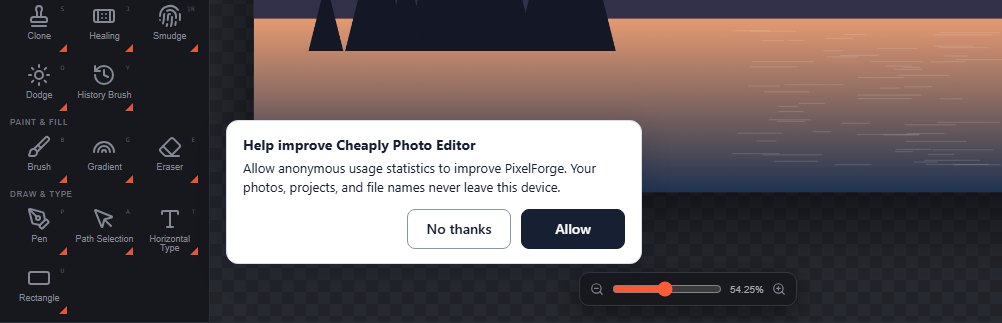
- The notice does not block the editor. On a computer it sits over the bottom-left of the canvas, just above the zoom control, so it covers no tool, not the zoom control and none of the panels on the right. On a phone it is a single short line, Allow anonymous usage stats? Your photos stay on this device., with the two buttons beside it, along the bottom of the screen and below the Properties handle. Menus and tool flyouts open over it, so you can work before you answer.
- Until you choose, and if you choose No thanks, no analytics script is loaded and nothing is sent.
- If you choose Allow, Google Analytics is loaded and records a page view of the app. Your photos, projects, file names, account details and draft content are never included.
Your choice is remembered in this browser. To be asked again, clear this site's data, which also deletes your drafts, so download project files first.
#Metadata in your files
- When you open a photo, its EXIF data (camera details, date, GPS location) and embedded colour profile are not kept.
- Exported images contain only pixels: no EXIF, no GPS, no original profile.
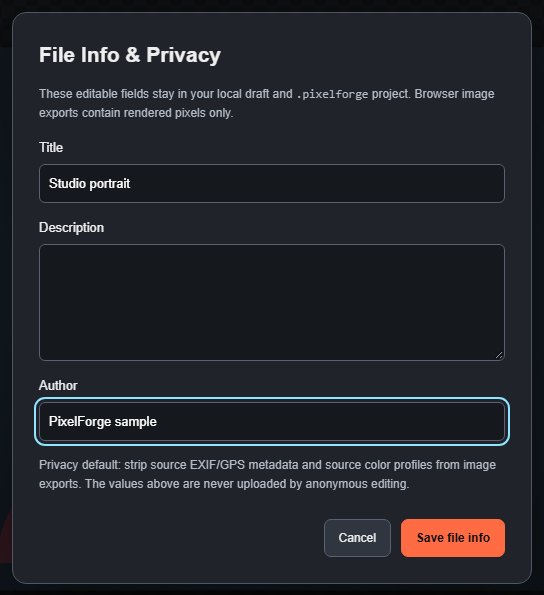
- File > File Info / Privacy… lets you store a title, description and author with the document. They stay in your draft and project file and are not written into exported images.
#Remove your data
- One draft: click Discard draft in the bar above the canvas and confirm.
- Everything in this browser: clear this site's data in your browser settings (for photoeditor.cheaply.fr). This deletes all drafts, cached renders and preferences and cannot be undone.
- Cloud projects: open My projects and click Remove on each project.
Still stuck? See Troubleshooting or report a problem.