
Cloud projects
Optionally sign in with a Cheaply account to save private copies of your projects and reopen them on other devices.
Editing in PixelForge never needs an account. If you want to reopen your work on another device without moving files yourself, you can sign in with a free Cheaply account and save private cloud projects.
Nothing is uploaded until you choose to save a project to your cloud library.
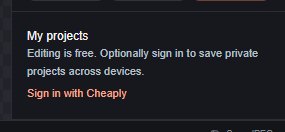
#Sign in
- Click the Guest editor button at the top right, or open More panels > Projects in the properties sidebar.
- Choose Sign in with Cheaply and follow the sign-in steps on the Cheaply site.
- Back in the editor, the account button shows your name.
If the account service cannot be reached, the account button says Sign-in unavailable · local only. You can keep editing; your work is still saved on this device. Use Try again in the account menu later.
#Save to the cloud
- Open More panels > Projects.
- Click Save to my projects. The message under the button confirms when the cloud copy is saved.
Your local draft keeps autosaving as before, but the cloud copy does not update by itself. After further edits:
- Update cloud project replaces the cloud copy with your current document.
- Save as new cloud project saves a separate cloud copy and keeps the old one.
#Open a cloud project
- Click your account button and choose My projects, or follow View my projects in the Projects panel. This opens your library on the PixelForge home page.
- Click Continue editing on a project. It opens in the editor as a local draft linked to that cloud project.
Refresh projects reloads the list. Remove deletes a project from your cloud library after you confirm; drafts on your devices are kept.
#When the cloud copy changed elsewhere
If you edited the same cloud project on another device, Update cloud project reports a conflict instead of overwriting it. Choose:
- Save as new cloud project to keep both versions, or
- Reload latest cloud copy to replace your current edits with the cloud version (after you confirm).
#Limits and what is stored
- Up to 30 projects, each up to 16 MB. Large documents may be too big for the cloud; keep a project file instead.
- A cloud project contains the same editable document as a project file. The File > File Info / Privacy… title, description and author are not uploaded, and audio annotations stay on the device.
- Cloud save and the project library need an internet connection.
Still stuck? See Troubleshooting or report a problem.