
Find and select layers
Select one or several layers in the list or on the canvas, filter the list with Find layers, and show only the selected layers with Isolate.
Most layer commands work on the selected layers. You can select layers in the Layers panel, pick them on the canvas, or search for them by name, type or state.
#Select layers in the list
- One layer: click its row.
- A range: click the first layer, then Shift-click the last one.
- Add or remove one layer: Ctrl-click its row (⌘-click on Mac).
- All layers: click Select all layers under the list, or choose Select > All Layers.
- No layers: click Deselect layers, or choose Select > Deselect Layers.
The selection bar under the layer actions shows how many layers are selected. The layer you clicked last is the active layer: commands that work on one layer, such as painting or Layer name, use it.
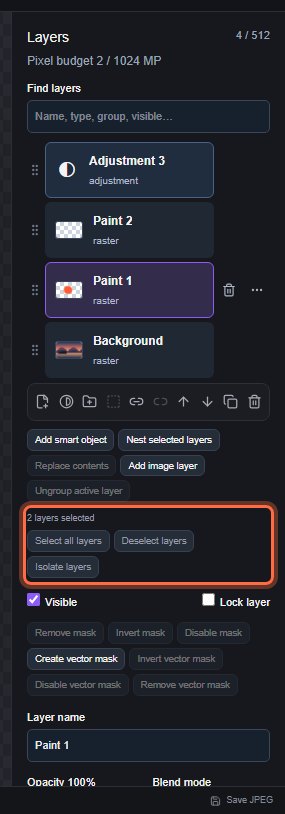
With several layers selected, you can duplicate, delete, group, arrange, align, lock, link or merge them together. Each of these is one undo step.
#Select a layer on the canvas
With the Move tool, right-click the canvas (or long-press it on a touch screen) to select the topmost layer that has visible pixels under the pointer, without moving anything. Turn on Auto-select layer in the Move tool options to pick the layer under the pointer each time you start a drag. Adjustment layers have no pixels, so they are never picked this way. See Move and align.
#Find layers
The Find layers field above the layer list filters the list as you type. Choose Select > Find Layers (Alt+Shift+Ctrl+F) to jump to it.
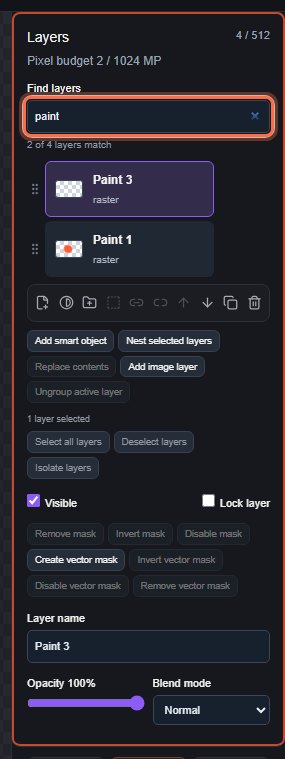
You can search for:
- part of a layer name, for example
sky; - a layer type, for example
text,rasteroradjustment; - part of a folder name;
- a state:
visible,hidden,lockedorunlocked.
Combine words to narrow the result: hidden text finds hidden text layers. The field shows how many layers match, and a folder stays in the list when one of its layers matches. Searching never changes which layers are selected. Clear the field to see every layer again.
#Isolate layers
Isolate layers (under the list) or Select > Isolate Layers shows only the selected layers and hides all others, so you can check them on their own. It changes each layer's Visible setting, so press Ctrl+Z to show the other layers again.
Still stuck? See Troubleshooting or report a problem.