
Fill areas with the Fill tool (paint bucket)
Click an area of similar colour to fill it with the foreground colour, using Color tolerance, Contiguous and Sample All Layers.
The Fill tool, often called the paint bucket, fills an area of similar colour with the foreground colour in one click.
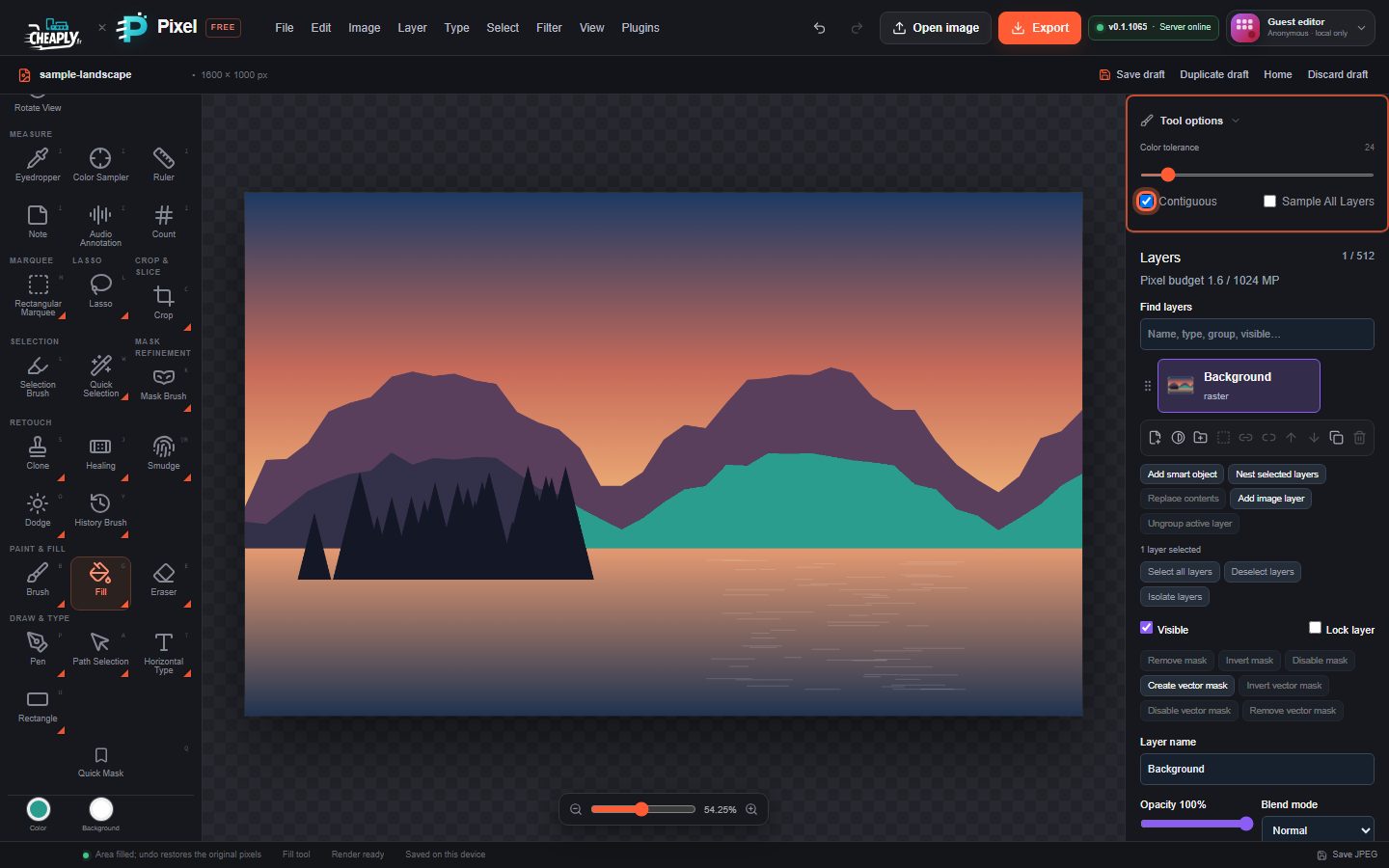
#Fill an area
- Choose Fill from the Gradient flyout in the Paint & Fill group, or press G until it is selected.
- Set the Color well to the fill colour.
- Click the area you want to fill.
#Options
| Option | What it does |
|---|---|
| Color tolerance | How different a pixel can be from the clicked pixel and still be filled, from 0 to 255. Each colour channel is compared separately. |
| Contiguous | On (default): fill only the matching area connected to the click. Off: fill every matching pixel on the layer. |
| Sample All Layers | Decide what matches by looking at the whole visible image instead of the active layer. The fill is still painted only into the active layer. |
The fill has a hard edge (no anti-aliasing). If nothing matches, the editor shows "No contiguous pixels matched at that point" (or "No pixels matched that colour" with Contiguous off).
#Fill a selection
With an active selection, the Fill tool only fills inside it; a click outside does nothing and shows "Click inside the selection to fill".
To fill a whole selection or layer regardless of colour, use:
- Edit > Fill with Foreground Color (Alt+Backspace)
- Edit > Fill with Background Color (Ctrl+Backspace)
- Edit > Fill… (Shift+F5) for black, white, grey, any colour or a pattern, with a blend mode and opacity.
See Fill a selection.
Still stuck? See Troubleshooting or report a problem.