
Choose colours and use the Eyedropper
Set the foreground and background colours, swap or reset them, and pick colours from the image with the Eyedropper tool.
PixelForge uses two colours for painting: the foreground colour, which the Brush, Pencil, Fill and most other tools paint with, and the background colour, used by gradients, pattern tiles and the Eraser on a Background layer.
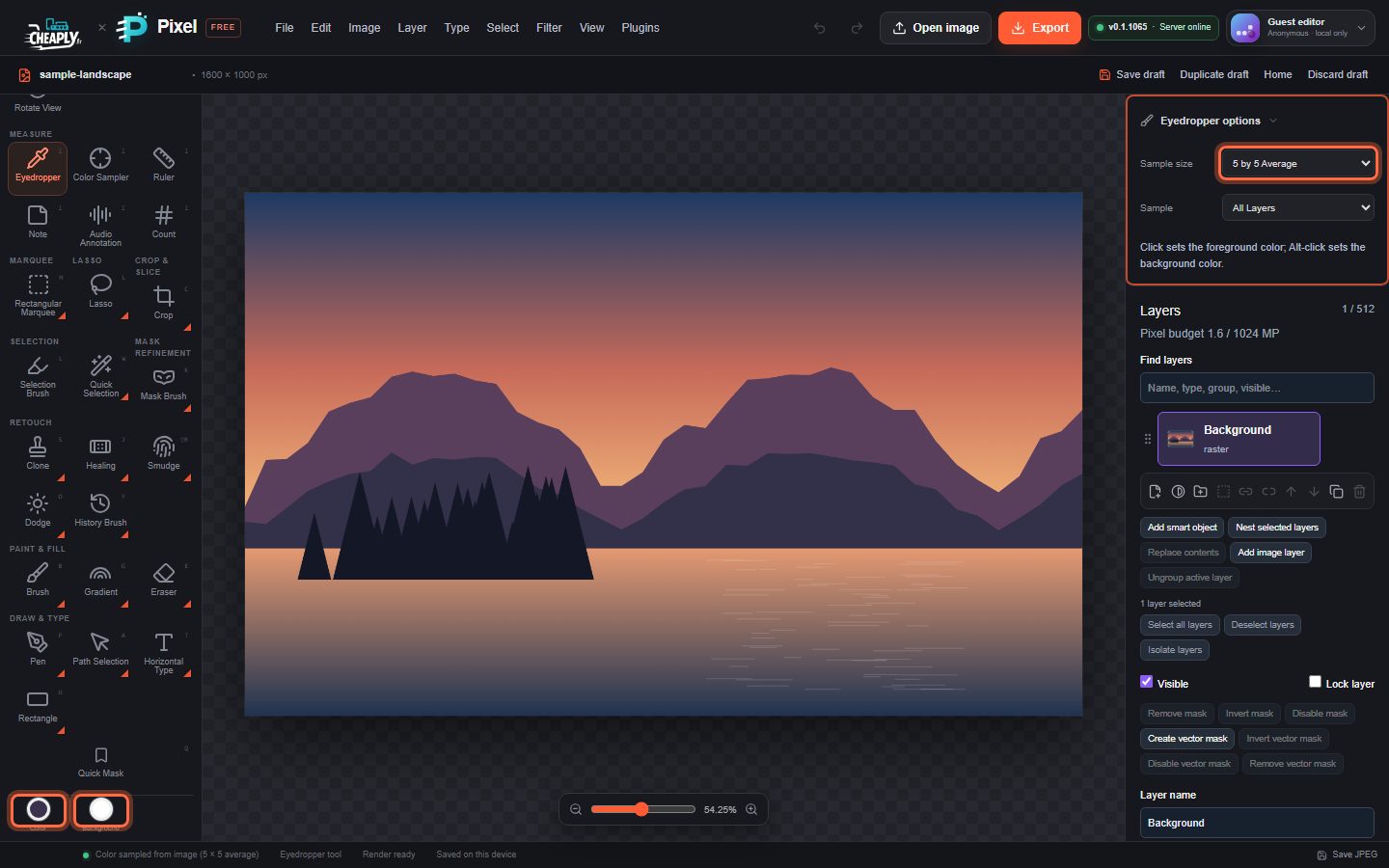
#Set the colours
The two colour wells sit at the bottom of the toolbar:
- Color is the foreground colour.
- Background is the background colour.
Click a well to open your browser's colour picker, then choose a colour or type a hex value. The picker's look depends on your browser and operating system.
| Shortcut | What it does |
|---|---|
| X | Swap the foreground and background colours. |
| D | Reset to a black foreground and a white background. |
#Pick a colour from the image
- Choose the Eyedropper in the Measure group of the toolbar, or press I.
- Click the canvas to set the foreground colour.
- Alt+click to set the background colour instead.
The status bar confirms the sampled colour, for example "Color sampled from image (5 × 5 average)".
#Eyedropper options
| Option | What it does |
|---|---|
| Sample size | Point Sample reads one pixel. 3 by 3 Average up to 101 by 101 Average average a square of pixels around the click, which avoids picking up noise or a single odd pixel. |
| Sample | All Layers reads the visible image. Current Layer reads only the active layer, ignoring layers above and below. |
Clicking a transparent spot picks nothing and shows "No visible pixel to sample".
#Colours in other tools
- The Gradient tool goes from the foreground colour to transparency or to the background colour.
- The Pattern Stamp and pattern fills draw their built-in patterns in the foreground colour over the background colour.
- Color Replace with Background Swatch sampling replaces colours that match the background colour.
- The Brush and Pencil can vary each dab's colour with colour dynamics.
Still stuck? See Troubleshooting or report a problem.