
Fix red eyes with the Red Eye tool
Click or paint over red pupils to neutralise strongly red pixels, with Red threshold and Correction amount.
The Red Eye tool removes the red glow that a camera flash can leave in pupils. It darkens pixels that are clearly red, inside the area you click or paint, and leaves everything else unchanged.
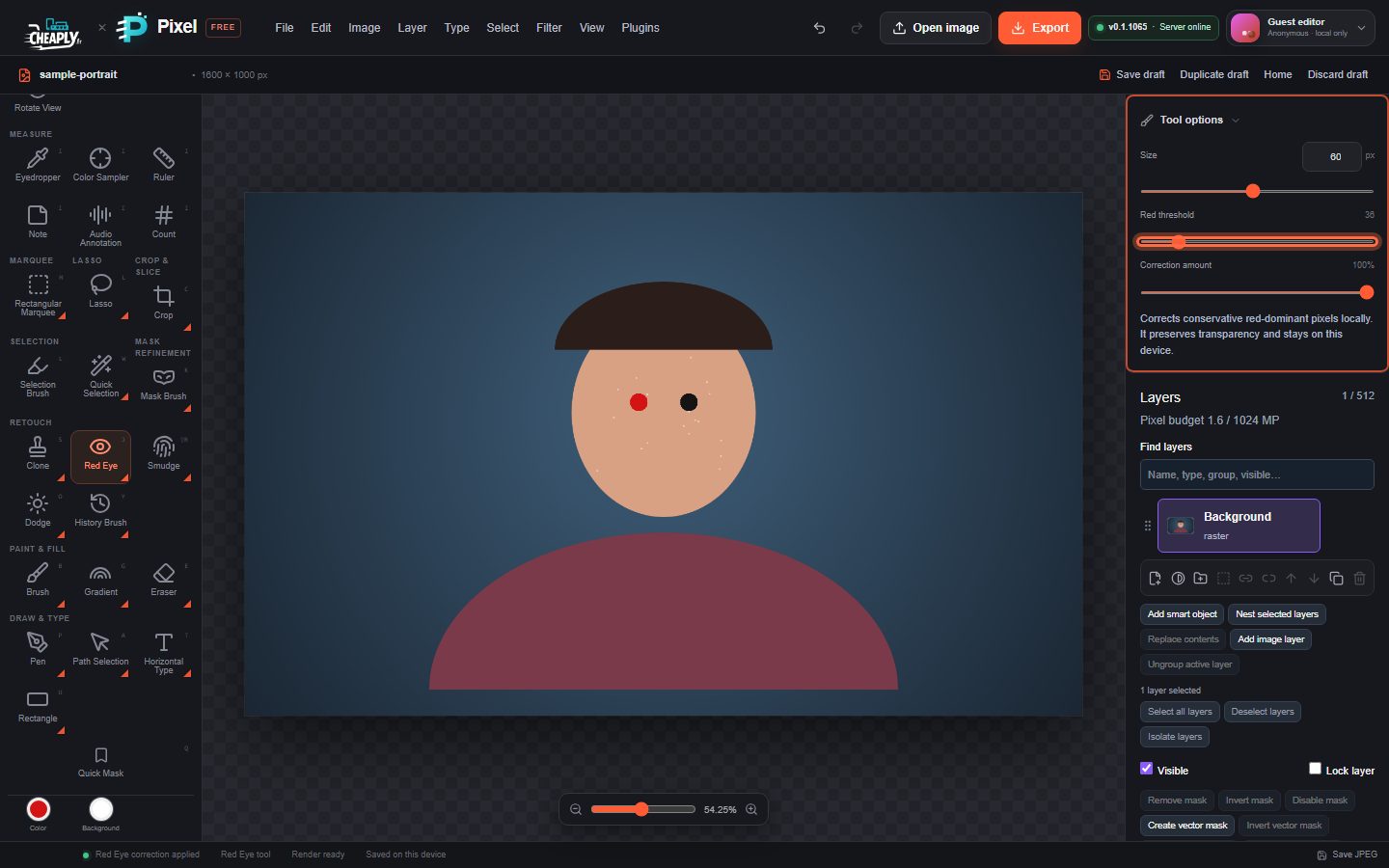
#Fix red eyes
- Zoom in on the eyes.
- Choose Red Eye: press and hold (or right-click) the Healing button in the Retouch group, or press J until it is selected.
- Set Size a little larger than the pupil.
- Click the centre of each red pupil, or paint over it.
If nothing under the brush is red enough, the editor shows "No red-eye pixels found under the brush" and nothing changes.
#Options
| Option | What it does |
|---|---|
| Red threshold | How much stronger red must be than green and blue for a pixel to count as red-eye. Lower values catch more pinkish pixels; higher values change only strong red. |
| Correction amount | How far red pixels are pulled towards a neutral dark colour. 100% removes the red completely. |
The correction has a soft edge towards the outside of the brush. Transparency is kept.
#Good to know
- The tool does not detect faces or eyes. It corrects any strongly red pixels under the brush, so keep the brush on the pupil to avoid changing red lips or clothing.
- With an active selection, only pixels inside it change.
- Each click or stroke is one undo step.
- Everything runs on your device; the image is not uploaded.
Still stuck? See Troubleshooting or report a problem.