
Light Rays
Add sun rays, god rays or a starburst with Filter > Render > Light Rays…, and use the on-canvas guide to see exactly where the rays start, end and fade.
Filter > Render > Light Rays… draws rays of light fanning out from a point: soft sunbeams, sharp starburst spikes, or streaks of the bright parts of your own picture. It is a live filter, so every setting stays editable. It is a drawing effect, not a physical light simulation.
#Add light rays
- Select the layer to add rays to. For the most flexible result, add a new empty layer above your picture; new Light Rays render on transparent pixels, so they show up on an empty layer.
- Choose Filter > Render > Light Rays….
- Open the Filters panel. The Light rays settings are in Filter effects.
- Drag the crosshair on the canvas to the light source, for example the sun. For an exact position, type it in Filter center X (px) and Filter center Y (px).
- Adjust the rays while watching the guide on the canvas.
#The ray extent guide
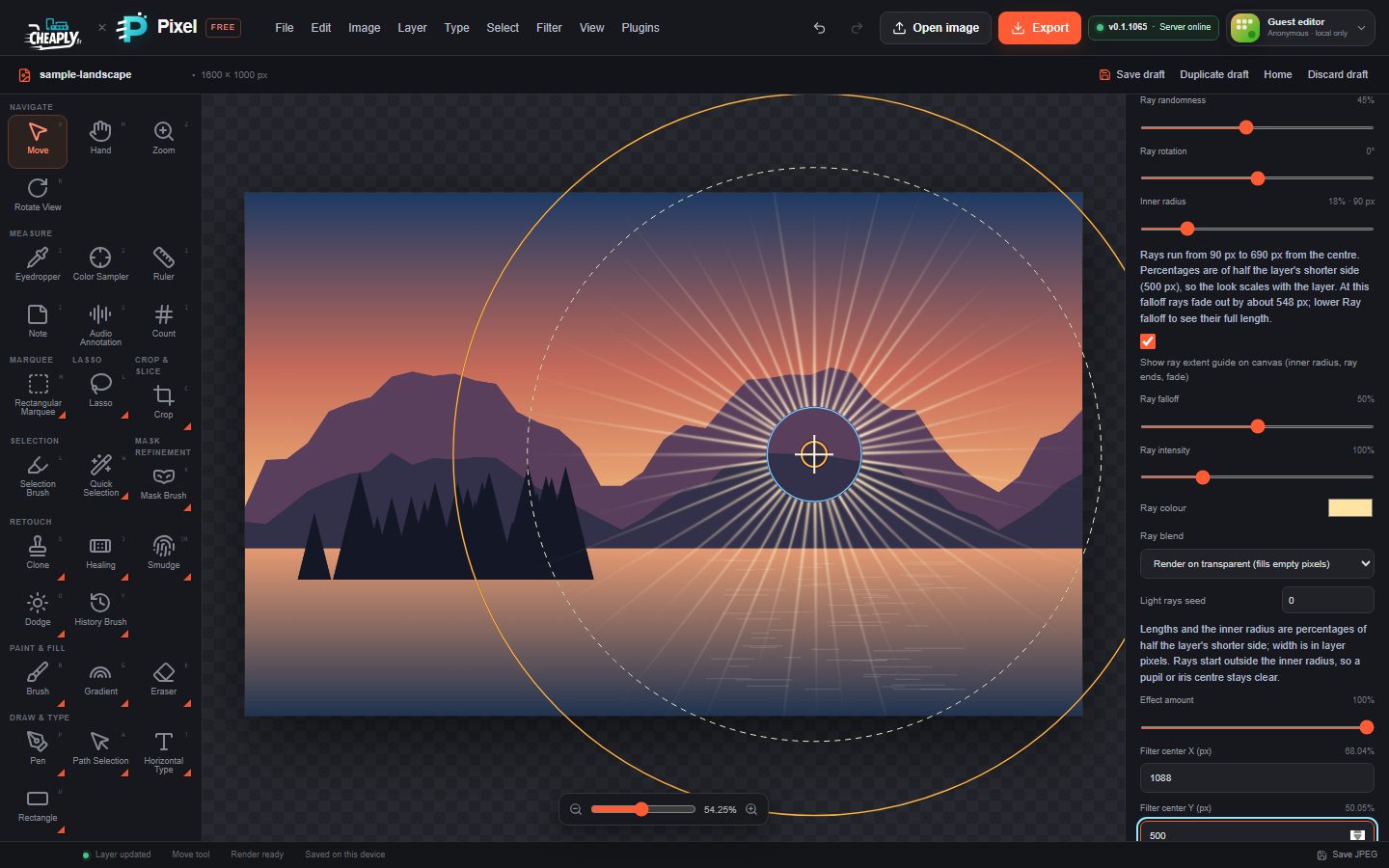
While the Filters panel shows a Light Rays filter, three circles are drawn around the centre:
| Circle | Meaning |
|---|---|
| Blue | The Inner radius: rays start outside it. |
| Amber | Where the rays end: inner radius plus Ray length. |
| Dashed | Where generated rays fade below about 5 % brightness with the current Ray falloff. It is drawn only when it differs from the amber circle. |
The guide follows zoom, pan, view rotation and layer transforms, and updates live as you move sliders. It is only a guide: it is never drawn into your picture, exports or saved documents. Untick Show ray extent guide on canvas (inner radius, ray ends, fade) to hide it; it also disappears when you close the panel.
Below the Inner radius slider, a note gives the same distances in pixels, for example "Rays run from 90 px to 690 px from the centre", and tells you when the falloff makes rays fade before their full length.
#Options
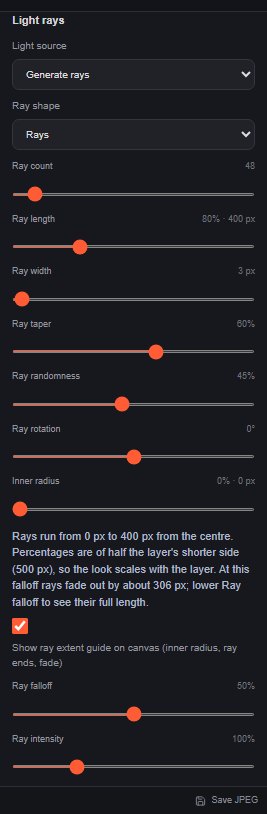
Lengths and the inner radius are percentages of half the layer's shorter side, so the look scales with the layer. The pixel equivalent is shown next to those sliders.
| Option | Range | Default | What it does |
|---|---|---|---|
| Light source | Generate rays, Streak bright pixels | Generate rays | Generate rays draws new rays. Streak bright pixels streaks the layer's own bright areas outwards from the centre. |
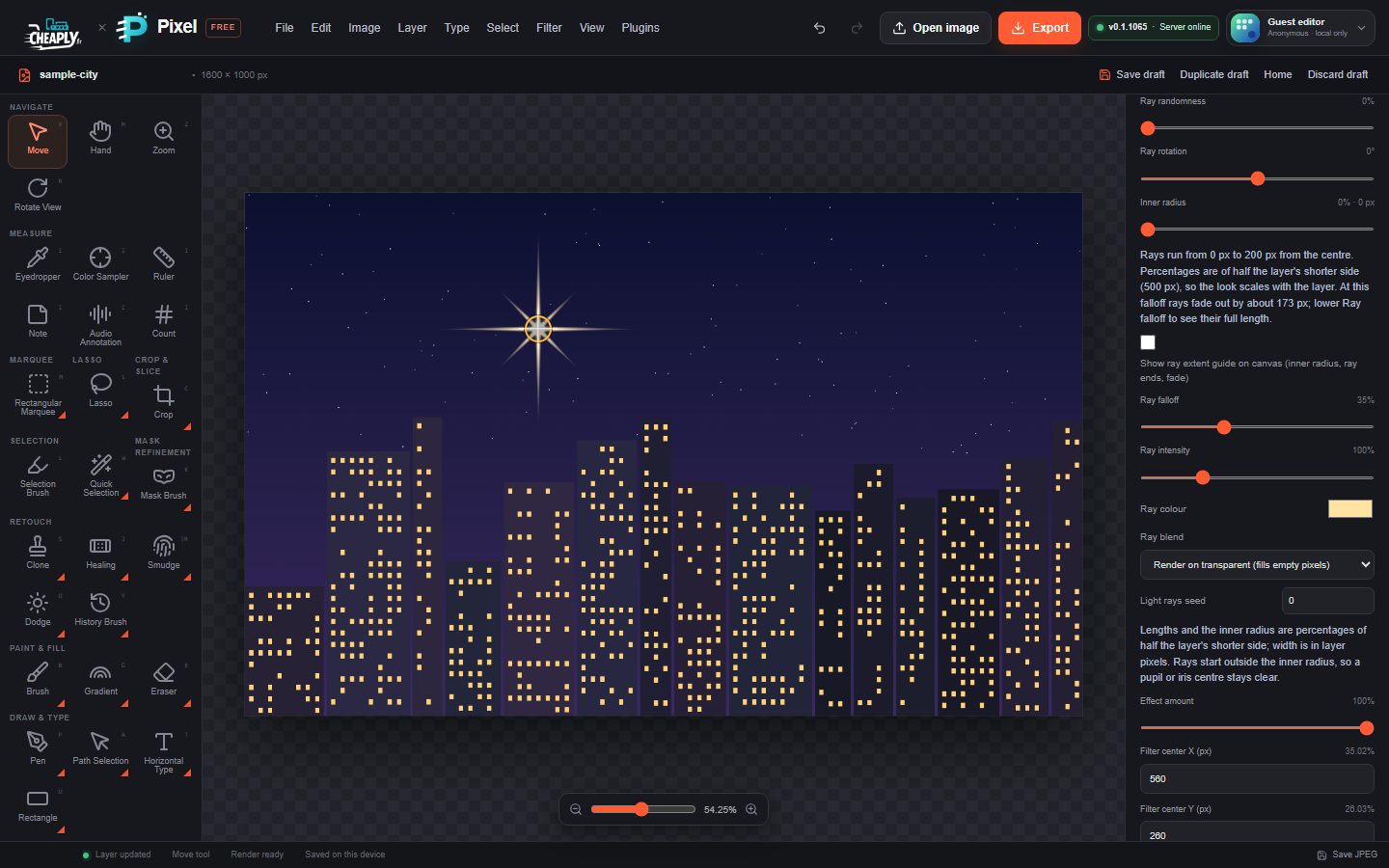
| Ray shape | Rays, Starburst (sharp spikes) | Rays | Starburst draws pointed spikes with a glowing core. Choosing it sets 8 spikes, 40 % length, 4 px width, 0 % randomness and 35 % falloff as a starting point. Not shown for Streak bright pixels. |
| Ray count | 2–720 | 48 | Number of rays or spikes. With Streak bright pixels it is called Streak variation cells and sets how many brightness variations there are around the circle. |
| Ray length | 1–300 % | 80 % | How far rays reach beyond the inner radius. Called Streak length for Streak bright pixels. |
| Ray width | 0.5–256 px | 3 px | Half-width of each ray at its base, in layer pixels. Generate rays only. |
| Ray taper | 0–100 % | 60 % | How much rays narrow towards the tip. Rays shape only; starburst spikes always end in a point. |
| Ray randomness | 0–100 % | 45 % | Varies each ray's angle, length, width and brightness. |
| Ray rotation | −180° to 180° | 0° | Turns the whole fan of rays. |
| Inner radius | 0–100 % | 0 % | Keeps a clear circle around the centre, for example the sun's disc or the pupil of an eye. |
| Ray falloff | 0–100 % | 50 % | How quickly rays fade towards their tips. Lower it to see the full length. |
| Ray intensity | 0–400 % | 100 % | Brightness of the light. |
| Bright threshold | 0–254 | 170 | Streak bright pixels only: pixels at or below this brightness level do not streak. |
| Ray colour | any colour | pale gold | Colour of the light. With Streak bright pixels it tints the streaks. |
| Ray blend | Screen over the layer, Add over the layer, Render on transparent (fills empty pixels) | Render on transparent | How the light is combined with the layer. Screen gives a soft result, Add a brighter, harsher one. Both leave transparent pixels empty. Render on transparent also lets light fill empty pixels; on opaque pixels it looks like Screen. |
| Light rays seed | 0–4294967295 | 0 | Picks a different random variation. |
| Effect amount | 0–100 % | 100 % | Overall mix of the effect. |
#Tips
- For sunbeams through trees or clouds, use Streak bright pixels on a copy of the photo: only the bright gaps produce rays. Raise Bright threshold if too much of the picture streaks.
- For a sparkle on a highlight, use Starburst, a small Ray length and an Inner radius of 0 %.
- Light Rays can be stacked with other filters and edited later; see Smart filters and filter stacks.
Still stuck? See Troubleshooting or report a problem.