
Select by colour with Quick Selection and Magic Wand
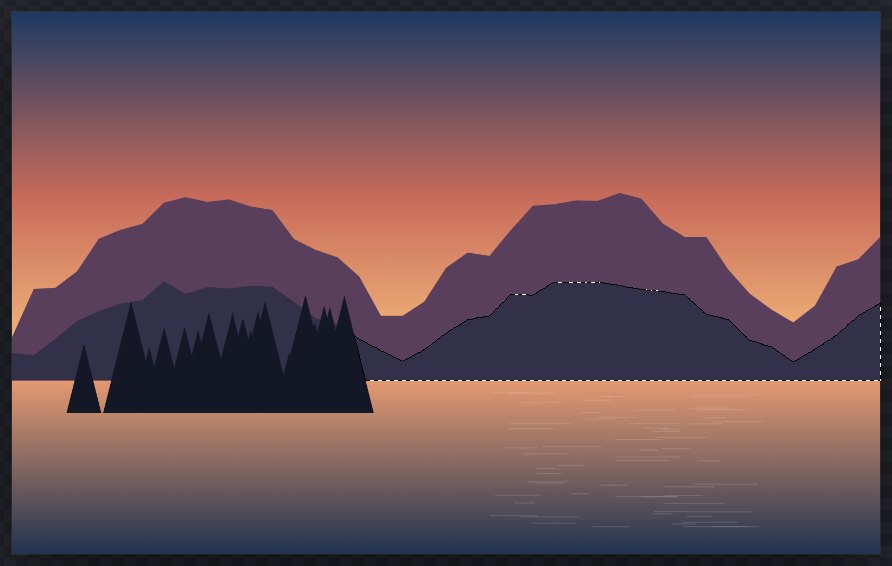
Brush over an area with Quick Selection, or click once with Magic Wand, to select connected pixels of similar colour.
Quick Selection and Magic Wand select pixels whose colour is close to the colour you click or brush over. They share a toolbar button in the Selection group; press and hold it, or right-click it, to switch. Press W repeatedly to step through Selection Brush, Quick Selection and Magic Wand.
Both tools compare colours only. They do not recognise objects, so they work best on areas with clear colour edges.
#Magic Wand
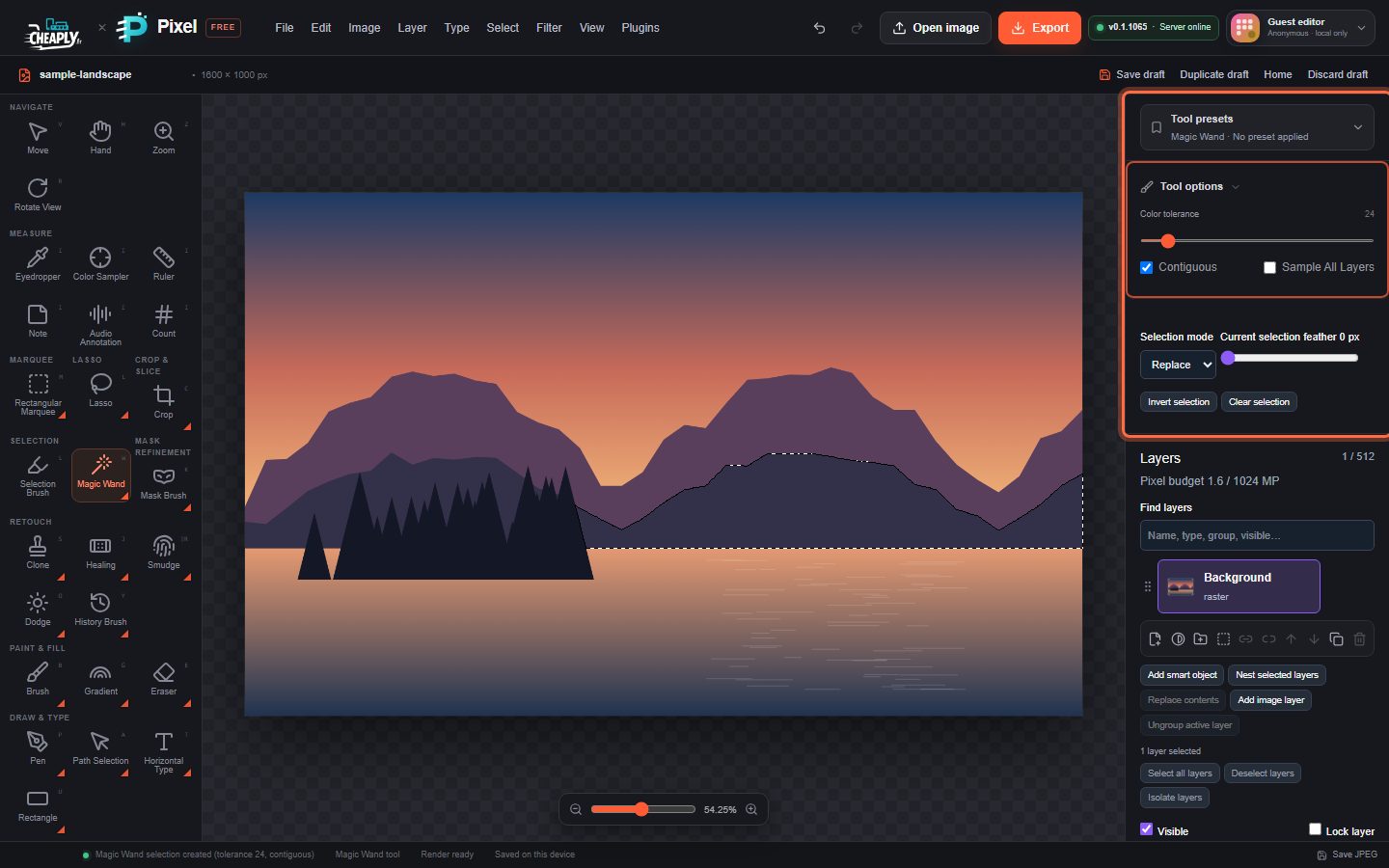
- Choose Magic Wand.
- Set Color tolerance and the other options (below).
- Click the colour you want to select.
| Option | What it does |
|---|---|
| Color tolerance | How far (0–255 per channel) a pixel's colour may differ from the clicked pixel and still be selected. Default 24. This setting is shared with Quick Selection, Fill, Color Replace and the erasers. |
| Contiguous | On (default): select only matching pixels connected to the click. Off: select every matching pixel in the image. |
| Sample All Layers | Off (default): look at the active layer only. On: look at all visible layers combined. |
Magic Wand edges are hard pixel edges, with no anti-aliasing. To soften them, use Current selection feather or Select > Feather… (see Modify selections).
#Quick Selection
- Choose Quick Selection.
- Set Size and Color tolerance.
- Paint over the area you want. The selection grows from the pixels under your stroke into connected pixels of similar colour, and stops at strong colour edges.
- To extend or trim the result, set Selection mode to Add or Subtract and paint again.
Quick Selection looks at all visible layers combined. Its Opacity sets how strongly the grown area is selected; leave it at 100% for a full selection. Press Esc during a stroke to cancel it. Quick Selection works with a mouse, a pen or touch.
#Which one to use
- Magic Wand for flat colour areas: a plain sky, a studio backdrop, a logo.
- Quick Selection when you want to steer the result with a few brush strokes.
- Color Range when the colour appears in many places and you want a soft-edged result.
Still stuck? See Troubleshooting or report a problem.