
Scale, rotate and skew a layer with Free Transform
Move, scale, rotate, skew or flip the active layer with exact numbers using Edit > Free Transform, and use the quick Transform rotate and flip commands.
Edit > Free Transform (Ctrl+T) changes the position, size, angle and slant of the active layer. You type exact values in a dialog; the change is applied around the centre of the layer's visible content.
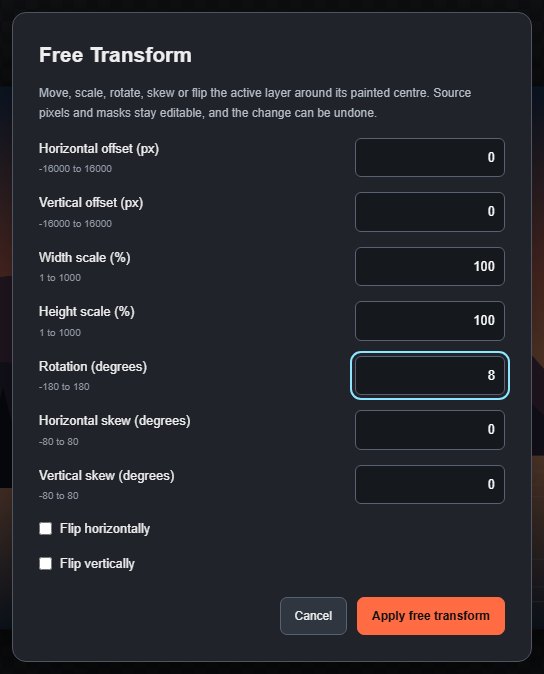
#Transform a layer
- Select the layer. It must be unlocked.
- Choose Edit > Free Transform or press Ctrl+T.
- Enter the values you need:
| Field | Range |
|---|---|
| Horizontal offset (px), Vertical offset (px) | −16,000 to 16,000 |
| Width scale (%), Height scale (%) | 1 to 1,000 |
| Rotation (degrees) | −180 to 180 |
| Horizontal skew (degrees), Vertical skew (degrees) | −80 to 80 |
| Flip horizontally, Flip vertically | On or off |
- Click Apply free transform.
Free Transform is non-destructive: the layer keeps its original pixels and stores the transform, so you can transform again later without losing quality from repeated resampling. Masks stay editable, and the change is one undo step.
#Quick rotate and flip
The Edit menu also has one-click transforms for the active layer:
- Transform → Rotate 90° Clockwise
- Transform → Rotate 90° Counterclockwise
- Transform → Rotate 180°
- Transform → Flip Horizontal
- Transform → Flip Vertical
To rotate or flip the whole document instead, see Rotate and flip.
#Related transforms
- Transform Selection changes the selection outline, not pixels.
- Perspective Warp and Puppet Warp bend a layer's pixels.
- Content-Aware Scale scales part of a layer.
Still stuck? See Troubleshooting or report a problem.