
Audio notes
Pin short voice recordings or audio clips to points on the canvas with the Audio Annotation tool, play them back, move them and delete them.
The Audio Annotation tool pins a short sound clip to a spot on the canvas: a spoken comment for a collaborator, a reminder of what still needs fixing, or a reference recording. Audio notes are never part of the image itself.
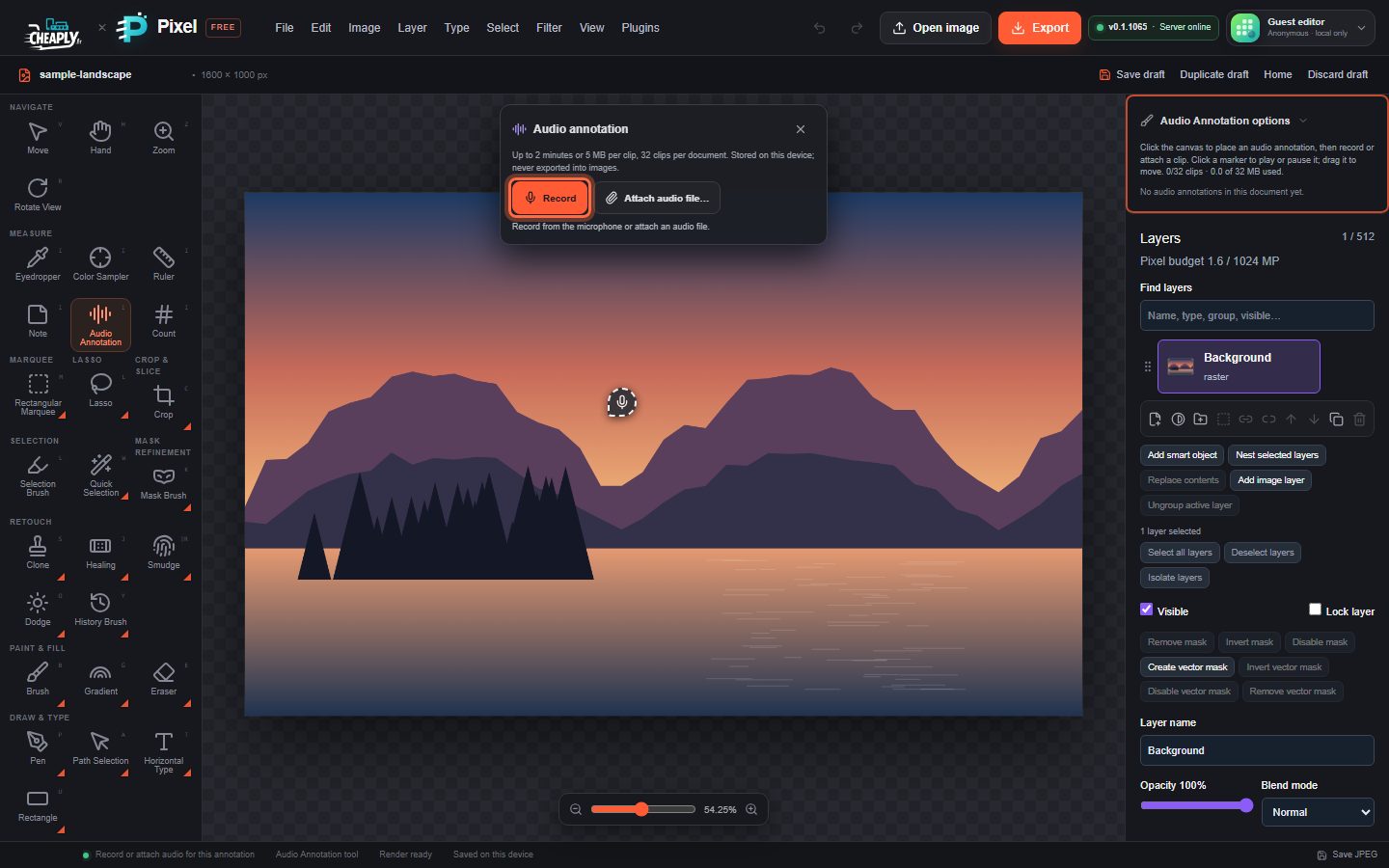
#Add an audio note
- Choose Audio Annotation in the Measure group of the toolbar, or press I until it is selected.
- Click the canvas where the note should go. A dashed marker appears with the Audio annotation panel.
- Do one of the following:
- Click Record. Your browser asks for permission to use the microphone the first time. Click Stop when you are done. Recording stops on its own after 2 minutes.
- Click Attach audio file… and choose a sound file (for example WebM, Ogg, MP4/M4A, MP3, WAV, AAC or FLAC).
The note is added when the clip is captured. Press Esc, click ✕ or change tool to cancel without adding anything.
The microphone is used only after you click Record. If there is no microphone, or you deny permission, the panel tells you and you can attach a file instead.
#Play, move and delete
With the Audio Annotation tool active:
- Click a marker to play it; click again to pause.
- Drag a marker to move it.
- Focus a marker with Tab, then use the arrow keys to nudge it by 1 px (10 px with Shift), or press Delete to remove it.
The tool's options in the sidebar list every audio note in the document with play/pause and delete buttons, and show how much of the audio allowance you have used.
Adding, moving and deleting notes are normal history steps, so you can undo them. With other tools active, markers stay visible but cannot be clicked, so they never get in the way of painting or selecting.
#Limits
| Limit | Value |
|---|---|
| Clip length | Up to 2 minutes |
| Clip size | 5 MB |
| Clips per document | 32 |
| Audio per document | 32 MB |
#Where audio notes are kept
- Audio notes are saved in your draft in this browser and in downloaded project files.
- They are never included in exported images (PNG, JPEG, WebP, PSD, PDF and others), in merged or flattened layers, or in copies.
- If you save the document to your cloud projects, audio notes are removed from the cloud copy. Voice recordings stay on your device.
For text notes on the canvas, see Measure, count and add notes.
Still stuck? See Troubleshooting or report a problem.