
Refine edges with Select and Mask and Quick Mask
Smooth and feather a selection edge with Select > Select and Mask…, and paint a selection as a red overlay in Quick Mask mode.
Two tools help you clean up a selection's edge: Select and Mask… applies a smoothing and feather in one step, and Quick Mask lets you paint the selection directly, seeing it as a coloured overlay.
#Select and Mask
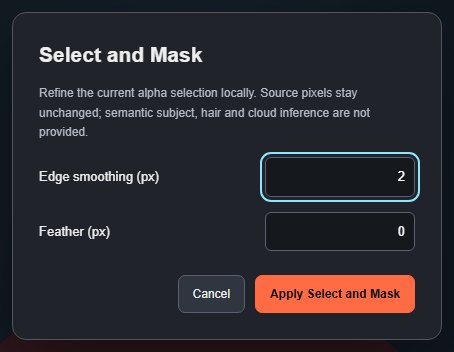
- Make a selection.
- Choose Select > Select and Mask….
- Set Edge smoothing (px), a whole number from 0 to 64. It averages the edge to remove jaggies and small notches (default 2).
- Set Feather (px), from 0 to 1,000; decimals are allowed (default 0).
- Click Apply Select and Mask.
The result replaces the current selection and is one undo step. The feather stays editable afterwards with Current selection feather or Select > Feather….
#Quick Mask mode
Quick Mask shows the selection as a mask: unselected areas are covered in translucent red, selected areas are clear. You then paint to change it.
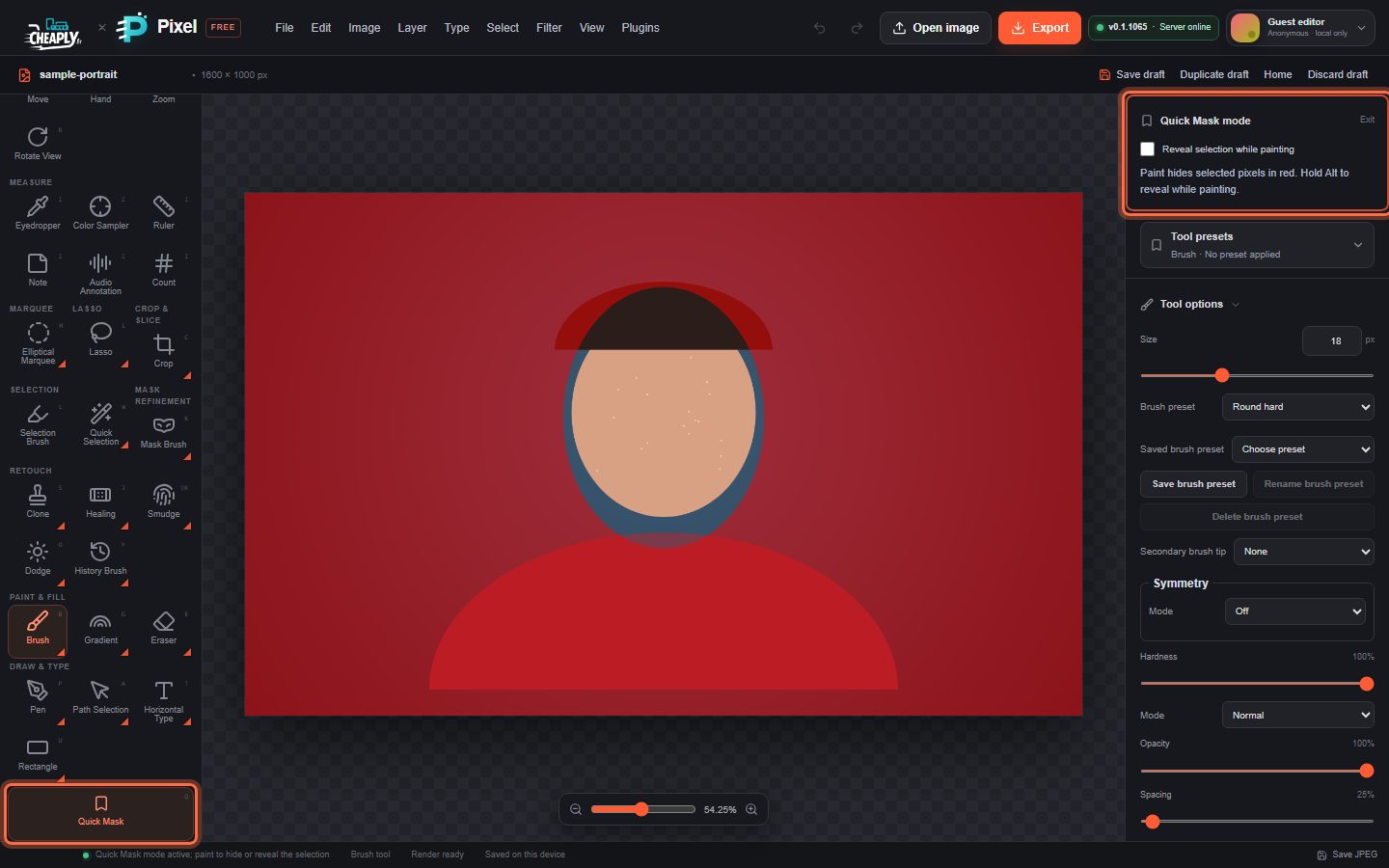
- Optionally make a rough selection first. Without one, Quick Mask starts with the whole image selected (no red), and you paint away what you do not want.
- Press Q, click Quick Mask at the bottom of the toolbar, or choose Select > Edit in Quick Mask Mode. The Brush tool is selected.
- Paint to hide selected pixels (they turn red). Hold Alt while painting, or tick Reveal selection while painting, to paint selection back in.
- The brush Size, Hardness and Opacity apply; a soft or partly opaque brush makes a partly selected edge.
- Leave Quick Mask by pressing Q or Esc, clicking Exit in the Quick Mask mode section, or choosing Select > Edit in Quick Mask Mode again. The painted mask becomes the selection.
While Quick Mask is on, the marching ants are hidden, and most document changes (layer edits, transforms, resizing, opening images) are blocked until you exit. Press Esc during a stroke to cancel just that stroke.
Still stuck? See Troubleshooting or report a problem.