
Layer types
Understand the kinds of layers in PixelForge, from image and paint layers to text, shapes, fill, adjustment and smart object layers, and when to rasterize one.
Every row in the Layers panel shows the layer's type under its name. The type decides what you can do with the layer: you paint on pixel layers, edit the words of a text layer, and change the settings of an adjustment layer.
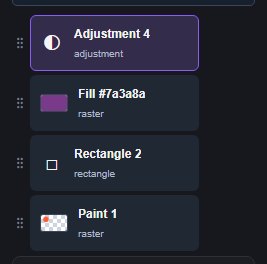
#Types of layer
| Type shown | What it is | How you make one |
|---|---|---|
| raster | Pixels. Image layers, paint layers and solid fill layers are all raster layers. | Open or place an image, click Add paint layer, or choose Layer > New Fill Layer…. |
| text | Editable type. | Click on the canvas with a Type tool. See Add text. |
| rectangle, ellipse, line, polygon | Editable vector shapes with fill and stroke settings. | Drag with a shape tool. See Shape tools. |
| path | An editable vector path, such as a custom shape or a path you drew. | Use the Pen tools or Custom Shape. See Pen tools. |
| adjustment | Adjustment settings with no pixels of its own. It corrects the layers below it. | Click Add adjustment layer. See Adjustment layers. |
| smart-object | An embedded image or a group of nested layers that you can transform without changing the original. | Click Add smart object or Nest selected layers. See Smart objects. |
#Image and paint layers
When you open an image, it becomes one raster layer named "Background". A new paint layer starts empty and grows as you paint on it, so an empty paint layer uses almost none of the pixel budget.
A document made with a white or coloured background (for example File > New white document) starts with a true Background layer. Its position is locked, and the Eraser paints the background colour on it instead of making pixels transparent. The Layers panel says so when the layer is selected. To turn it into a normal layer, choose Layer > Layer from Background or rename it.
#Solid fill layers
Layer > New Fill Layer… opens the New Solid Fill Layer dialog. Pick a Fill colour and click Create Fill Layer. The layer covers the whole canvas with that colour. You can change the colour later with the Fill colour field in the Layers panel, and use its opacity, blend mode and masks like any other layer.
#Rasterize a layer
Painting tools only work on raster layers. If you try to paint on a text, shape or path layer, PixelForge asks you to add a paint layer or rasterize the layer first.
To rasterize, select the layer and click Rasterize layer at the bottom of the Layers panel, or choose Layer > Rasterize (for type, also Type > Rasterize Type Layer). The layer keeps its name, position in the stack, opacity, blend mode, folder and clipping. Filters, adjustments and masks on it are baked into the new pixels; layer styles stay editable.
#Limits
A document holds at most 512 layers. Image and paint layers share a pixel budget that depends on your device. See Large documents.
Still stuck? See Troubleshooting or report a problem.