
Group layers in folders
Put layers into folders to organise the stack, then show, hide, lock, fade or blend a whole folder at once.
A folder (also called a group) holds related layers together. You can collapse it to keep the list short, move it as one block, and set visibility, lock, opacity and blend mode for all its layers at once.
#Create a folder
- Select the layers to group (see Find and select layers).
- Press Ctrl+G (⌘+G on Mac), choose Layer > Group Layers, click Group active layer under the layer list, or choose Group into Folder in the row menu.
The new folder is named "Group 1" (or the next number). Folders cannot contain other folders: layers that are already in a folder cannot be grouped again until you take them out. Locked layers must be unlocked first. A document can have up to 128 folders.
#Folder controls
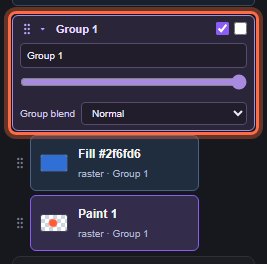
The folder row sits above its layers in the list:
| Control | What it does |
|---|---|
| ▾ / ▸ and the name | Click to collapse or expand the folder. |
| First checkbox | Shows or hides every layer in the folder. |
| Second checkbox | Locks the folder. Its layers cannot be edited, moved or deleted while it is locked. |
| Name field | Renames the folder. |
| Slider | The folder's opacity. |
| Group blend | The blend mode for the folder. |
The folder is combined first, then its opacity and blend mode are applied once to the result. A folder set to Multiply therefore multiplies the combined picture of its layers with what is below, rather than each layer separately. Each layer inside keeps its own opacity and blend mode too. See Blend modes and opacity.
#Move layers in and out of folders
- Drag: drop a layer on the lower part of a folder row to put it at the top of the folder, or next to a layer in the folder to put it at that position. Drag it next to a layer outside any folder to take it out. Drag the folder row to move the whole folder.
- Layer folder list: select a layer and choose a folder (or No folder) in Layer folder in the Layer details panel under More panels.
- Ungroup: select a layer in the folder and click Ungroup active layer, or choose Layer > Ungroup Layers (Ctrl+Shift+G).
#Work with a whole folder
- Arrange commands such as Bring Forward move the whole folder when you select one of its layers.
- Layer > Merge Layers with a folder layer selected merges the complete folder into one layer. See Merge and flatten.
- With the Move tool, Distribute folder layers spaces the centres of the folder's visible, unlocked layers evenly. See Move and align.
Still stuck? See Troubleshooting or report a problem.