
Recolour areas with the Color Replace tool
Paint over a colour to replace it with the foreground colour while keeping shading, using the Color Replace tool's Mode, Sampling and Limits options.
The Color Replace tool changes the colour of the pixels you paint over, but only where they match the colour being replaced. In its default Color mode it keeps the lightness of each pixel, so shading and texture survive.
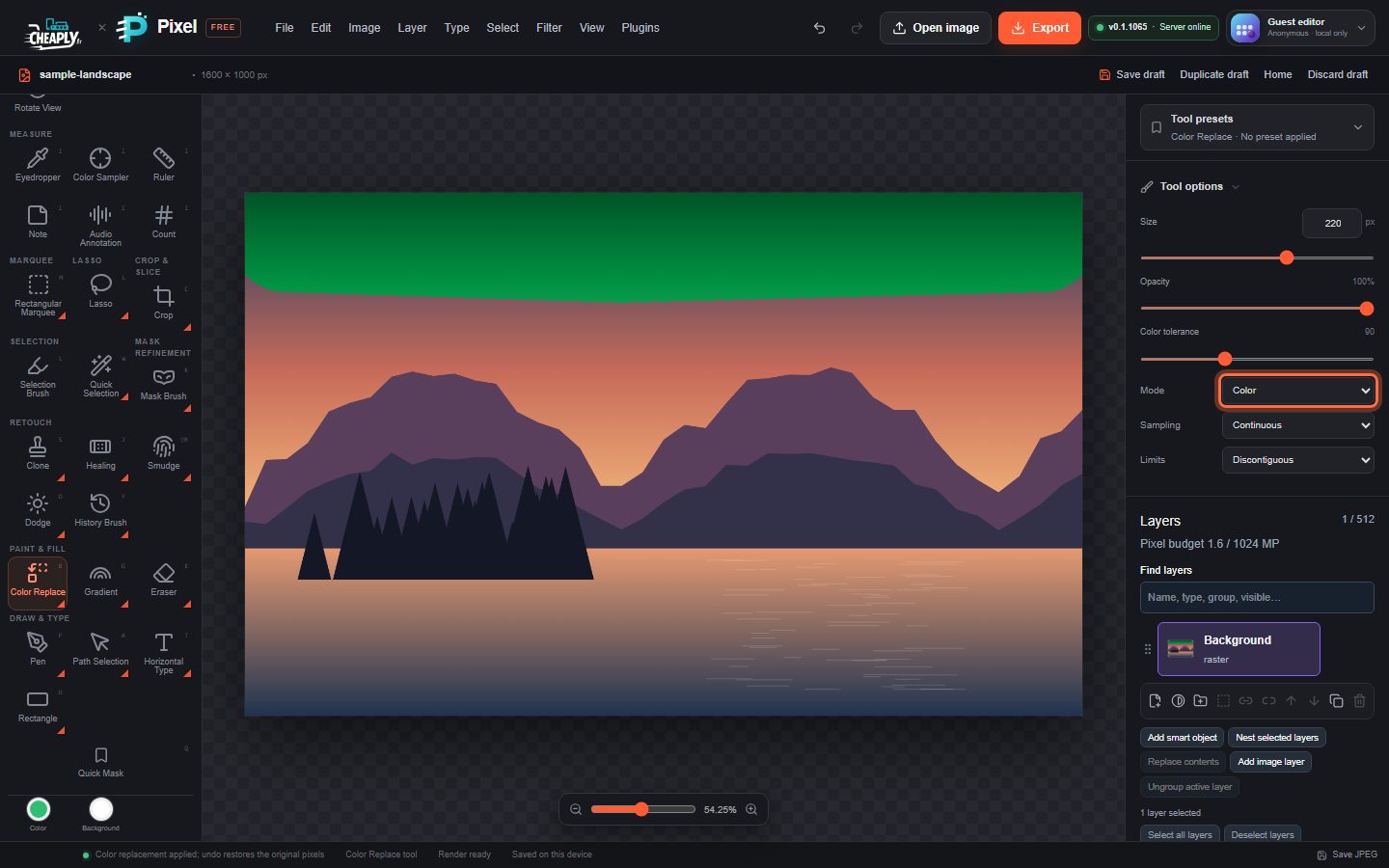
#Replace a colour
- Choose Color Replace from the Brush flyout, or press B until it is selected.
- Set the Color well to the new colour.
- Set Size and Color tolerance. Tolerance (0–255) decides how different a pixel can be from the sampled colour and still be replaced.
- Paint over the area. Pixels that do not match stay exactly as they were.
#Options
| Option | Choices |
|---|---|
| Mode | Color (default) takes the hue and saturation of the foreground colour and keeps each pixel's luminosity. Hue changes only the hue, Saturation only the saturation, Luminosity only the lightness. Normal paints the flat foreground colour. |
| Sampling | Continuous (default) samples the colour under the centre of the brush as you move. Once samples the colour where you start the stroke and keeps it. Background Swatch replaces colours that match the Background well. |
| Limits | Contiguous (default) replaces only matching pixels connected to the centre of the brush. Discontiguous replaces every matching pixel under the brush. |
| Opacity | Blends the replacement with the original colour. With a pen or touch screen, pressure also scales the opacity. |
#Good to know
- The tool compares pixels with the layer as it was when the stroke started, so going over the same area again within one stroke does not spread the change further.
- Transparency is kept: the tool never changes a pixel's alpha.
- With an active selection, only pixels inside it change.
- To recolour a whole image or colour range at once, an adjustment is usually quicker. See Hue/Saturation and Color Balance.
This is a bounded local approximation: there is no colour management or edge-aware sampling.
Still stuck? See Troubleshooting or report a problem.