
Color settings and preferences
Set the document's working colour profile with Edit > Color Settings, and see which editor preferences are kept in your browser and which travel with your documents.
#Color Settings
Edit > Color Settings… sets the working colour profile recorded with the document.
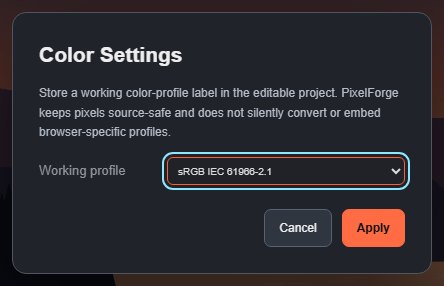
- Choose Edit > Color Settings….
- Choose a Working profile: sRGB IEC 61966-2.1 (the default) or Display P3.
- Click Apply.
The working profile is a label stored in the document. Choosing it does not change any pixels, and it can be undone. Edit > Assign Profile… sets the same label.
To actually convert the colours of the image from one profile to the other, use Edit > Convert to Profile…. See Colour modes and profiles.
#Where your preferences are kept
PixelForge saves two kinds of settings.
With the document (in the draft, and in project files):
- tool options such as brush size, shape fill and stroke, Pen mode and the font for new type;
- foreground and background colours;
- the working colour profile;
- default type styles, custom shape presets and saved path presets.
In this browser only (not in documents, not synced):
- toolbar layout and menu visibility (see Customise the menus and toolbar);
- cursor preferences from Edit > Cursors… (see Canvas cursors);
- your custom keyboard shortcuts (see Keyboard shortcuts);
- tool presets, type presets and action recipes;
- favourite and recent fonts.
Browser-only settings are kept per browser and per device. Clearing this site's data in your browser resets them to the defaults, and a private window starts with the defaults. See Browser storage and limits.
Still stuck? See Troubleshooting or report a problem.