
SVG import and export
Open or place SVG files as editable shape, path, text and group layers, and export your document as a layered SVG.
SVG is a vector format used for logos, icons and illustrations. PixelForge turns the parts of an SVG it can edit into real layers, and can save your document as an SVG with its shapes and text still editable.
#Open or place an SVG
- Open as a new document: File > Open image…, or hold Shift and drop the file on the editor. The document takes the SVG's size.
- Place into the current document: drop the file on the canvas or the Layers panel, or click Add image layer in the Layers panel. The layers are added above the selected layer.
#What becomes editable
| In the SVG | In PixelForge |
|---|---|
| Paths, rectangles (including rounded), circles, ellipses, lines, polylines and polygons | Editable path layers you can change with the Pen tools. Fill, stroke, stroke width, opacity and blend mode are kept. |
| Simple text (one style, horizontal lines) | Text layers with font, size, weight, colour, letter spacing and alignment. Several lines written as tspan rows with an even line spacing (an x with y or dy steps) become one multi-line text layer. |
| Top-level groups | Layer groups with their name and opacity (when you open the file). |
| Gradients, patterns, clip paths, masks, filters, markers, dashed strokes, embedded images, styled or italic text, text on a path, text with uneven line gaps, indented lines or individually positioned letters | Pixel layers, drawn by your browser so they look the same as in the file. |
Text uses fonts available in the browser; fonts embedded in the SVG are not loaded.
#Safety and limits
PixelForge never fetches anything when it reads an SVG. Files with scripts, external links or resources, embedded fonts or similar active content are refused, and your current document is left unchanged. An SVG must declare its size (width and height or a viewBox), be at most 16,000 pixels on a side and 16 megapixels, and be at most 8 MB. A file that would need more than 512 layers opens as a single flattened layer.
If an SVG is refused, open it in a vector editor, remove the unsupported parts (or export a plain SVG), and try again.
#Export an SVG
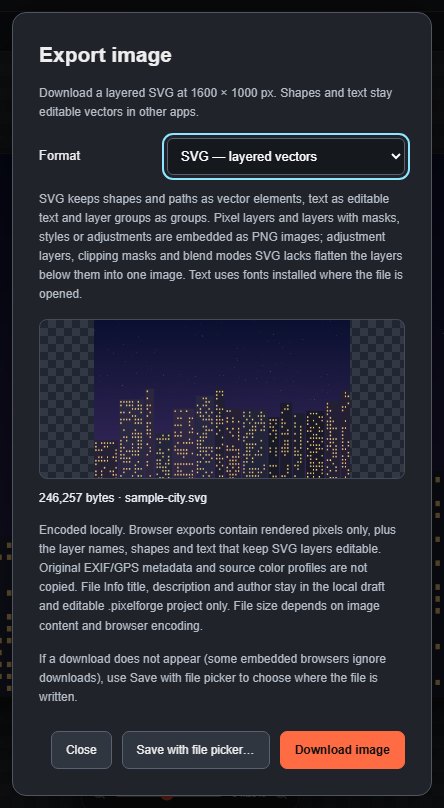
- Choose File > Export as SVG, or click Export and choose SVG — layered vectors.
- Check the preview and file size.
- Click Download image or Save with file picker….
#How layers are written
- Shape and path layers become SVG shapes, with their transform, opacity, name and blend mode.
- Text layers become SVG text that stays editable in other apps. Letter spacing is written as a
letter-spacingattribute and the text keeps its alignment, so a letter-spaced text layer still opens as a text layer in PixelForge. Fonts are referenced by name, not embedded, so the text looks right only where the font is installed. - Layer groups become SVG groups.
- Pixel layers, and layers with masks, layer styles, adjustments or smart filters, are embedded as PNG images in their place.
- Adjustment layers, clipping masks and blend modes that SVG cannot express flatten everything below them into one image.
- Hidden layers are left out.
#Copy one shape as SVG
With a shape or path layer selected, Layer > Copy SVG copies that layer as a standalone SVG to the clipboard, ready to paste into a code editor or design tool.
Still stuck? See Troubleshooting or report a problem.