
Copy pixels with the Clone and Pattern Stamp tools
Paint a copy of one part of the image onto another with the Clone tool, or paint a repeating pattern with the Pattern Stamp.
The Clone tool paints with pixels copied from another part of the image. Use it to cover unwanted objects with nearby texture, or to duplicate details. The Pattern Stamp, in the same toolbar slot, paints a repeating pattern instead.
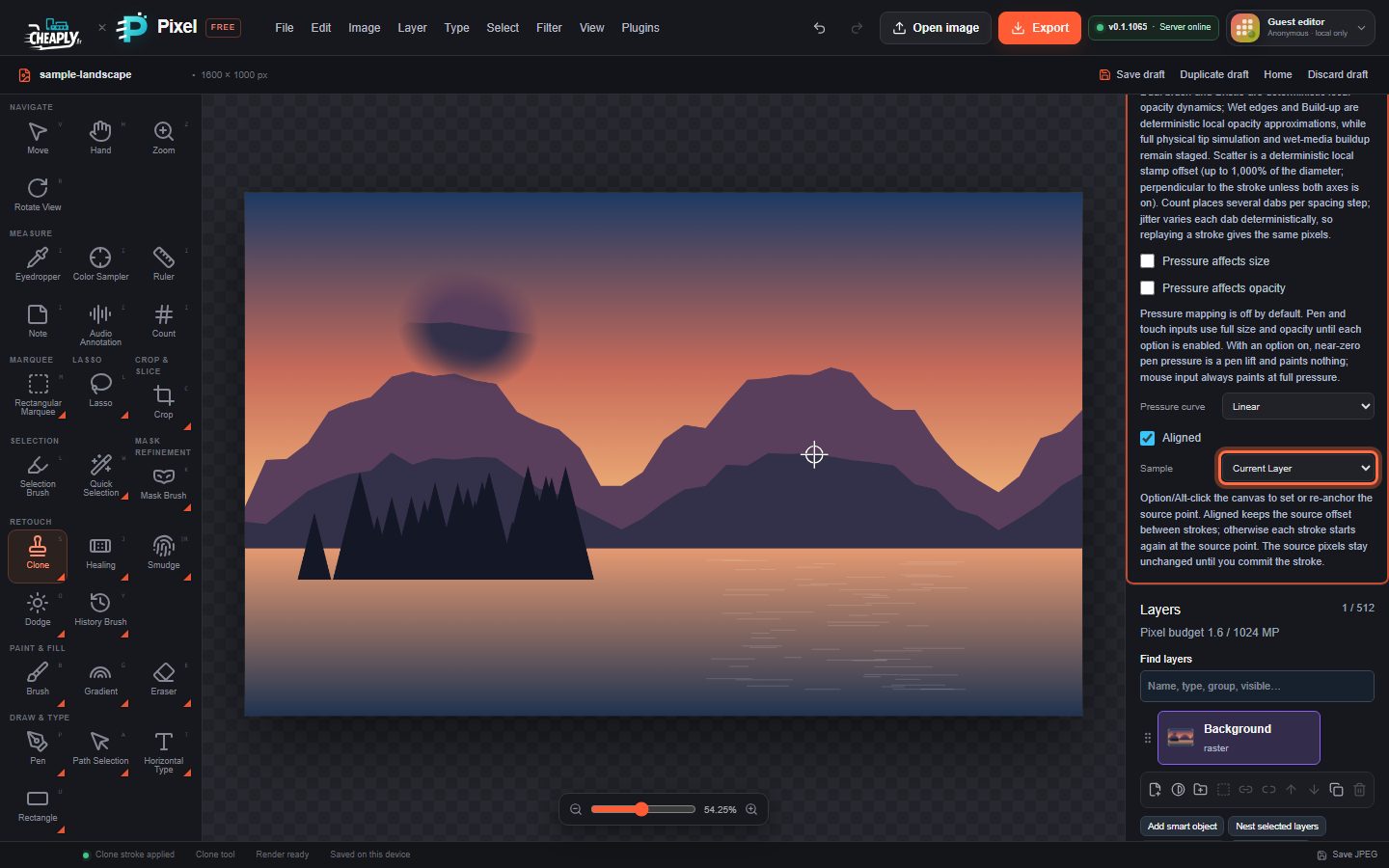
#Clone an area
- Choose Clone in the Retouch group, or press S.
- Set Size and Hardness. A softer edge blends the copy more naturally.
- Alt+click (Option+click on Mac) the area you want to copy from. A white crosshair marks the source. Setting the source does not change the image or the history.
- Paint where you want the copy. The source crosshair moves with the brush, keeping the same distance.
To copy from a different place, Alt+click again. The new source applies from the next stroke.
#Clone options
| Option | What it does |
|---|---|
| Aligned | On (default): the distance between source and brush set by your first stroke is kept for every later stroke, so you can stop and continue the copy. Off: every stroke starts copying from the source point again. |
| Sample | Current Layer (default) copies from the active layer only. Current & Below copies from the visible image made of the active layer and the layers under it. All Layers copies from all visible layers. |
| Opacity, Spacing, Angle, Roundness, Flip tip | Brush tip options, as for the Brush. |
| Pressure affects size / opacity, Pressure curve | Pen and touch pressure options. |
The Clone tool also supports Paint symmetry: mirrored copies take their source from the mirrored position.
#Pattern Stamp
The Pattern Stamp paints a tiling pattern with the brush.
- Choose Pattern Stamp: press and hold (or right-click) the Clone button, or press S again.
- Choose a Pattern: Checker, Stripes, Dots, Grid, Diagonal or Mesh. The pattern uses the foreground and background colours.
- Set Tile size (4–128 px).
- Paint on the canvas.
| Option | What it does |
|---|---|
| Aligned | On (default): the pattern lines up across strokes. Off: each stroke starts the pattern at its first point. |
| Define pattern from selection | Makes a pattern from the selected pixels (enabled when there is a selection). |
| Size, Hardness, Opacity, Spacing | Brush options, as for the Brush. |
See Patterns for defined patterns, saved pattern presets and pattern fills.
#Good to know
- Both tools paint on visible, unlocked pixel layers, and stay inside an active selection.
- Each stroke is one undo step.
- The Clone tool copies pixels exactly. To blend the copy with what is underneath, use the Healing tool.
Still stuck? See Troubleshooting or report a problem.