
Blur filters
Soften a layer with Gaussian, Box, Motion, Radial, Lens, Smart, Surface and Shape Blur, or blur selectively with Field, Iris, Tilt-Shift, Path and Spin Blur.
The blur filters soften a layer. Some blur everything evenly; others keep part of the picture sharp (Tilt-Shift, Iris, Field) or blur along a direction (Motion, Radial, Path, Spin). All of them are live filters: you can change or remove them later. See Filters overview for how live filters work.
#Apply a blur
- Select a visible, unlocked layer. Make a selection first if you want to blur only part of it.
- Choose a command from the Blur or Blur Gallery part of the Filter menu.
- Open the Filters panel and adjust the settings in Filter effects.
Every blur has an Effect amount slider (0–100 %) that mixes the blur with the original layer.
#Evenly blurring filters
#Gaussian Blur
A smooth, natural blur. The most common choice for softening a background or a mask-like layer.
| Option | Range | What it does |
|---|---|---|
| Blur radius (slider) | 1 px up to a quarter of the document's longer side (at least 250 px, at most 1000 px) | How far the blur reaches. |
| Exact blur radius (number field) | 1–1000 px | Type an exact radius, including values beyond the slider. |
Radii above 64 px are calculated on a reduced copy of the layer and scaled back up, which keeps very large blurs fast. The result is very close to an exact blur.
#Box Blur
Averages the pixels in a square around each pixel. It looks slightly more "boxy" than Gaussian Blur.
| Option | Range | What it does |
|---|---|---|
| Blur radius | 1–64 px | Size of the square. |
#Blur and Blur More
One-click blurs.
- Blur applies a light, fixed 1-pixel box blur. It has only Effect amount (default 70 %).
- Blur More applies a stronger box blur. Its Blur radius reads the real box radius in pixels: each step of the slider adds 2 px, from 12 px by default up to 64 px. Default Effect amount: 85 %.
#Average
Replaces the layer's colours with their average colour. It has only Effect amount, which sets how far the layer moves towards that average (default 85 %). Useful for finding the overall colour cast of a photo.
#Lens Blur
A blur through a round aperture (49 samples), which gives a slightly more photographic look than Gaussian Blur.
| Option | Range | What it does |
|---|---|---|
| Blur radius | 1–64 px | Size of the aperture. |
It is a local approximation: there is no depth map and bright highlights are not turned into bokeh shapes.
#Smart Blur
Blurs flat areas but keeps strong light/dark boundaries crisp. Good for smoothing skin or sky without losing outlines.
| Option | Range | What it does |
|---|---|---|
| Blur radius | 1–64 px | How far it samples. Values above 8 px give the same result as 8 px. |
#Surface Blur
Smooths pixels that have a similar brightness and leaves out neighbours that are clearly lighter or darker, so edges stay crisper than with a general blur.
| Option | Range | What it does |
|---|---|---|
| Blur radius | 1–64 px | How far it samples. |
#Shape Blur
Blurs through a diamond-shaped aperture.
| Option | Range | What it does |
|---|---|---|
| Blur radius | 1–64 px | Size of the diamond. |
#Directional blurs
#Motion Blur
Blurs along a straight line, as if the subject or the camera moved.
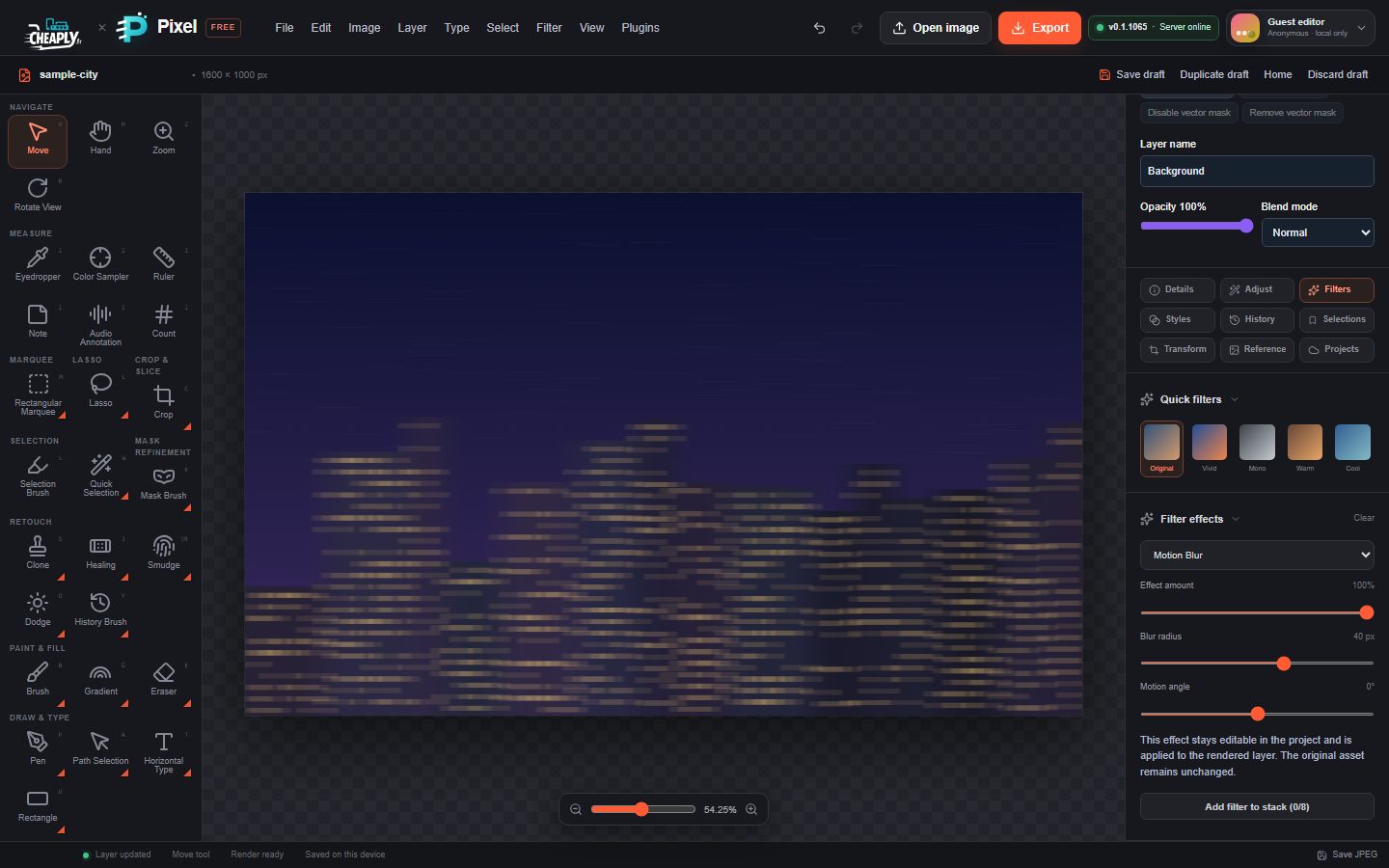
| Option | Range | What it does |
|---|---|---|
| Blur radius | 1–64 px | Length of the streak on each side of a pixel. |
| Motion angle | −180° to 180° | Direction of the movement. 0° is horizontal. |
#Radial Blur
Blurs around a centre point.
| Option | Range | What it does |
|---|---|---|
| Angular sweep | 1–64° | How strong the blur is. |
| Radial mode | Spin, Zoom | Spin blurs in circles around the centre; Zoom blurs outwards from it. |
| Blur center X / Y | 0–100 % | Position of the centre. You can also drag the crosshair on the canvas. |
#Blur Gallery
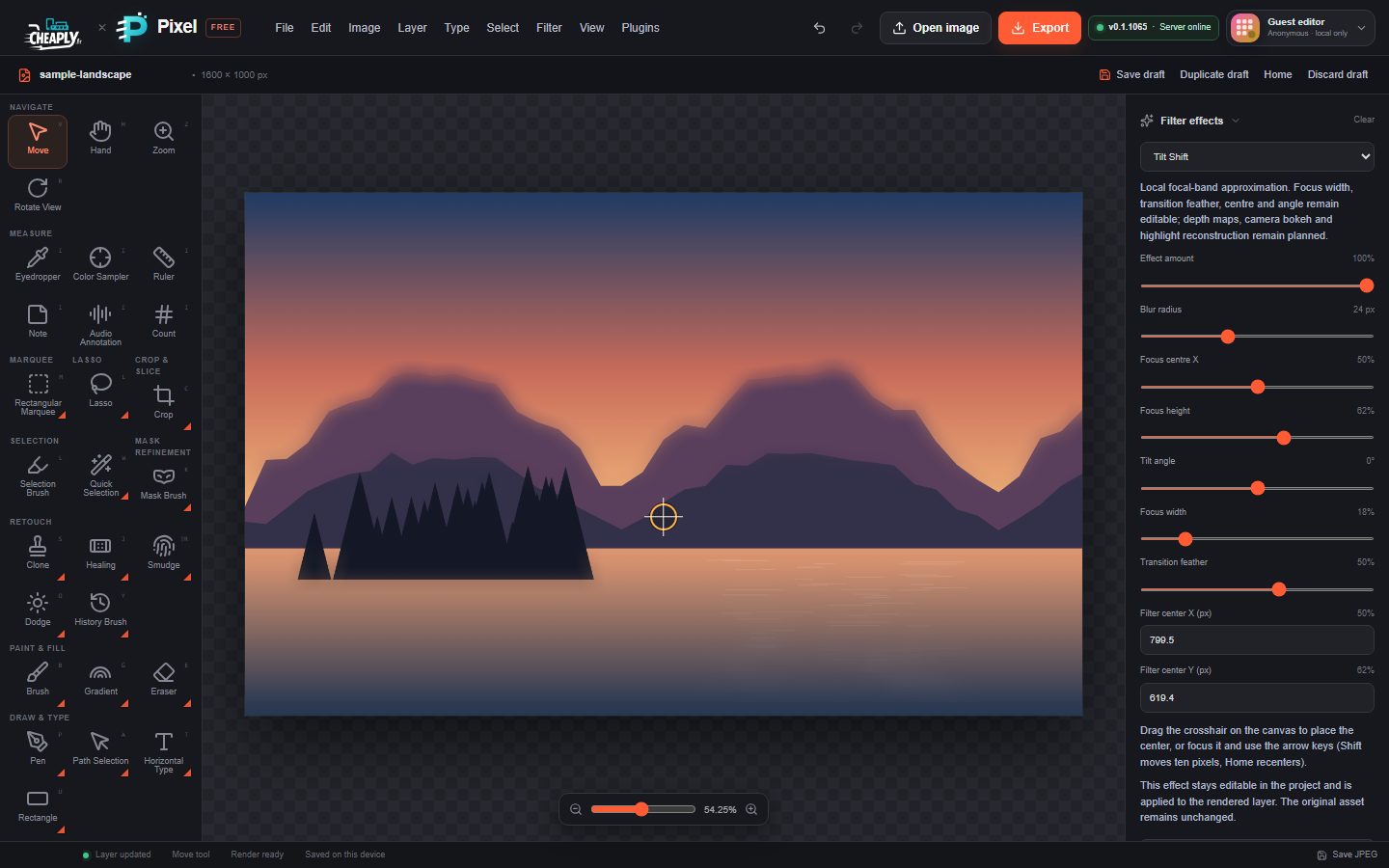
#Tilt-Shift
Keeps a straight band sharp and blurs either side of it, which makes a scene look like a miniature model.
| Option | Range | What it does |
|---|---|---|
| Blur radius | 1–64 px | Strength of the blur outside the band. |
| Focus centre X | 0–100 % | Horizontal position of the band's centre. |
| Focus height | 0–100 % | Vertical position of the band (0 % top, 100 % bottom). |
| Tilt angle | −90° to 90° | Rotates the band. |
| Focus width | 5–80 % | Width of the sharp band. |
| Transition feather | 5–80 % | How gradually the blur fades in. |
#Iris Blur
Keeps an oval area around a point sharp and blurs more towards the edges of the layer.
| Option | Range | What it does |
|---|---|---|
| Blur radius | 1–64 px | Strength of the blur at the edges. |
| Focal centre X / Y | 0–100 % | Centre of the sharp area. Drag the crosshair to move it. |
#Field Blur
Places up to eight pins; each pin sets how blurred the picture is around it. The blur changes smoothly between pins.
| Option | Range | What it does |
|---|---|---|
| Field pin n X / Y | 0–100 % | Position of the pin. |
| Field pin n radius | 0–64 px | Blur at that pin. Use 0 to keep an area sharp. |
| Add field pin / Remove pin / Reset field pins | – | Add a pin (up to eight), remove one, or go back to the single default pin. |
Field Blur has no overall radius slider: each pin sets its own blur.
#Path Blur
Blurs along a motion path that you shape with two to eight points.
| Option | Range | What it does |
|---|---|---|
| Motion point n X / Y | 0–100 % | Position of each point of the path. |
| Motion point n speed | 0–100 | How strong the blur is near that point. |
| Add motion point / Remove point / Reset motion path | – | Edit the path. |
| Blur radius | 1–64 px | Length of the blur. |
| Path direction | −180° to 180° | Turns the blur direction relative to the path. 0° follows the path. |
| Path center X / Y | 0–100 % | Shown only for Path Blur filters saved by older versions that have no motion path. A new Path Blur uses its motion points instead. |
#Spin Blur
Blurs in circles inside an oval area, like a spinning wheel.
| Option | Range | What it does |
|---|---|---|
| Spin horizontal radius / Spin vertical radius | 1–200 % | Size of the oval, as a percentage of the image size. |
| Spin ellipse rotation | −180° to 180° | Rotates the oval. |
| Spin feather | 0–100 % | Softness of the oval's edge. Pixels outside the oval are not changed. |
| Angular sweep | 1–64° | Strength of the spin. |
| Spin center X / Y | 0–100 % | Centre of the spin. Drag the crosshair to move it. |
#Limits
These blurs are local approximations. None of them reads a depth map, rebuilds bokeh highlights or simulates a real camera lens.
Still stuck? See Troubleshooting or report a problem.