
Paint a selection with the Selection Brush
Paint a selection by hand with the Selection Brush, using size, hardness, opacity and pen pressure, and add to or subtract from it.
The Selection Brush lets you paint a selection directly, the way you would paint with a brush. It is handy for organic shapes and for touching up a selection made with another tool. The image pixels never change; only the selection does.
The Selection Brush has its own button in the Selection group of the toolbar. Press L or W repeatedly to reach it from the lasso or wand families.
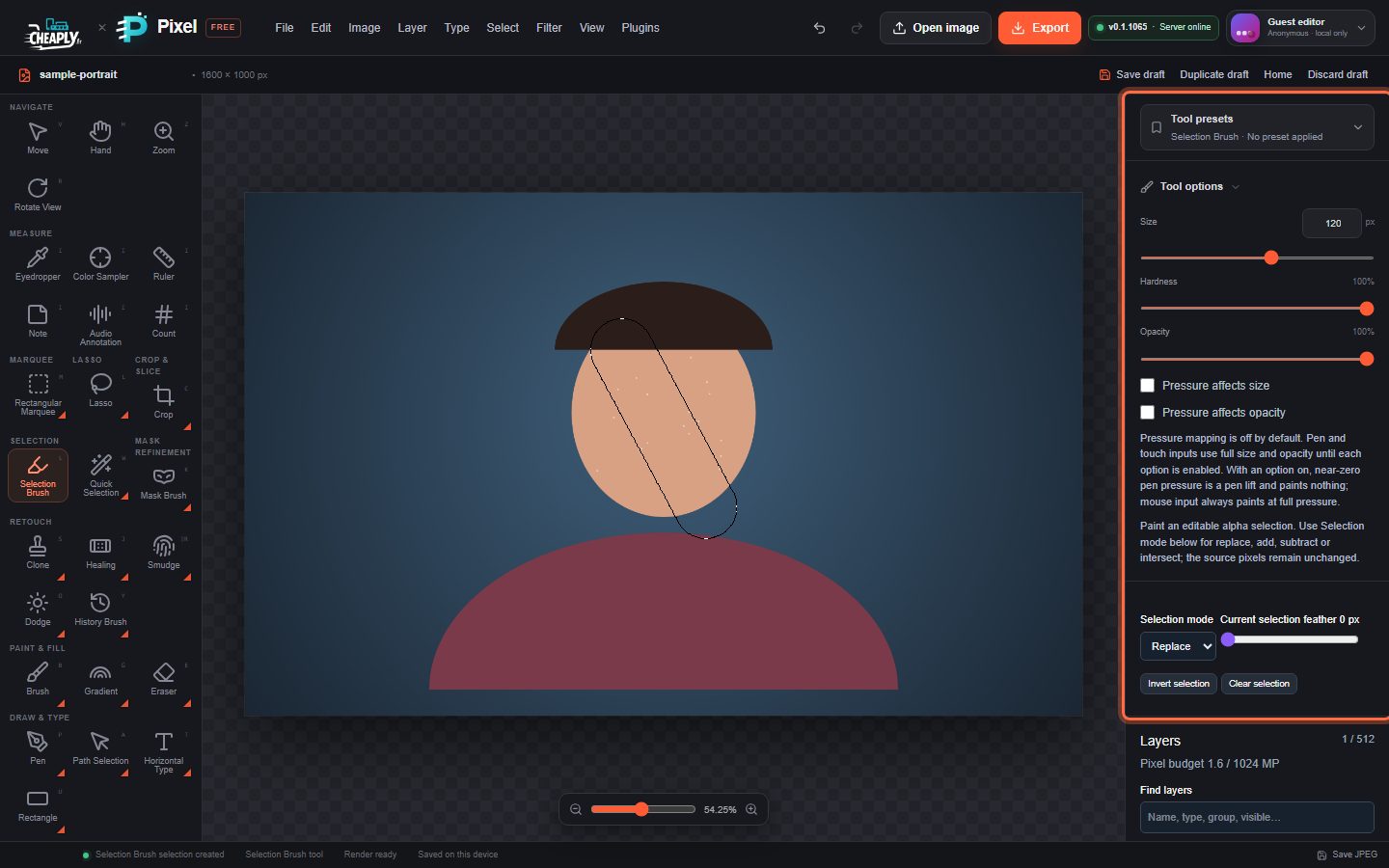
#Paint a selection
- Choose Selection Brush.
- Set Selection mode in Selection options:
- Replace starts a new selection with each stroke.
- Add paints more selection.
- Subtract paints selection away.
- Intersect keeps only the part of the existing selection under the stroke.
- Adjust Size (or press [ and ]), Hardness and Opacity.
- Paint on the image. The selection updates when you lift the pointer. Press Esc during a stroke to cancel it.
Each stroke is one undo step.
#Options
| Option | What it does |
|---|---|
| Size | Brush diameter in pixels. |
| Hardness | 100% gives a crisp edge; lower values give a soft, partly selected edge. |
| Opacity | How strongly the stroke selects. At 50%, painted pixels are half selected. |
| Pressure affects size / Pressure affects opacity | Off by default. When on, pen or touch pressure varies the size or opacity. A mouse always paints at full pressure. |
Still stuck? See Troubleshooting or report a problem.