
Large documents
The size, layer and memory limits in PixelForge, how the pixel budget works on your device, and what to do when you reach a limit.
PixelForge runs in your browser, which has less memory to work with than a desktop application. To keep the editor responsive and your work safe, it has fixed limits for document size and device-dependent budgets for how much image data a document may hold.
#Fixed limits
These are the same on every device:
| Limit | Value |
|---|---|
| Canvas size | 16 megapixels in total and 16,000 pixels on a side (for example 4000 × 4000, 4896 × 3264 or 16,000 × 1,000) |
| Each image or layer's stored pixels | 16 megapixels and 16,000 pixels on a side |
| Layers | 512 per document |
| Groups (folders) | 128 per document |
| Image file to open | 64 MB |
| Project file | 1 GB and 4,096 stored images |
#The pixel budget
Each pixel layer and smart object stores its own pixels, and together they must fit the pixel budget for your device. Text, shape, path and adjustment layers cost nothing.
| Device | Pixel budget | Image data budget |
|---|---|---|
| Computer with more than 4 GB of memory, or whose browser does not report it | 1,024 megapixels | 1 GB |
| Computer with about 4 GB of memory | 384 megapixels | 384 MB |
| Phone or tablet | 256 megapixels | 256 MB |
| Any device with 2 GB of memory or less | 128 megapixels | 128 MB |
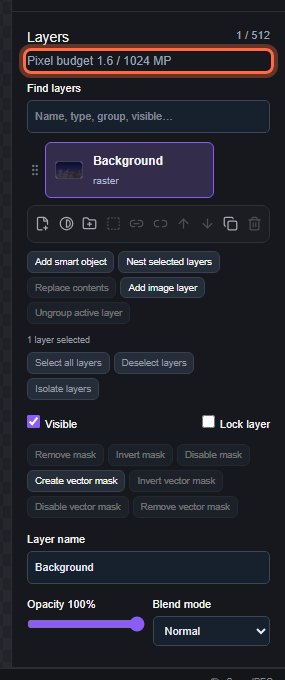
The Layers panel shows your current use under its title, for example Pixel budget 1.6 / 1024 MP. It turns amber above 90%.
Paint layers are stored only as big as their content (plus a small margin), so a layer with a small brush stroke uses far less than a full-canvas layer. On a 10.8-megapixel poster, a desktop budget still fits about 94 full-canvas layers, and many more partly painted ones.
#When you reach the budget
An edit that would go over the budget is refused with a message such as "Layer pixel budget reached: layers may store 256 MP in total on this device and this edit needs 270 MP." Your document stays as it was. To make room:
- Merge layers you no longer need to edit separately (Layer > Merge Layers, Merge Visible or Flatten Image).
- Delete unused layers, including hidden ones.
- Use Layer > Trim Layer to Content on layers that have transparent areas.
- Make the canvas smaller with Image > Image Size… or crop it.
Edits that do not add pixels are always allowed, so a project made on a desktop still opens and can be reduced on a phone.
#Undo history memory
Undo history is limited by memory too: up to 240 steps and 320 MB of images on desktops, 128 MB on phones and 4 GB devices, 96 MB on 2 GB devices. In large documents each step is bigger, so fewer steps fit; the oldest are released first. See Undo, redo and history basics.
#Opening large drafts
A large draft may take a moment to open. PixelForge shows the last saved picture straight away and an Opening draft… box at the top of the canvas area, also on phones, counting the layers as they load. The remaining layers finish loading in the background.
That saved picture is refreshed a few seconds after you stop editing. If you reload or close the tab sooner, PixelForge still tries to save it at once, so the next opening can usually show it straight away. Browsers do not always let a closing page finish, so this is best effort: if the picture was not saved, the draft opens by loading its layers instead, with the same result.
#Working with big images
- Reduce photos to the size you need before heavy editing. A 16-megapixel image is often more than a web image or print needs.
- See Performance tips for keeping the editor fast.
- See Browser storage and limits for how much space drafts take.
Still stuck? See Troubleshooting or report a problem.