
Use PixelForge on a phone
How the editor adapts to a phone screen, where the tools and properties are, and what to expect from limits and storage on mobile.
PixelForge works in the browser on phones and tablets. There is nothing to install. The same tools and menus are available as on a desktop, arranged for a narrow screen.
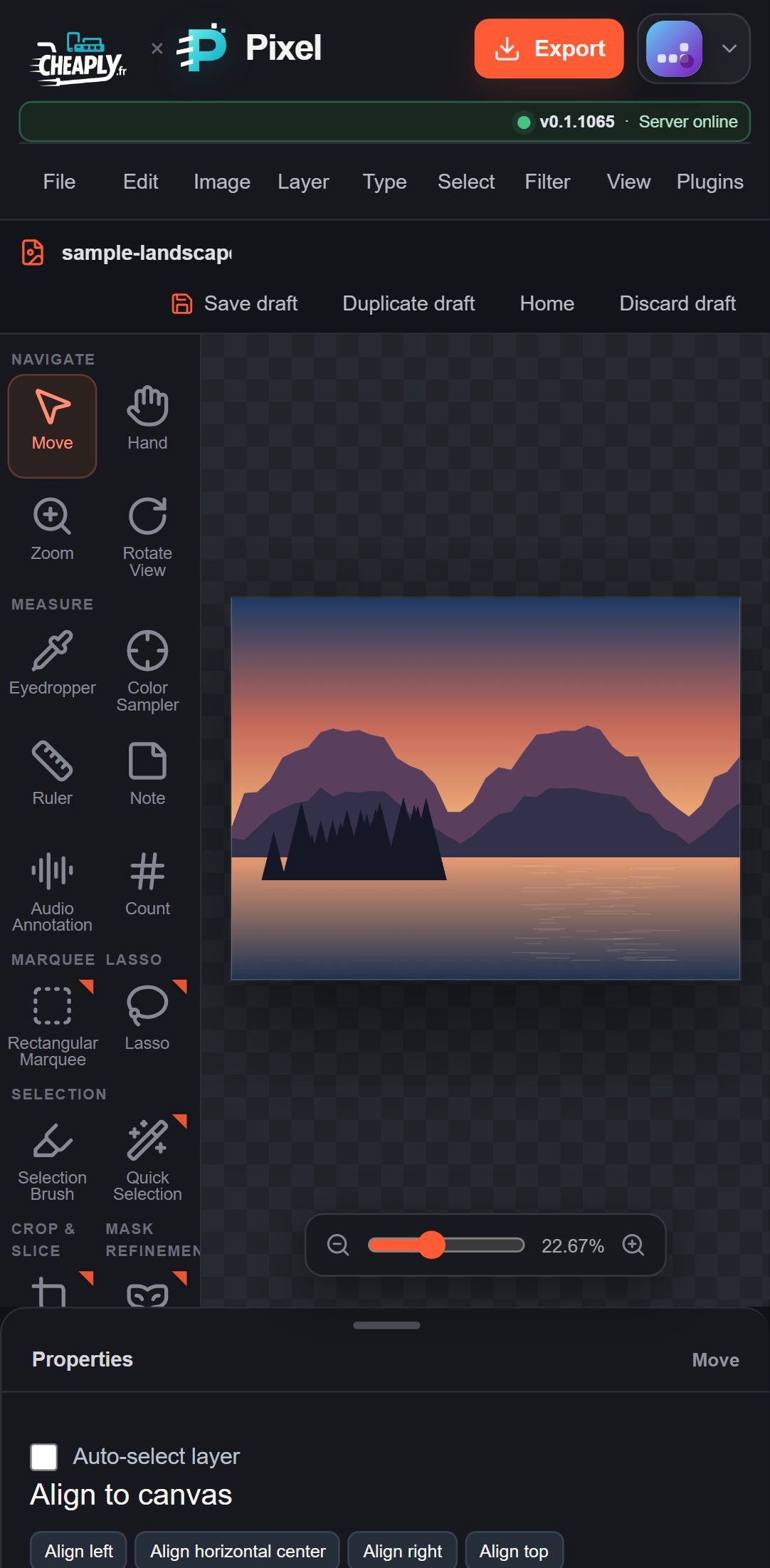
#The phone layout
- Top bar: the Export button, the version and server status, and the account button. The menus (File, Edit, Image and the rest) sit on the row below.
- Document bar: the document name (a long name ends in "…"; tap it to see or change the whole name), and Save draft, Duplicate draft, Home and Discard draft, sized for a finger tap.
- Toolbar: a scrolling column on the left. Tap a tool to use it. A tool with a small triangle in its top-right corner has more tools in its family: touch and hold it to choose one.
- Canvas: in the middle. Pinch with two fingers to zoom and drag with two fingers to move around. The zoom slider and its zoom-in and zoom-out buttons under the canvas, and the Hand tool, work too.
- Properties sheet: at the bottom. Tap the Properties handle to open or close it. It holds the options for the active tool, the Layers panel and More panels.
- Status line: the last message, the render status and the save status. On a phone the save status is shortened to Saved (or Saved · HH:MM after Save draft) so it fits; a long last message ends in "…".
#Menus on a phone
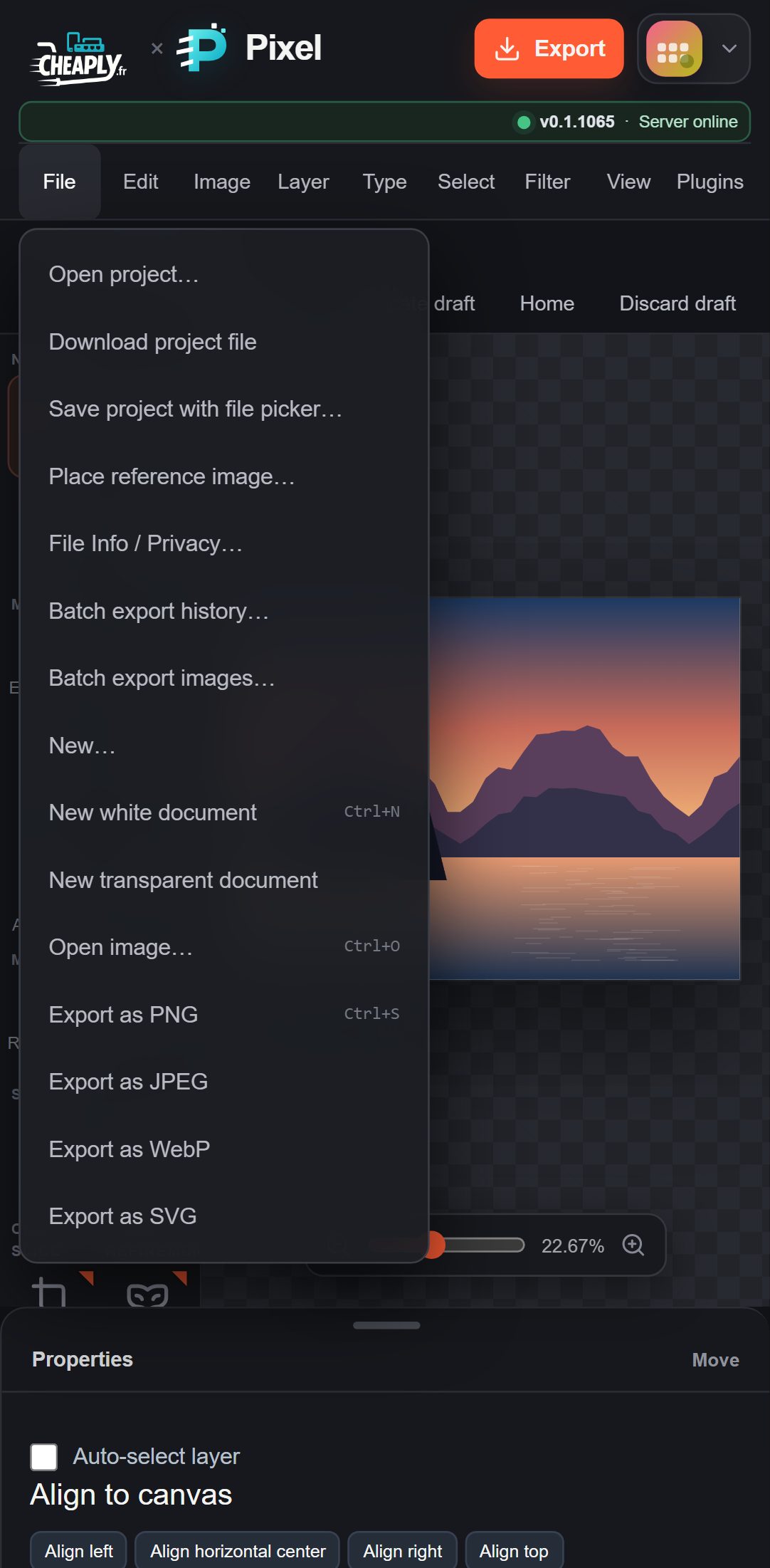
Tap a menu name (File, Edit, Image and so on) to open it. The menu opens just below its name, as wide as fits the screen, and shows its commands as a list. A long menu such as Filter scrolls: swipe up and down inside it to reach the rest. Tap a command to run it, or tap outside the menu to close it.
#The usage statistics notice
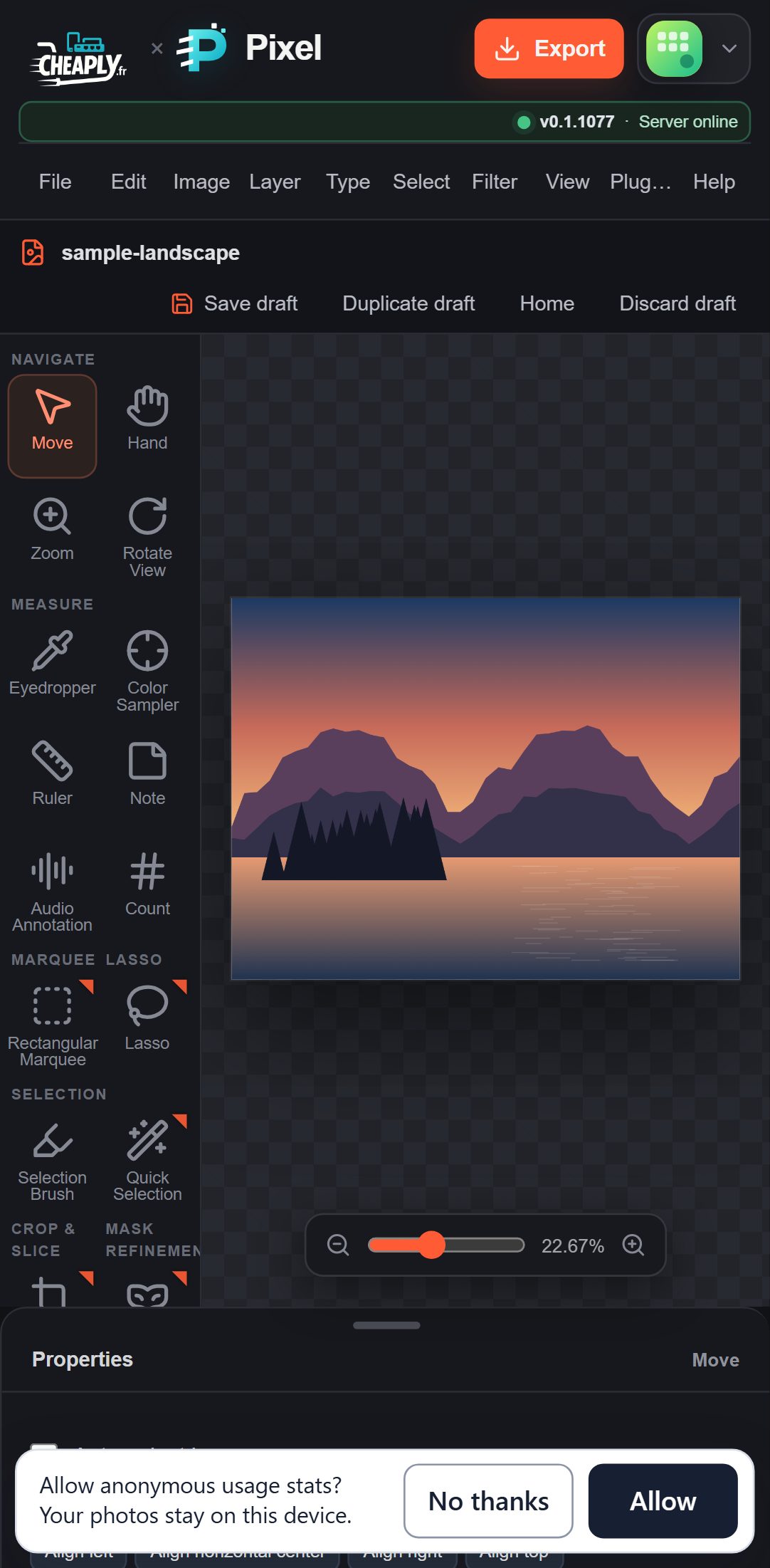
The first time you open PixelForge, a notice asks whether to allow anonymous usage statistics. On a phone it is one short line along the bottom of the screen, Allow anonymous usage stats? Your photos stay on this device., with No thanks and Allow beside it. It sits below the zoom control and the Properties handle, so you can still open the sheet. Menus and tool flyouts open over it, so you can keep working before you answer. Tap No thanks or Allow to close it; see Privacy and your data.
#Open an image on a phone
The phone layout has no Open image button in the top bar. Use File > Open image…. Your browser's file chooser usually offers your photo library, the camera and your files. See Open your first image.
To add a picture as a new layer instead, open the Properties sheet and tap Add image layer in the Layers panel. The picture is placed in the centre of the document.
A large draft can take a moment to open on a phone. An Opening draft… box at the top of the canvas area counts the layers as they load.
#Touch tips
- Spread two fingers on the canvas to zoom in and pinch them together to zoom out. The spot between your fingers stays under them, and moving both fingers pans. Zooming never changes the image or adds an undo step.
- If a second finger touches down while you are painting or dragging, that stroke is cancelled and nothing is added to the history. Lift all fingers before you paint again.
- With the Move tool, touch and hold a spot on the canvas for half a second to select the layer under your finger without moving it. Moving your finger first starts a move instead.
- Brushes can respond to pen pressure when their pressure options are on and the device reports pressure, for example with a stylus.
- Open the Properties sheet only when you need it, so the canvas has more room.
#Limits on phones
Phones have less memory than desktops, so PixelForge uses smaller budgets on them:
| Budget | Phone | Desktop |
|---|---|---|
| Pixels stored in layers | 256 megapixels | 1,024 megapixels |
| Undo history in memory | 128 MB | 320 MB |
The maximum canvas size is the same everywhere: 16 megapixels. See Large documents.
#Keep your work safe
Drafts autosave in the phone's browser. Mobile browsers may clear site data when storage runs low, and private browsing tabs forget everything when closed. Download a project file (File > Download project file) to keep a copy you control. See Drafts and saving.
Still stuck? See Troubleshooting or report a problem.