
Paint back earlier states with the History Brush and Art History Brush
Restore parts of an earlier version of the image by painting with the History Brush, or paint stylised dabs from it with the Art History Brush.
The History Brush paints pixels from an earlier state of your document back onto the current one. It is a selective undo: you can, for example, apply a filter to the whole image and then paint the original back over a face. The Art History Brush uses the same source but paints it as soft, painterly dabs.
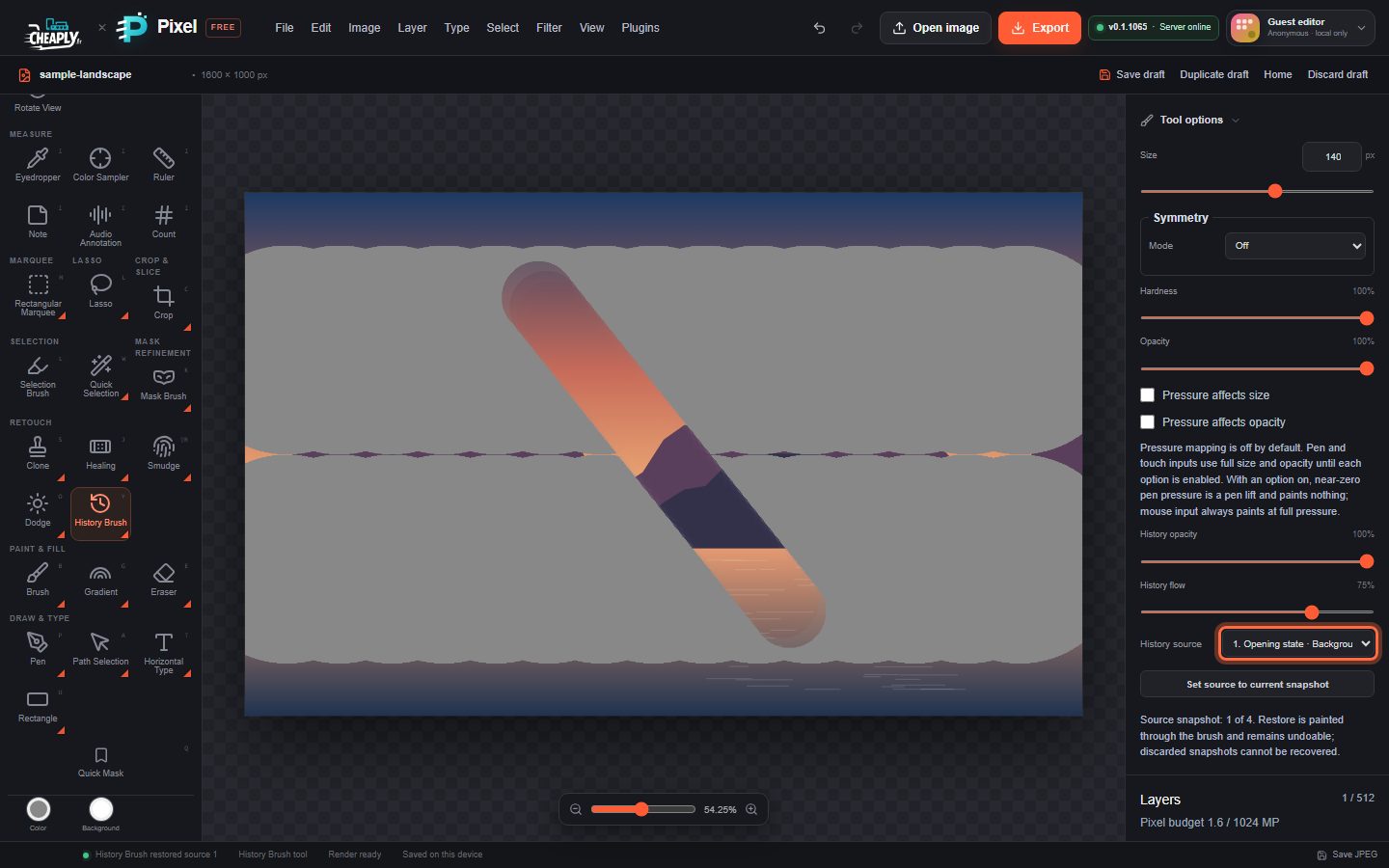
#Restore part of an earlier state
- Make your edits, for example paint, apply a filter or adjust colours on the layer.
- Choose the History Brush in the Retouch group, press Y, or choose Edit > History Brush Tool.
- In History source, choose the state to paint from. States are named after the change that produced them, such as "Opening state", "Pixel edit" or "Spot Healing", followed by the layer name. The default is the oldest state kept, usually the opening state.
- Select the layer to restore and paint over the area.
Each stroke is one undo step, and painting never changes the source state itself.
#Set the source to the current state
Click Set source to current snapshot (or choose Edit > Set History Brush Source) to use the document as it is now. Make more edits, then paint with the History Brush to bring this moment back where you need it.
#History Brush options
| Option | What it does |
|---|---|
| Size, Hardness | Brush size and edge softness. |
| Opacity | Overall strength of the stroke. |
| History opacity | How strongly the source state replaces the current pixels. |
| History flow | How quickly the restore builds up as you paint. |
| Pressure affects size / opacity | Pen and touch pressure options. |
#Art History Brush
The Art History Brush (press Y again, or Edit > Art History Brush Tool) reads the same kind of source state, but lays down soft dabs coloured from the area around each point. The result looks hand-painted rather than restored exactly.
| Option | What it does |
|---|---|
| Art History opacity, Art History flow | Strength and build-up of the painterly dabs. |
| Style area | Size of the area (1–24 px) each dab takes its colour from. Larger values give broader, looser dabs. |
| Fidelity | How close the colours stay to the exact source colours. 100% keeps them; lower values blend in neighbouring colours. |
| Art History source | The state to paint from, with its own Set source to current snapshot button. |
The Art History Brush is a local, deterministic approximation. It does not simulate bristles or wet paint. A very large brush on a large image can exceed its work limit; the editor then refuses the stroke with a message instead of painting a smaller one.
#Good to know
- Both brushes work on visible, unlocked pixel layers. Layer masks and active selections limit the stroke.
- Transparent pixels in the source are skipped, so the brushes never erase the current layer.
- Paint symmetry works with both brushes.
- History states are limited: older states are discarded as you keep editing, and a discarded state cannot be painted back. If the chosen state is no longer available, the nearest one is used. The note under the options shows which state is the source. See History panel.
Still stuck? See Troubleshooting or report a problem.