
Measure, count, sample colours and add notes
Measure distances and angles with the Ruler, number items with Count, keep colour readouts with the Color Sampler and pin text notes to the image.
The Measure group of the toolbar holds tools that add information on top of your image without changing it: Color Sampler, Ruler, Note and Count, along with the Eyedropper and Audio Annotation. Press I repeatedly to cycle through them.
Rulers, colour samplers, notes and count markers:
- are saved in your draft and in project files, and every add, move or delete can be undone;
- are never included in exported PNG, JPEG or WebP images;
- are limited to 512 per document in total.
#Ruler
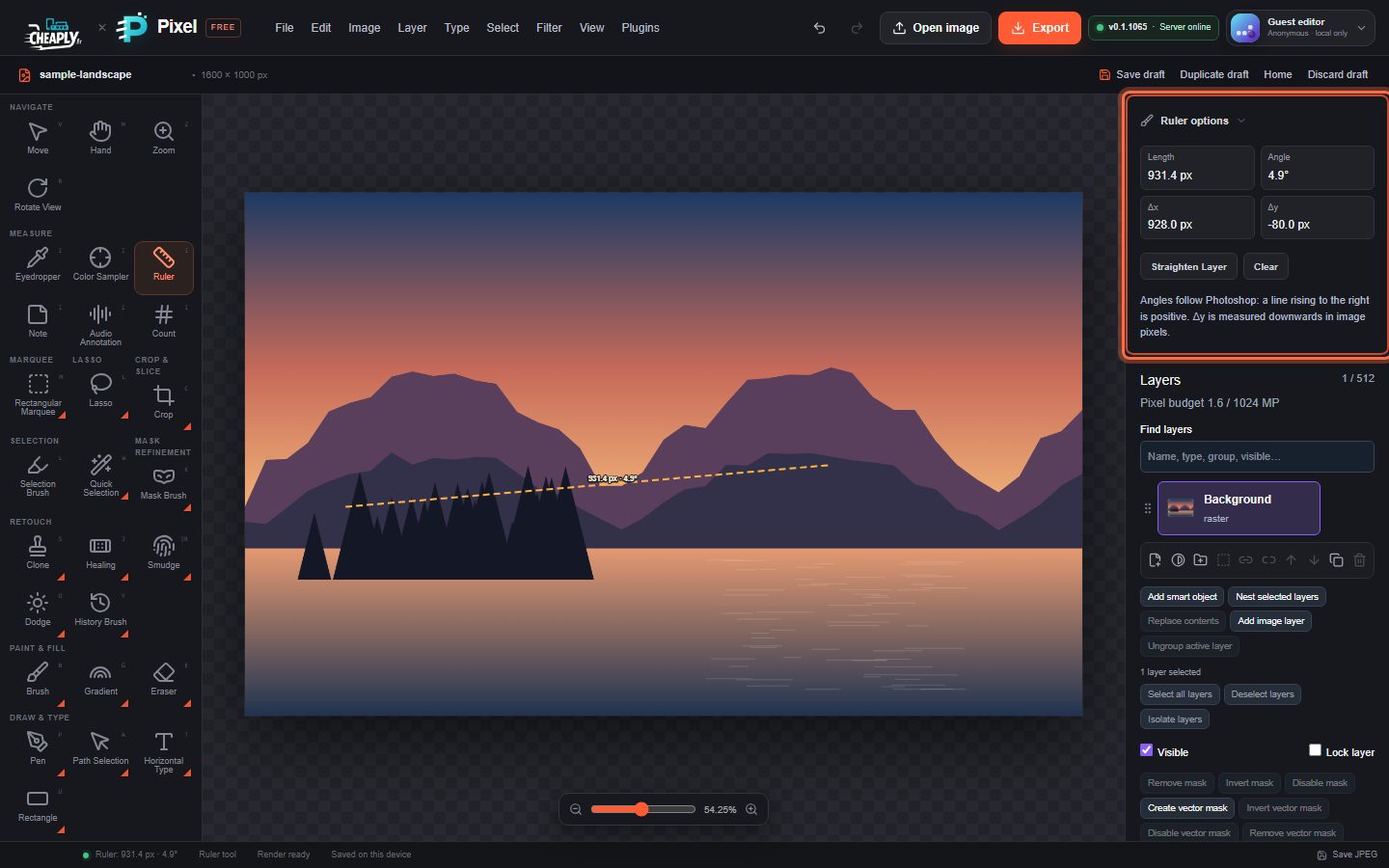
- Choose Ruler.
- Drag from one point to another. The line is labelled with its length and angle.
The Ruler options show Length, Angle, Δx and Δy for the latest ruler. A line rising to the right has a positive angle; Δy is measured downwards in image pixels.
- Straighten Layer rotates the active layer around the middle of the ruler line by the smallest turn that makes the line level, then removes the ruler. Use it to level a tilted horizon on one layer. (To level the whole document and crop the corners, use Straighten in the Crop tool.)
- Clear removes the ruler lines.
#Count
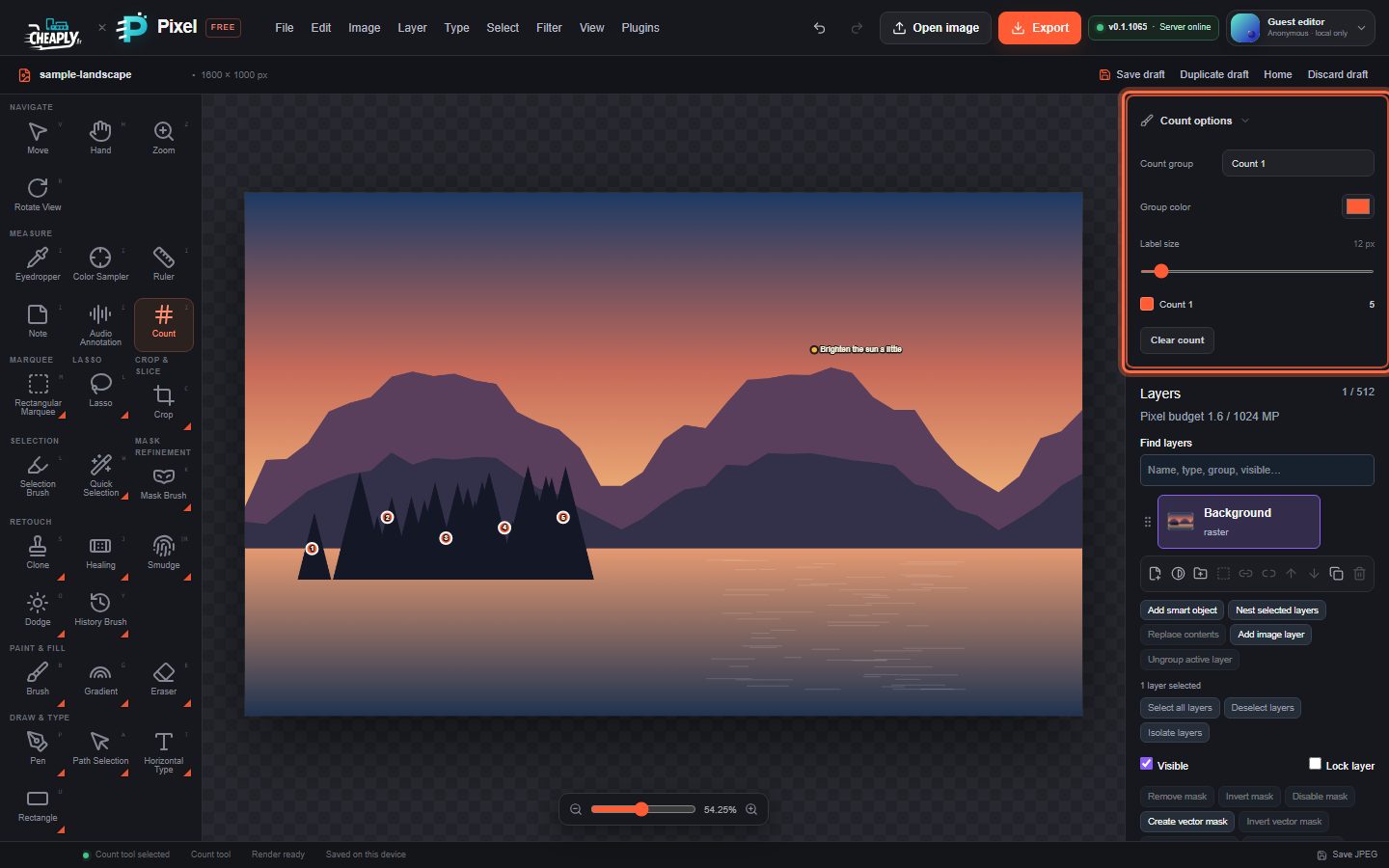
- Choose Count.
- Click each item you want to count. Each click adds a numbered marker.
| Option | What it does |
|---|---|
| Count group | The group new markers belong to. Type a new name to start another group, or pick an existing one. Each group is numbered from 1. |
| Group color | The colour of the group's markers. |
| Label size | The size of every marker label, 8–72 px. |
| Group list | Shows each group with its colour and number of markers. |
| Clear count | Removes the markers of the current group. |
#Note
- Choose Note.
- Click the image. A small editor opens where you click.
- Type your note (up to 500 characters), optionally choose its colour, and click Save. Cancel discards it.
Click an existing note to edit, recolour or Delete it, and drag a note to move it. In Note options, Note color sets the colour of new notes and Clear notes removes them all.
#Color Sampler
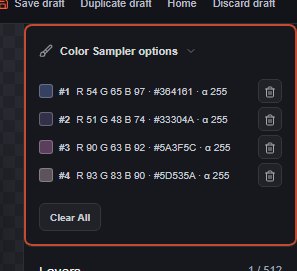
- Choose Color Sampler.
- Click points in the image to place samplers.
The options list each sampler with its R, G, B values, hex code and alpha (α), read from the combined visible image. The values update as you edit, so you can watch a colour change while adjusting. Use the delete button next to a sampler to remove it, or Clear All to remove every sampler.
Still stuck? See Troubleshooting or report a problem.