
Rotate and flip an image or a layer
Turn the whole document by 90° or 180° or mirror it from the Image menu, or rotate and flip just the active layer from the Edit menu.
PixelForge has separate commands for turning the whole document and for turning a single layer. Each command is one undo step and keeps your layers editable.
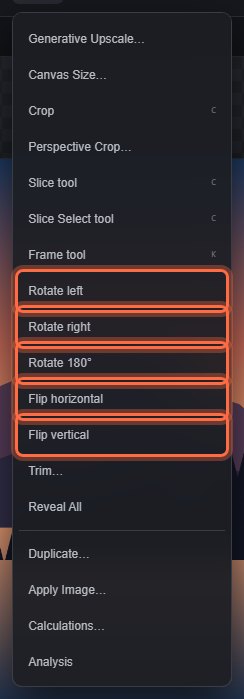
#Rotate or flip the whole document
Use the Image menu:
| Command | Result |
|---|---|
| Image > Rotate left | Turns the document 90° counterclockwise. Width and height swap. |
| Image > Rotate right | Turns the document 90° clockwise. Width and height swap. |
| Image > Rotate 180° | Turns the document upside down. |
| Image > Flip horizontal | Mirrors the document left to right. |
| Image > Flip vertical | Mirrors the document top to bottom. |
The same four buttons (Rotate left, Rotate right, Flip horizontal, Flip vertical) are in the Transform panel under More panels in the properties sidebar.
All layers, masks and the canvas turn together.
#Rotate or flip one layer
Use the Edit menu. These change only the active layer:
- Edit > Transform → Rotate 90° Clockwise
- Edit > Transform → Rotate 90° Counterclockwise
- Edit > Transform → Rotate 180°
- Edit > Transform → Flip Horizontal
- Edit > Transform → Flip Vertical
For any other angle, use Free Transform. To level a tilted horizon, use Straighten in the Crop tool or Straighten Layer with the Ruler.
Still stuck? See Troubleshooting or report a problem.