
Paint with symmetry
Mirror every stroke across one or two axes, or repeat it around a centre for radial and mandala designs, with an adjustable centre and rotation.
Paint Symmetry repeats each stroke as you paint: mirrored across an axis, or turned around a centre point. Use it for mandalas, ornaments, symmetrical faces and logos.
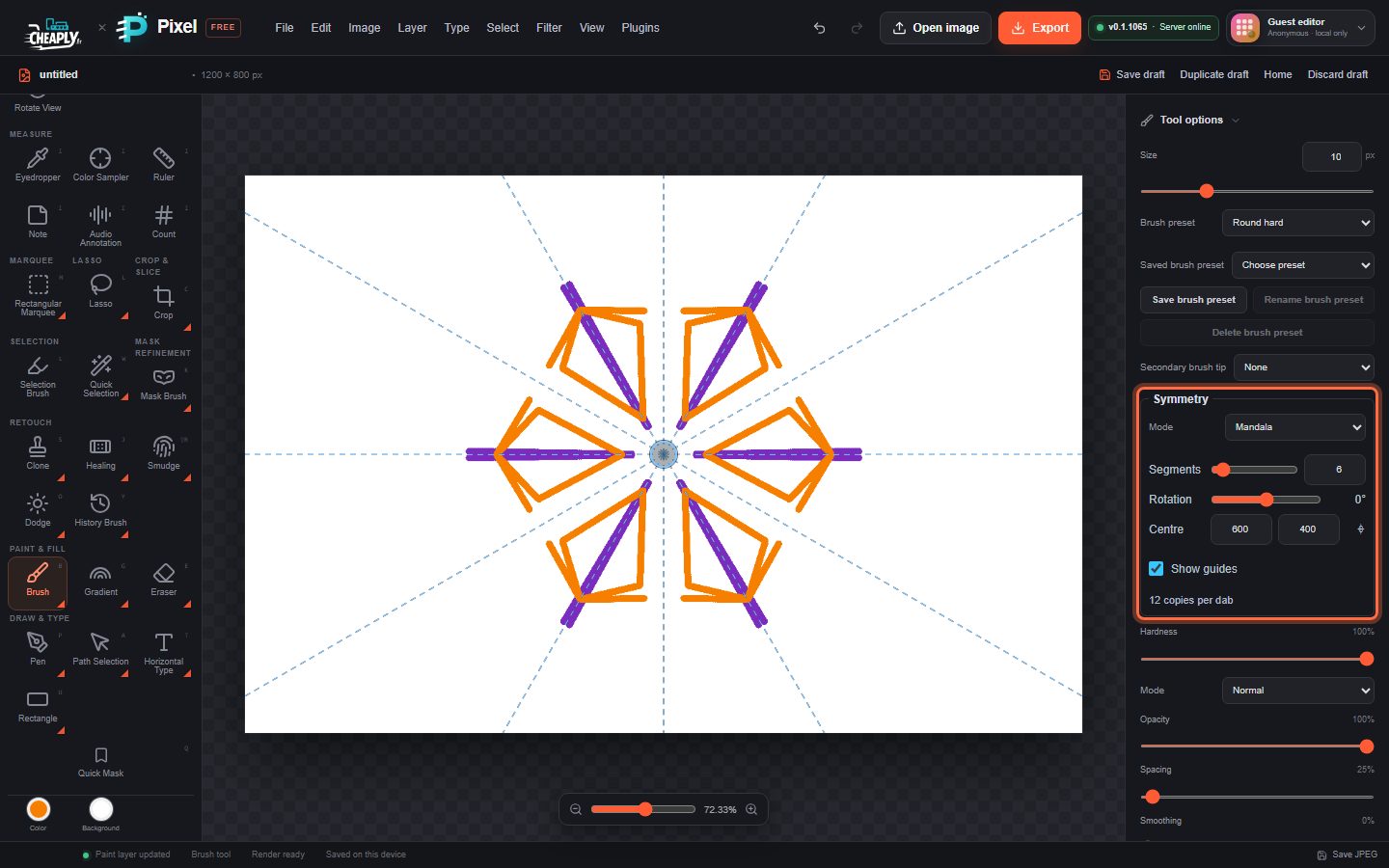
#Turn on symmetry
- Choose a painting tool that supports symmetry (see the list below), for example the Brush.
- In Tool options, find the Symmetry group and choose a Mode.
- Paint. Every dab is repeated for each copy. Dashed guides show the axes or segments.
The whole stroke with all its copies is one undo step.
#Modes
| Mode | Copies |
|---|---|
| Off | No symmetry (default). |
| Vertical axis | Mirrors left and right of a vertical line: 2 copies. |
| Horizontal axis | Mirrors above and below a horizontal line: 2 copies. |
| Dual axis | Mirrors across both axes: 4 copies. |
| Diagonal | Mirrors across a diagonal line: 2 copies. |
| Radial | Repeats the stroke around the centre. Segments sets the number of copies, 2–64. |
| Mandala | Radial plus a mirror image of each segment: 2 × Segments copies. |
The line under the options shows how many copies each dab makes, for example "12 copies per dab".
#Centre, rotation and guides
| Option | What it does |
|---|---|
| Segments | Number of radial segments (Radial and Mandala). |
| Rotation | Turns the axes or segments, from -180° to 180°. |
| Centre | The X and Y position of the centre, in canvas pixels. The ⌖ button resets it to the middle of the canvas. |
| Show guides | Shows or hides the dashed guides on the canvas. |
You can also drag the round centre handle on the canvas with a mouse, pen or finger. When the handle has keyboard focus, the arrow keys nudge it by 1 px (10 px with Shift) and Home recentres it.
#Tools that support symmetry
Brush, Pencil, Eraser, Mixer Brush, Smudge, History Brush, Art History Brush, Clone and Healing.
- Clone and Healing copies each take their source from a point mirrored or turned the same way, so a mirrored clone copies from the mirrored side.
- Jitter and colour dynamics are shared by all copies, so the result stays exactly symmetrical.
- Layer > Stroke Path with Brush… also uses symmetry when the stroke tool is Brush, Pencil or Eraser. See Stroke a path.
Spot Healing, Patch, Pattern Stamp, Red Eye, Dodge, Burn, Sponge, Blur, Sharpen, Color Replace, Background Eraser, Magic Eraser and the mask brushes do not use symmetry.
#Good to know
- Symmetry settings are shared by all the tools above and saved with your draft.
- With an active selection, every copy stays inside the selection.
- The centre is in canvas coordinates, so offset or transformed layers mirror around the same point on the canvas.
- On a layer scaled unevenly, copies keep the original dab size.
Still stuck? See Troubleshooting or report a problem.