
Distort filters
Bend, twist and ripple a layer with Displace, Pinch, Polar Coordinates, Ripple, Shear, Spherize, Twirl, Wave and ZigZag.
The distort filters move pixels around instead of changing their colour. They are live filters: the original pixels stay untouched and you can change or remove the distortion later. The layer's transparency is not changed, and pixels near the edge repeat the edge colour instead of leaving gaps. See Filters overview for the basics.
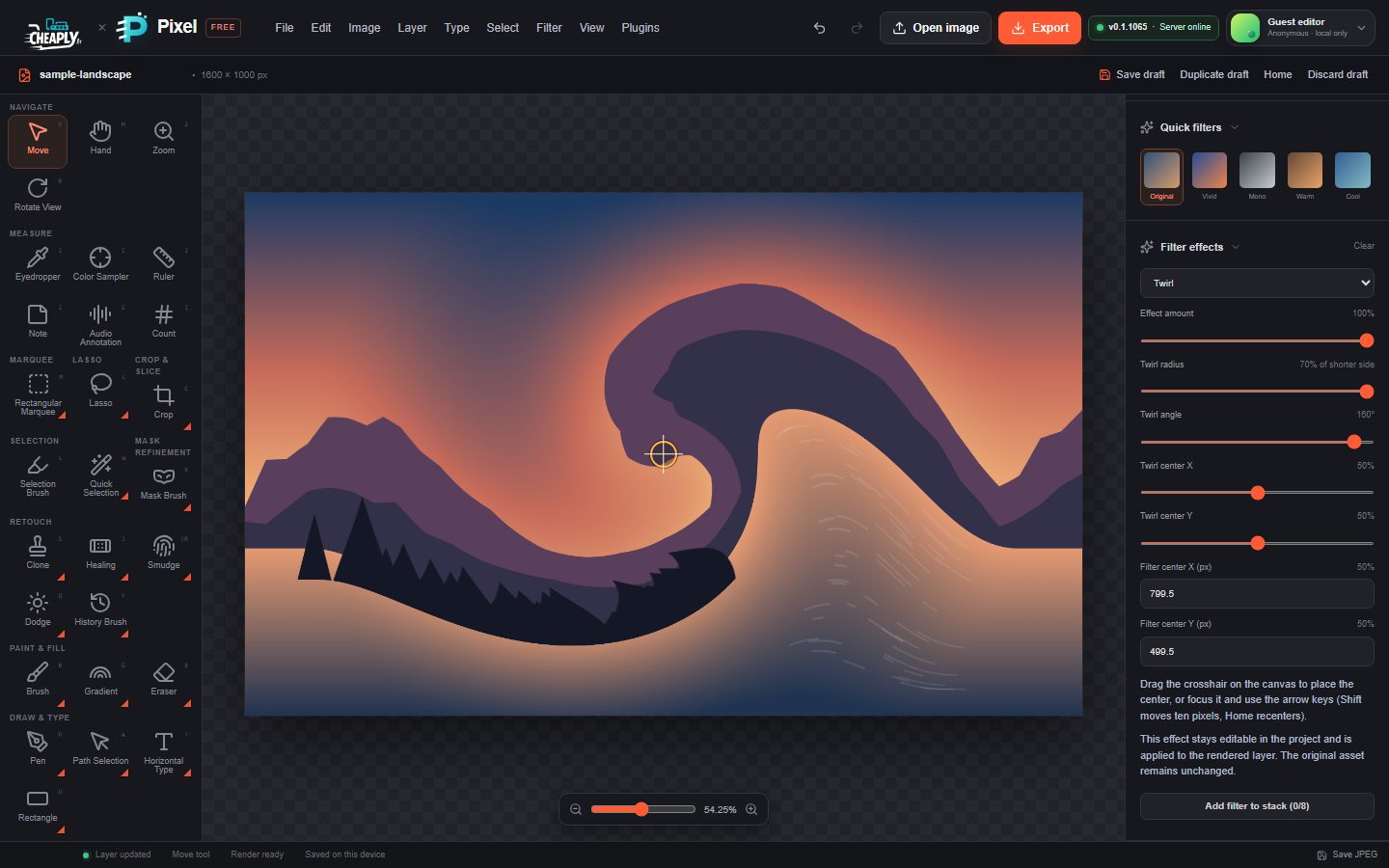
#Apply a distortion
- Select a visible, unlocked layer.
- Choose a command from the Distort part of the Filter menu.
- Open the Filters panel and adjust Filter effects. For filters with a centre, drag the crosshair on the canvas to move it.
All distort filters have Effect amount (0–100 %, default 70 %). For these filters it controls the strength of the distortion, not just a mix with the original.
#Twirl
Rotates pixels around a centre, more strongly near the centre.
| Option | Range | Default | What it does |
|---|---|---|---|
| Twirl angle | −180° to 180° | 75° | How far the centre is turned. Negative values twist the other way. |
| Twirl radius | 1–70 % of shorter side | 70 % | Radius of the twirled circle, as a share of the layer's shorter side. Pixels outside it are not moved. |
| Twirl center X / Y | 0–100 % | 50 % | Centre of the twirl. |
#Pinch
Pulls the content inside a circle in towards its centre, so the middle looks squeezed and smaller.
| Option | Range | Default | What it does |
|---|---|---|---|
| Pinch radius | 1–70 % of shorter side | 44 % | Radius of the pinched circle, as a share of the layer's shorter side. |
| Pinch center X / Y | 0–100 % | 50 % | Centre of the pinch. |
#Spherize
Bulges the middle of a circle outwards, as if the picture were wrapped round a ball.
| Option | Range | Default | What it does |
|---|---|---|---|
| Spherize radius | 1–70 % of shorter side | 70 % | Radius of the bulging circle, as a share of the layer's shorter side. Pixels outside it are not moved. |
| Spherize center X / Y | 0–100 % | 50 % | Centre of the bulge. |
#Ripple
Adds circular ripples spreading out from a centre, like a stone dropped in water.
| Option | Range | Default | What it does |
|---|---|---|---|
| Radius | 1–64 px | 6 px | Distance between ripples and their height. |
| Ripple center X / Y | 0–100 % | 50 % | Centre of the ripples. |
#Wave
Moves pixels back and forth in a regular wave.
| Option | Range | Default | What it does |
|---|---|---|---|
| Wave length | 1–64 px | 12 px | Distance between wave crests. |
| Wave angle | −180° to 180° | 0° | Direction of the wave. |
#ZigZag
Adds concentric zigzag ripples around the middle of the layer that fade out towards the edges.
| Option | Range | Default | What it does |
|---|---|---|---|
| ZigZag wavelength | 1–64 px | 6 px | Distance between ridges and their height. |
#Displace
Pushes pixels with a generated wave pattern, which gives a rippled-glass look. You cannot load your own displacement map.
| Option | Range | Default | What it does |
|---|---|---|---|
| Displace wavelength | 1–64 px | 6 px | Size of the pattern and how far pixels move. |
| Displace direction | −180° to 180° | 0° | Direction of the pattern. |
#Shear
Slants the layer sideways: rows above and below the middle shift in opposite directions.
| Option | Range | Default | What it does |
|---|---|---|---|
| Shear displacement | 1–64 px | 6 px | How far the rows shift. |
| Shear direction | −180° to 180° | 90° | 90° gives the full shift, −90° the full shift the other way, and 0° or 180° no shift. |
#Polar Coordinates
Wraps the layer into a circle around a centre: the top of the picture ends up in the middle and the left and right edges meet. Use it for "tiny planet" style images. Only rectangular-to-polar is available.
| Option | Range | Default | What it does |
|---|---|---|---|
| Polar radius | 1–50 % of shorter side | 50 % | Radius of the circle the picture is wrapped into, as a share of the layer's shorter side. Lower values make a smaller planet, with the bottom row of the picture stretched out around it. |
| Polar center X / Y | 0–100 % | 50 % | Centre of the circle. |
For free-hand pushing, twisting and bloating around a point, see Liquify.
Still stuck? See Troubleshooting or report a problem.