
Custom shapes
Draw arrows, hearts, speech bubbles and other ready-made shapes with the Custom Shape tool, use your own saved paths as shapes, and save shape presets.
The Custom Shape tool draws ready-made shapes as editable paths.
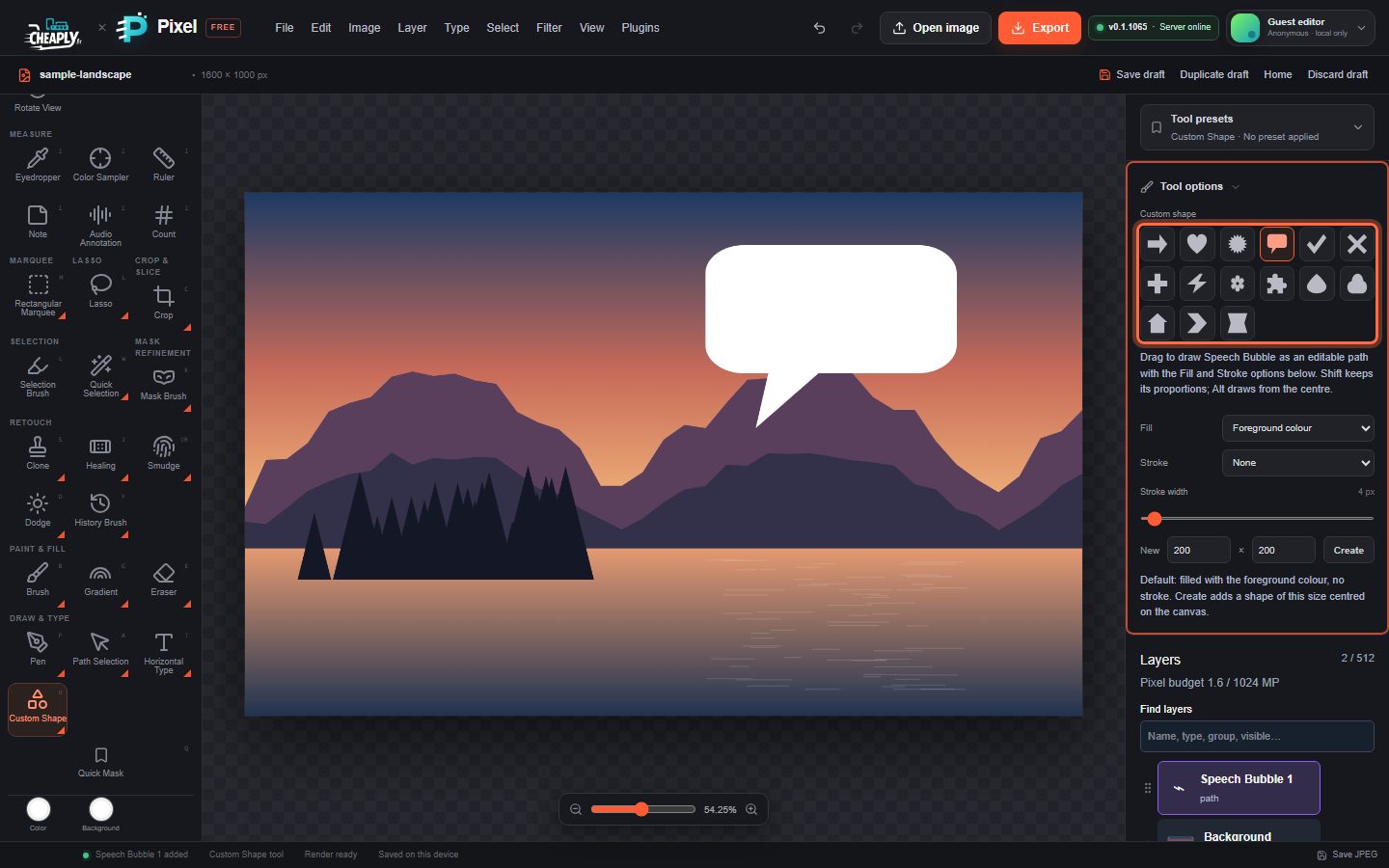
#Draw a custom shape
- Choose Custom Shape from the shape slot (Rectangle) in the Draw & Type group of the toolbar.
- In Tool options, click a shape in the Custom shape library: Arrow, Heart, Starburst, Speech Bubble, Checkmark, Cross, Plus, Lightning, Flower, Puzzle Piece, Drop, Cloud, House, Chevron or Ribbon.
- Set Fill, Stroke and Stroke width (the same options as the other shape tools).
- Drag on the canvas. Hold Shift to keep the shape's proportions and Alt to draw from the centre.
The shape becomes a path layer named after the shape. Because it is a path, you can reshape it with the path editing tools, stroke it with a brush, or use it as a vector mask.
#Use your own path as a shape
You can turn any path you draw into a reusable shape:
- Draw a closed path with the Pen tools and keep its layer selected.
- Choose Edit > Define Custom Path… and give it a name.
- Choose the Custom Shape tool. A Saved path as shape list appears under the library. Choose your path there, then drag: the path is scaled to fit the box you drag. Choose Built-in library to go back to the built-in shapes.
Saved paths are also listed as Saved path preset in the options of the Pen and path tools. Choosing one there adds it as a new path layer; Update replaces the saved preset with the selected path layer (also Edit > Update Custom Path Preset) and Remove deletes it.
#Save a shape preset
Edit > Define Custom Shape… saves the current Rectangle, Ellipse, Line or Polygon tool with the foreground colour (and, for polygons, the variant and number of sides) under a name you choose. A dialog asks for the preset name; if another tool is active, the same dialog also lets you choose the Shape kind (rectangle, ellipse, line or polygon).
Saved shape presets appear as Saved shape preset in the Tool options of the Rectangle, Ellipse, Line and Polygon tools. Choosing one switches to its tool and colour; Remove deletes it.
Path and shape presets (up to 32 of each) are saved with the document's settings in your draft and in project files.
Still stuck? See Troubleshooting or report a problem.