
Merge and flatten layers
Combine layers into one with Merge Layers, Merge Visible or Flatten Image, and copy the combined image with Copy Merged.
Merging combines several layers into one image layer. It reduces the number of layers and frees up the pixel budget, but the merged layers can no longer be edited separately. Everything that affects how the layers look, such as opacity, blend modes, masks, styles and adjustments, is baked into the result.
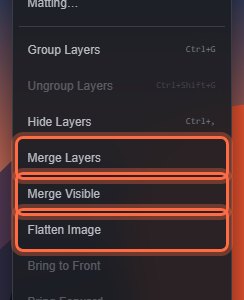
#Merge Layers
Layer > Merge Layers works in two ways:
- One layer selected: merges it with the layer directly below it. Both layers must be visible, unlocked and not in a folder.
- Several layers selected: merges them into one. They must be visible, unlocked and next to each other in the stack.
If you select a layer in a folder, the whole folder is merged into one layer, with the folder's opacity and blend mode applied.
The merged layer takes the place of the lowest merged layer and becomes the selected layer. When a command cannot run, the status bar says why, for example "The layer directly below must be visible".
#Merge Visible
Layer > Merge Visible merges every visible layer into one, as it looks on screen. Hidden layers stay as they are, so you can keep spare versions hidden.
#Flatten Image
Layer > Flatten Image replaces all layers with a single layer named "Flattened image". Use it when the document is finished and you want one simple layer.
You do not need to flatten before exporting: Export saves the combined image of the visible layers anyway. See Export images.
#Copy Merged
Edit > Copy Merged (Ctrl+Shift+C) copies the combined visible image, or the part inside the selection, without changing any layers. Choose Edit > Paste Layer to paste it as a new layer, for example to retouch a merged copy while keeping the originals.
#Good to know
- Every merge is one undo step.
- A reference image is never merged or flattened; it stays a separate guide.
- Merging keeps layers that were clipped to a merged base clipped to the result.
- If your document is near the layer or pixel limit, merging finished layers frees space. See Large documents.
Still stuck? See Troubleshooting or report a problem.