
Smart filters and filter stacks
Combine up to eight editable filters on one layer, change their order, hide, edit or remove any of them, all without touching the original pixels.
Every filter in PixelForge is already editable, but a layer has only one live filter at a time. A filter stack lets you combine more: up to eight stacked filters, plus the live filter on top. Each stacked filter keeps its settings and can be edited, hidden, reordered or removed later. The layer's original pixels are never changed.
Filter stacks work on raster layers and smart objects. They are shown in the Filters panel, below the Filter effects controls.
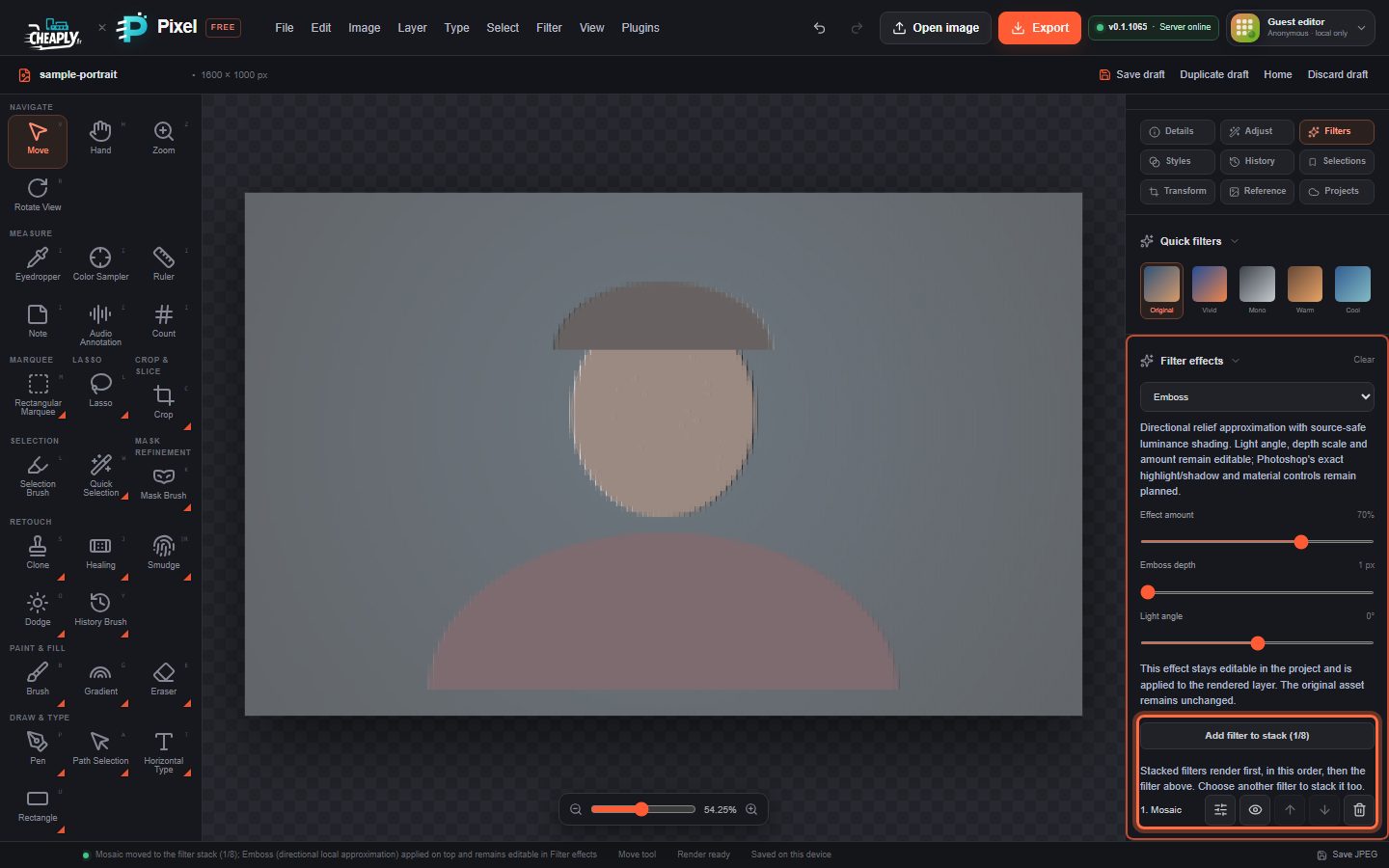
#Stack filters
The quickest way is simply to choose another filter:
- Apply a first filter, for example Filter > Mosaic….
- Choose a second filter from the Filter menu, for example Filter > Emboss….
The first filter moves into the stack and the second is applied on top, in one undo step. The status bar says, for example, "Mosaic moved to the filter stack (1/8); Emboss … applied on top".
You can also stack the live filter yourself:
- Click Add filter to stack (n/8) in the Filters panel, or
- choose Filter > Convert for Smart Filters.
Both move the current live filter into the stack and leave the live slot empty, ready for another filter. They are greyed out when there is no live filter or the stack is full.
The chosen filter replaces the live one instead of stacking when you choose the same filter again, when you switch type with the Filter effect list, or when the stack already holds eight filters.
#Order
Stacked filters are applied first, top to bottom, then the live filter. Order matters: Mosaic then Emboss gives embossed squares, while Emboss then Mosaic gives squares of a grey relief.
#Manage the stack
Each entry in Stacked filters has a name ("1. Mosaic") and five buttons:
| Button | What it does |
|---|---|
| Sliders icon (Edit parameters) | Edits this stacked filter with the Filter effects controls. |
| Eye (Hide / Show) | Turns the filter off or on without removing it. |
| Up arrow (Apply earlier) | Moves it one place earlier. |
| Down arrow (Apply later) | Moves it one place later. |
| Bin (Remove) | Removes it from the stack. Undo restores it. |
Each change is one undo step.
#Edit a stacked filter
- Click the sliders icon next to the entry.
- The Filter effects section shows "Editing stacked filter 1. Mosaic. Each change is one undo step." The sliders, the Filter effect list, the centre fields and the on-canvas crosshair now change that stacked filter.
- Click Done (or the sliders icon again) to go back to editing the live filter.
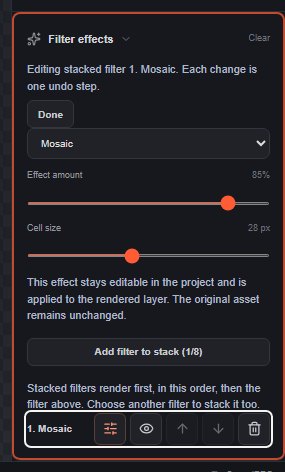
While you edit a stacked filter, the live filter is not changed. Clear does not empty a stacked filter; use its Remove button instead.
#Clear the whole stack
Choose Filter > Clear Smart Filter Stack. All stacked filters are removed in one step; undo restores them. The live filter is kept.
#Filters with selections
If a selection was active when a filter was applied, the filter remembers that area, also after it moves into the stack. See Limit a filter to a selection.
#Saving
Filter stacks are saved with your draft and in project files, and they are still editable when you reopen them. Exported images (PNG, JPEG and others) contain the rendered result.
#Limits
- A stack holds at most eight filters, plus the live filter.
- Stacked filters do not have their own blend modes or masks. To limit the whole result, use a layer mask (see Layer masks).
- Camera Raw Filter… and Vanishing Point… are not live filters and cannot be stacked.
Still stuck? See Troubleshooting or report a problem.