
Blend modes and opacity
Make a layer see-through with Opacity, and choose a blend mode such as Multiply, Screen or Overlay to mix its colours with the layers below.
Every layer has an Opacity and a Blend mode. Opacity sets how much of the layer shows. The blend mode sets how the layer's colours combine with the image below it. Both are kept as settings, so you can change them at any time without changing the layer's pixels.
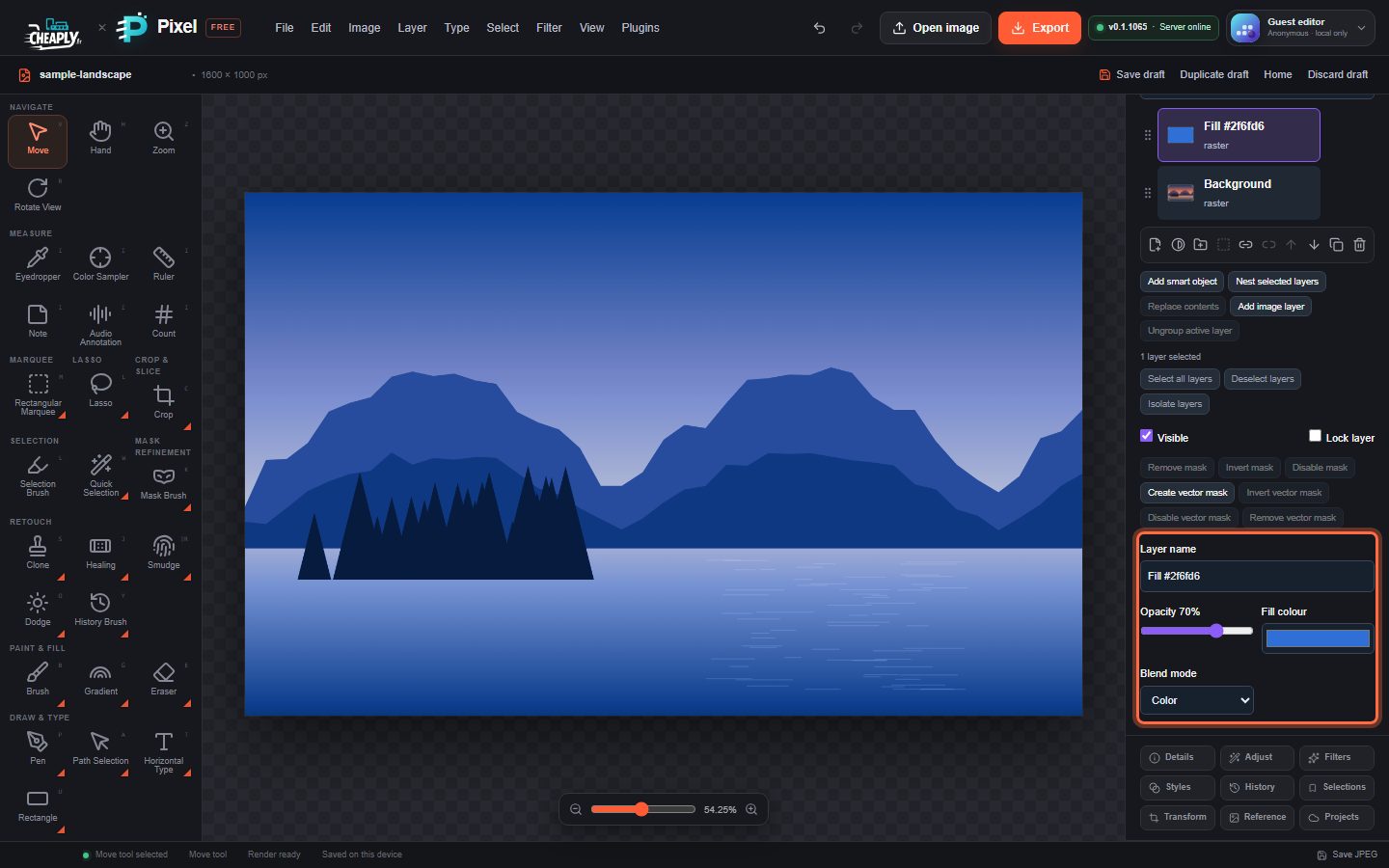
#Change opacity
- Select the layer in the Layers panel.
- Drag the Opacity slider. The label shows the value, from 0% (invisible) to 100%.
A folder has its own opacity slider on its folder row. See Layer groups.
#Choose a blend mode
- Select the layer.
- Choose a mode in the Blend mode list.
The list is grouped by effect:
| Group | Modes | Typical use |
|---|---|---|
| Normal | Normal | The layer covers what is below it. |
| Darken | Darken, Multiply, Color Burn, Linear Burn, Darker Color | White disappears and darker colours darken the image. Multiply is useful for shadows and line art on paper. |
| Lighten | Lighten, Screen, Color Dodge, Linear Dodge (Add), Lighter Color | Black disappears and lighter colours brighten the image. Screen is useful for glows and light effects. |
| Contrast | Overlay, Soft Light, Hard Light, Vivid Light, Linear Light, Pin Light, Hard Mix | Mid-grey disappears; lighter colours brighten and darker colours darken, adding contrast. |
| Inversion | Difference, Exclusion, Subtract, Divide | Compare or invert colours. Difference shows where two layers differ. |
| Component | Hue, Saturation, Color, Luminosity | Take one property of the layer, such as its colour or its lightness, and combine it with the rest from below. |
#Folders and blend modes
A folder has a Group blend list on its folder row. The layers in the folder are combined first, then the folder's blend mode and opacity are applied once to the result.
#Effects with their own blend mode
The Drop shadow and the glow effects in Layer styles have their own blend mode list. A Screen glow, for example, brightens the image beneath the layer.
#Good to know
- Blend modes and opacity are applied the same way in the canvas, in exported images and when you merge or flatten layers.
- The blend modes are PixelForge's own implementations of the standard formulas. Results can differ slightly from other editors, especially on partly transparent pixels.
- Opacity and the blend mode cannot be changed while the layer is locked.
Still stuck? See Troubleshooting or report a problem.