
Neural Filters, AI Denoise and AI Sharpen
What Filter > Neural Filters…, AI Denoise… and AI Sharpen… actually do: private, local enhancement filters that run in your browser without an AI model or upload.
PixelForge has three filters with "Neural" or "AI" in their name. All three are local approximations: fixed calculations that run in your browser. They do not load an AI model, do not send your picture anywhere and give the same result every time for the same settings. They can improve a picture, but they do not recognise faces or objects and cannot invent missing detail.
| Command | What it actually does | Details |
|---|---|---|
| Filter > Neural Filters… | Enhances local brightness contrast, evens out local colour casts and adds back fine texture. | Below |
| Filter > AI Denoise… | Smooths colour speckle more than brightness and protects edges. | Noise filters |
| Filter > AI Sharpen… | Boosts fine brightness detail and leaves flat areas alone. | Sharpen filters |
All three are live filters: you can change or remove them later, stack them with other filters and limit them to a selection. See Filters overview.
#Use Neural Filters
- Select a visible, unlocked layer.
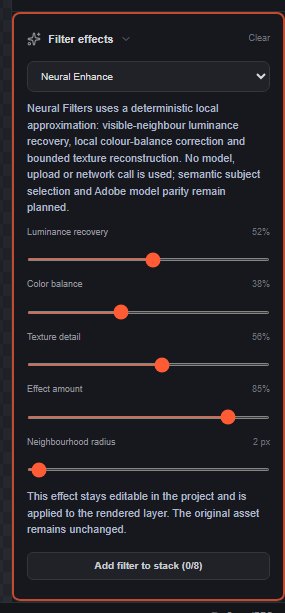
- Choose Filter > Neural Filters…. The filter appears in Filter effects as Neural Enhance.
- Open the Filters panel and adjust the sliders. Zoom to 100 % to judge the result.
| Option | Range | Default | What it does |
|---|---|---|---|
| Luminance recovery | 0–100 % | 52 % | Increases the brightness difference between each pixel and its neighbourhood, which brings out detail in flat or hazy areas. |
| Color balance | 0–100 % | 38 % | Reduces local colour casts while keeping colour contrast. |
| Texture detail | 0–100 % | 56 % | Adds back fine detail from the neighbourhood (similar to a light high-pass sharpen). |
| Effect amount | 0–100 % | 85 % | Mix with the original. 0 % leaves the layer unchanged. |
| Neighbourhood radius | 1–64 px | 2 px | Size of the neighbourhood that is compared. Values above 4 px give the same result as 4 px. |
Transparent pixels and the layer's transparency are not changed.
#What these filters cannot do
- No portrait relighting, smile or age changes, style transfer, colourisation or depth effects.
- No subject detection: the whole layer (or selection) is treated the same way.
- No generated content. For local object removal and fill tools, see Generative and local AI tools.
Still stuck? See Troubleshooting or report a problem.