
Layer styles
Add a drop shadow, glow, bevel, outline or colour, gradient and pattern overlay to a layer. Styles stay editable and follow the layer's shape.
Layer styles are effects drawn around or on top of a layer's pixels, such as a shadow or an outline. They are settings, not pixels: they follow the layer when you move, transform or edit it, and you can change or switch them off at any time.
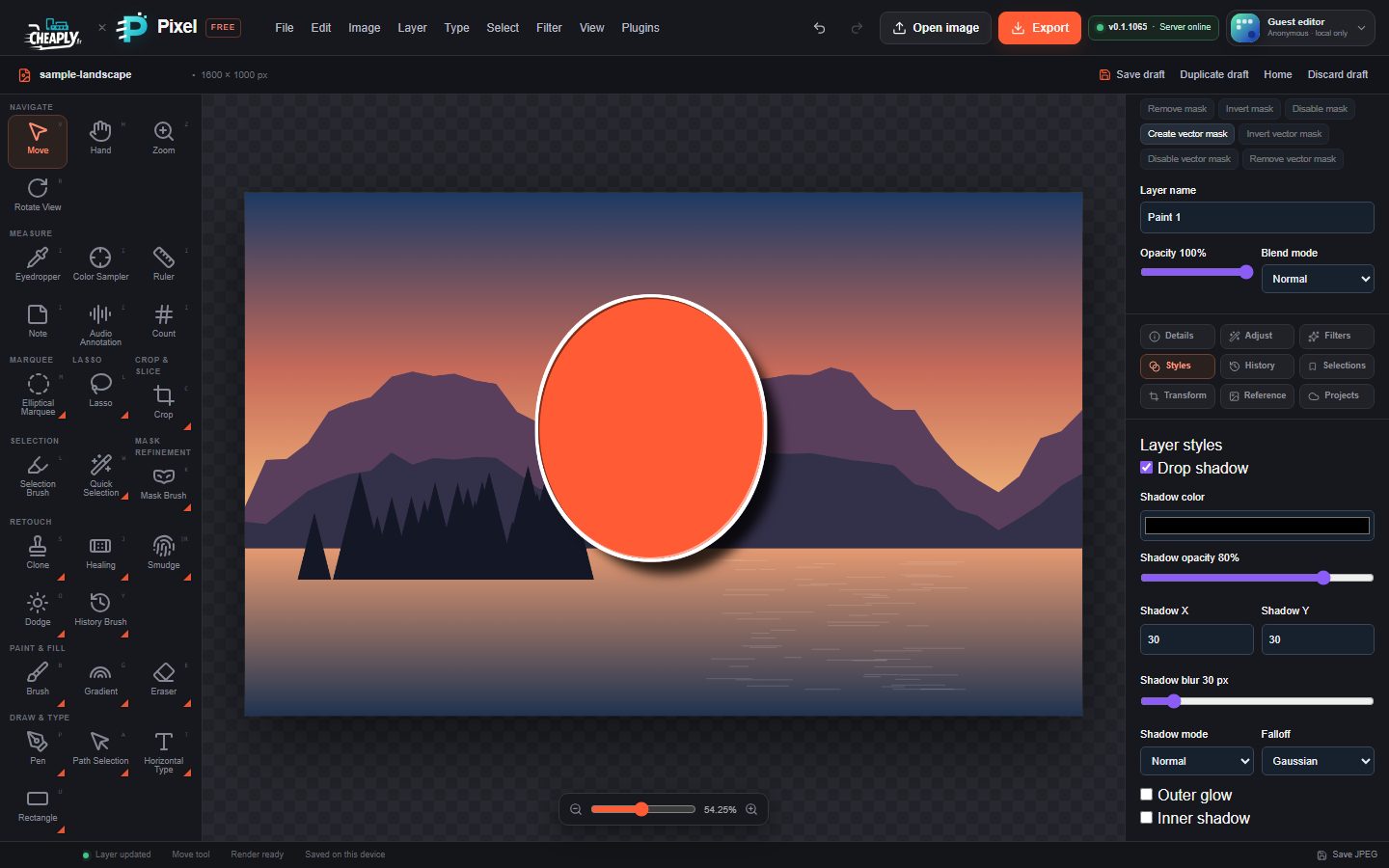
#Add a style
- Select the layer in the Layers panel.
- Open More panels > Styles, or choose Layer > Layer Style.
- Tick the checkbox of an effect, for example Drop shadow, and adjust its settings. The canvas updates as you go.
To remove an effect, clear its checkbox. Each change can be undone. The controls are greyed out while the layer is locked.
#Effects and their settings
| Effect | Settings |
|---|---|
| Drop shadow | Shadow color, Shadow opacity, Shadow X and Shadow Y offset (up to ±1000 px), Shadow blur (up to 250 px), Shadow mode (blend mode) and Falloff. |
| Outer glow | Color, Mode, opacity, size (up to 250 px) and spread. |
| Inner shadow | Colour, opacity, X and Y offset, blur, Falloff and distance (how far the shadow reaches in from the edge). |
| Inner glow | Color, Mode, opacity, size, choke and Source (Edge or Center). |
| Bevel & emboss | Bevel highlight and Bevel shadow colours, Bevel opacity, Bevel angle (light direction), Bevel depth (1–32 px) and Bevel blur. |
| Outline | Outline color, Outline opacity and Outline width (1–32 px). |
| Color overlay | Overlay color and Overlay opacity. |
| Gradient overlay | Gradient start and Gradient end colours, Gradient opacity, Gradient angle and Reverse. |
| Pattern overlay | Pattern (Checker, Stripes, Dots, Grid, Diagonal or Mesh), Pattern foreground and Pattern background colours, Pattern opacity and Pattern tile size (4–128 px). |
The glow settings appear when you tick the glow's checkbox.
Falloff sets the shape of a shadow's soft edge. Gaussian gives a natural, rounded fade and is used for new layers. Linear (legacy) is the older straight fade that documents made before this option keep, so they look the same as before.
#How styles are drawn
Effects are drawn in a fixed order: the drop shadow and outer glow behind the layer, then the outline, the layer itself, the inner shadow, inner glow and bevel, and finally the overlays on top. You cannot change this order.
A drop shadow or outer glow with a blend mode other than Normal blends with the pixels beneath the layer. For example, a Screen glow brightens a dark background.
On a layer with a layer mask, styles follow the visible, masked shape.
#Keep styles when rasterizing
Layer > Rasterize turns a layer into pixels but keeps its styles editable on the new layer instead of baking them in.
#Limits
- Overlay gradients have two colours only, and patterns come from the built-in list.
- There are no saved style presets, and you cannot copy styles between layers as a set.
- Styles are PixelForge's own local approximations of common layer effects. Fill opacity, knockout and other advanced blending options are not available.
- Large blur and glow sizes on big layers take longer to draw. See Performance tips.
Still stuck? See Troubleshooting or report a problem.