
Vertical type and type masks
Set text in vertical columns with the Vertical Type tool, and make letter-shaped selections with the Horizontal and Vertical Type Mask tools.
The Type toolbar slot holds four tools. Press and hold (or right-click) the Horizontal Type button to choose another one. The button then shows the tool you chose.
| Tool | Creates |
|---|---|
| Horizontal Type | An editable type layer, read left to right. See Add text. |
| Vertical Type | An editable type layer set in vertical columns. |
| Horizontal Type Mask | A selection in the shape of horizontal letters. No layer is kept. |
| Vertical Type Mask | A selection in the shape of vertical letters. No layer is kept. |
#Vertical type
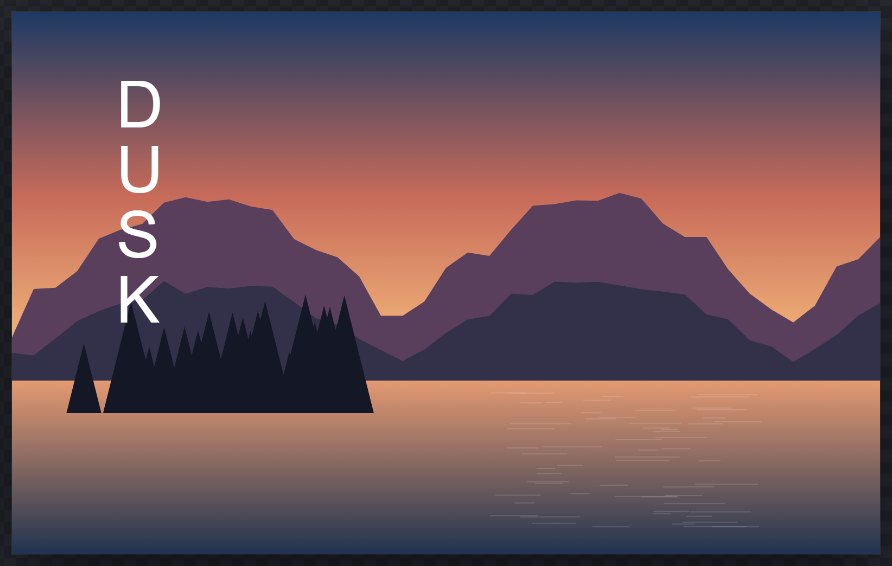
- Choose Vertical Type from the Type flyout.
- Click the canvas where the column should start, and type. Characters run from top to bottom. Each Enter starts a new column.
- Commit with ✓ or Ctrl+Enter.
Vertical type uses the same Character settings as horizontal type, including per-character fonts and colours. The spacing between characters follows the font size plus the tracking, and the spacing between columns follows the leading.
#Switch an existing layer
Select a type layer and choose Type > Vertical Type or Type > Horizontal Type. You can also use Make vertical in the Paragraph settings, or Text orientation in the Layers panel. The text and its styling are kept, and the change can be undone.
#Type masks
A type mask turns letters into a selection. Use it to fill letters with a photo, cut text out of a layer, or make a layer mask shaped like words.
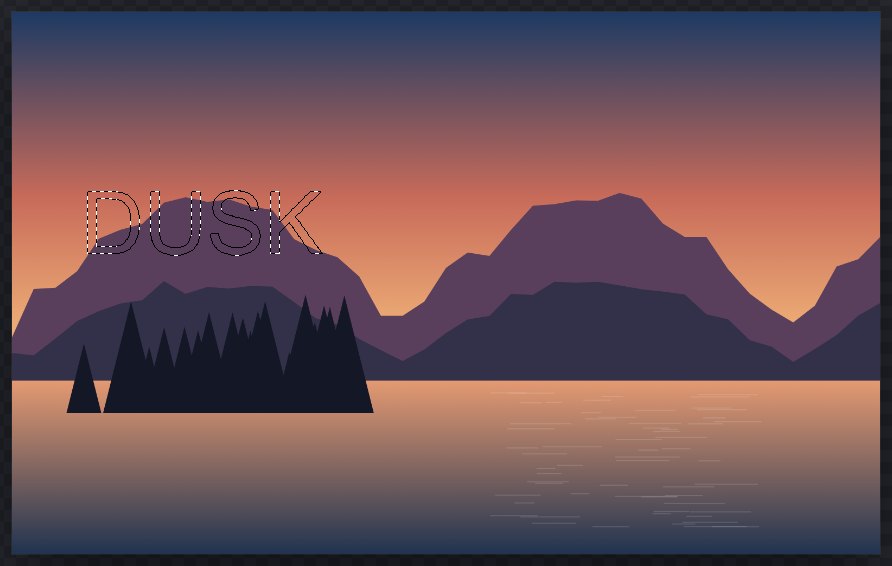
- Choose Horizontal Type Mask or Vertical Type Mask from the Type flyout.
- Set the font and size in the Type options bar.
- Click the canvas and type. You edit a preview, just as with normal type.
- Commit with ✓ or Ctrl+Enter. The letters become the selection; no type layer is added.
The Type Mask tools never edit existing type: clicking existing text starts a new mask at that point.
#Make a selection from an existing type layer
To keep the type layer editable and also get a selection from it, select the type layer and choose Type > Horizontal Type Mask or Type > Vertical Type Mask. The command works on a visible, unlocked type layer with text in it, and is one undoable step. The layer itself does not change.
Once you have the selection, see Selection basics for what you can do with it, such as filling it or stroking its edge.
Still stuck? See Troubleshooting or report a problem.