
Use a reference image
Place a guide image over the canvas for tracing, colour matching or composition. It is saved with your draft but never exported or merged.
A reference image is a picture shown on top of the canvas as a guide. Trace over a sketch, match colours to a photo or check a layout, without the guide ever ending up in your artwork. It is not a layer: it is never exported, merged or flattened, and does not count toward the layer or pixel limits.
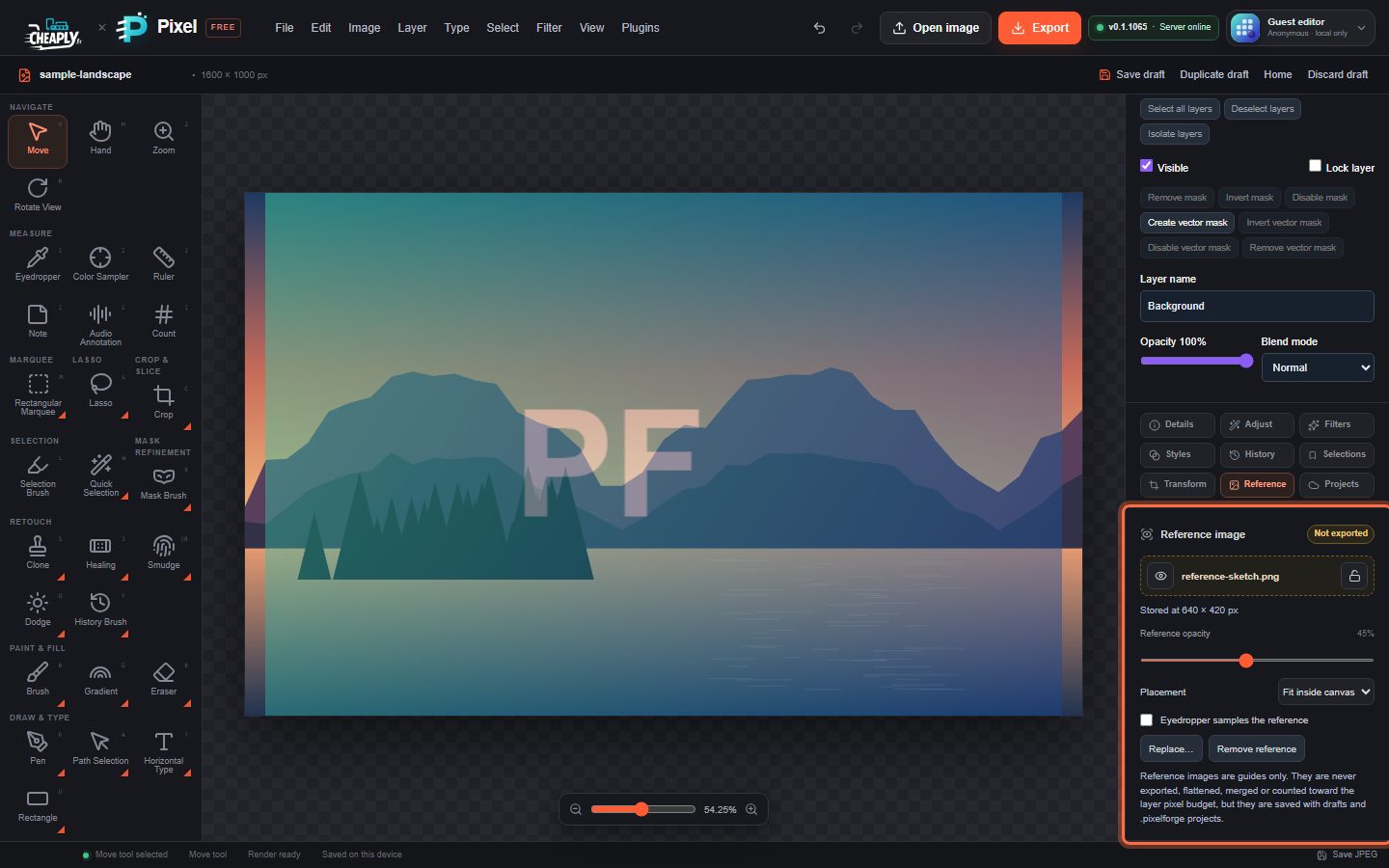
#Place a reference image
- Choose File > Place reference image…, or open More panels > Reference and click Place reference image….
- Choose an image file.
The image is shown over the canvas and the panel shows its name with a Not exported badge. A document has one reference image; placing another replaces it.
Large images are stored at most 2048 pixels on their longest side, which is enough for a guide.
#Reference image controls
| Control | What it does |
|---|---|
| Eye button | Shows or hides the reference. |
| Padlock button | Locks the reference so it cannot be replaced, refitted, faded or removed by accident. |
| Reference opacity | How see-through the reference is. Lower it to see your work underneath. |
| Placement | Fit inside canvas shows the whole image, Fill canvas (crop) covers the canvas and may cut off edges, Stretch to canvas fills the canvas exactly and may distort it. |
| Eyedropper samples the reference | When ticked (and the reference is visible), the Eyedropper picks colours from the reference instead of your artwork. |
| Replace… | Choose a different image. |
| Remove reference | Removes the reference image. |
Changes to the reference can be undone like other edits.
#Good to know
- Tools work on the artwork beneath the reference, so you can paint and select through it.
- The reference refits itself when you crop or resize the canvas.
- It is saved with drafts and
.pixelforgeproject files, so it is still there when you come back. See Drafts and saving. - Exports, Flatten Image, merges and Copy Merged never include it.
- Its stored image counts toward the document's storage size like any other saved image.
Still stuck? See Troubleshooting or report a problem.