
Create a new document
Start a blank canvas at a preset or custom size, choose the background, or create an instant white or transparent document.
Use File > New… to choose the size and background of a blank document. For a quick start there are two instant commands that skip the dialog.
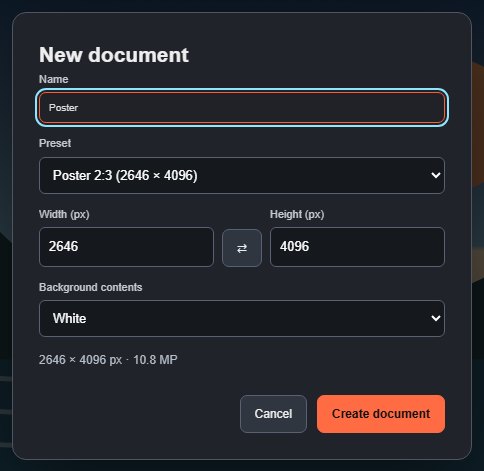
#Create a document with New…
- Choose File > New….
- Type a Name. It becomes the document name shown above the canvas and the default file name when you export.
- Pick a Preset, or type a Width (px) and Height (px). Editing a size switches the preset to Custom. The ⇄ button swaps width and height.
- Choose the Background contents.
- Click Create document.
The line under the fields shows the final size and megapixels. If a value is out of range, a message explains it and Create document stays disabled.
#Presets
| Preset | Size (px) |
|---|---|
| Default | 1200 × 800 |
| HD | 1920 × 1080 |
| 4K UHD | 3840 × 2160 |
| Square | 2048 × 2048 |
| Social portrait | 1080 × 1350 |
| Poster 2:3 | 2646 × 4096 |
| A4 at 300 ppi | 2480 × 3508 |
#Background contents
| Option | Result |
|---|---|
| White | A white background. |
| Black | A black background. |
| Background colour | Filled with your current background colour swatch. |
| Transparent | No background pixels; the canvas shows a checkerboard. |
#Size limits
Width and height are whole pixels from 1 to 16,000, and the document can be at most 16 megapixels in total (for example 4000 × 4000). See Large documents.
#Instant documents
- File > New white document (Ctrl+N) creates a white 1200 × 800 document immediately.
- File > New transparent document creates a transparent 1200 × 800 document.
Every new document starts a new draft with empty history. Your previous document stays saved in this browser; see Drafts and saving. To change the size later, use Image Size and Canvas Size.
Still stuck? See Troubleshooting or report a problem.