
Export images
Download your work as PNG, JPEG, WebP, PSD, PDF or SVG, choose quality or a target file size, and understand what an export keeps.
Exporting makes a flattened copy of your document as an ordinary image file that you can share or upload anywhere. The image is encoded in your browser; nothing is uploaded.
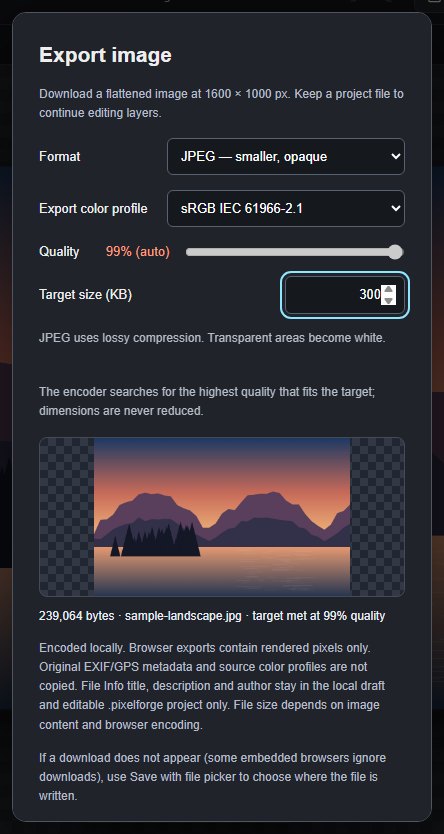
#Export an image
- Click Export in the top bar, or choose File > Export as PNG (Ctrl+S), Export as JPEG, Export as WebP or Export as SVG. They all open the Export image dialog with that format selected.
- Choose a Format.
- For JPEG and WebP, set the Quality or a Target size (KB).
- Check the preview and the file size under it. This is the real size of the file you will get.
- Click Download image, or Save with file picker… to choose where the file goes (in browsers that support it).
The file is named after the document. Rename the document in the bar above the canvas to change it.
#Formats
| Format | Best for | Notes |
|---|---|---|
| PNG — lossless | Graphics, screenshots, anything with transparency | No quality loss. Quality does not apply. |
| JPEG — smaller, opaque | Photos for the web or email | Lossy. Transparent areas become white. |
| WebP — smaller, transparent | Web images that need transparency | Lossy, keeps transparency. Quality 100 is not guaranteed lossless. |
| PSD — flattened composite | Handing a picture to an app that expects PSD | One flattened 8-bit image with transparency. Layers, masks and history are not included. |
| PDF — flattened page | A single printable page | One JPEG image on one page; transparent areas become white. |
| SVG — layered vectors | Logos, icons and illustrations | Shapes, text and groups stay vectors. See SVG import and export. |
#Hit a target file size
For JPEG and WebP, type a size in Target size (KB) (1 to 65,536 KB). PixelForge tries quality settings and picks the highest quality whose file fits; the Quality slider then shows the chosen value with "(auto)". The image dimensions are never reduced. If even the lowest quality is too large, the dialog says "target not met" and gives you the smallest file it could make. Clear the field to go back to choosing the quality yourself.
To make a file smaller still, reduce its pixel size first with Image > Image Size…. See Image and canvas size.
#Export colour profile
Export color profile is sRGB IEC 61966-2.1 by default, which suits screens and the web. Display P3 converts the colours to Display P3 values. The exported file does not contain a colour profile, so choose Display P3 only when the place you use the file expects Display P3 colours.
#What an export contains
- Only the visible, flattened pixels of the document (or of the chosen artboard, if the document has artboards).
- No EXIF, GPS or camera metadata, and no original colour profile.
- None of the File > File Info / Privacy… fields: title, description and author stay in your draft and project file only.
- Reference images, guides and other on-canvas helpers are not included.
#If the download does not appear
Some browsers built into other apps ignore downloads. Use Save with file picker… instead, or open PixelForge in a regular browser. See Troubleshooting.
#Other export commands
- Layer > Quick Export document as PNG and Layer > Export As… open the same dialog.
- File > Batch export history… and File > Batch export images… make ZIP files of many images. See Batch processing.
Still stuck? See Troubleshooting or report a problem.