
Histogram and colour readouts
Check the tonal range of your image with Image > Analysis, and read exact colour values with the Color Sampler tool.
Before and while you adjust an image, it helps to know where its tones sit and what the exact colour values are. PixelForge has a Histogram for the whole image and the Color Sampler tool for exact values at chosen points. There is no separate Info panel; the Color Sampler list does that job.
#View the histogram
- Choose Image > Analysis. The Histogram dialog opens.
- Pick a Channel: Luminance, Red, Green or Blue.
- Click Close or press Esc when you are done.
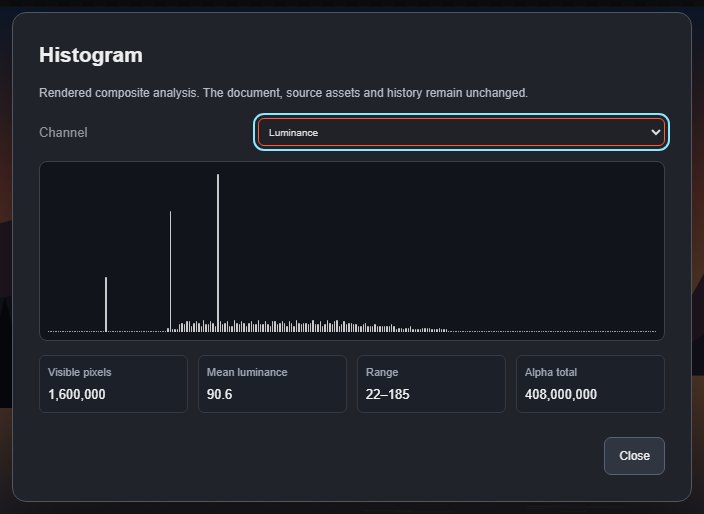
The graph has 256 bars, from black on the left to white on the right. A tall bar means many pixels have that value. Bars bunched in the middle with gaps at both ends mean a flat image that Levels or Auto Tone can stretch. A tall bar at either end means detail is clipped to pure black or white.
| Value | Meaning |
|---|---|
| Visible pixels | Pixels that are not fully transparent. Fully transparent pixels are left out of the graph. |
| Mean luminance | Average brightness, from 0 (black) to 255 (white). |
| Range | The darkest and brightest luminance values present (whatever channel is shown). |
| Alpha total | The sum of the alpha (opacity) values of all visible pixels. |
The histogram describes the image as it currently looks, with all layers and adjustments applied. It is a snapshot: close it and choose Image > Analysis again after you make changes. Opening it never changes the document or adds a history step.
#Read exact colours with the Color Sampler
- Click Color Sampler in the Measure group of the toolbar, or press I repeatedly until it is selected.
- Click the image where you want to measure. A marker is placed, and a row appears in the tool options.
- Click more points to compare areas.
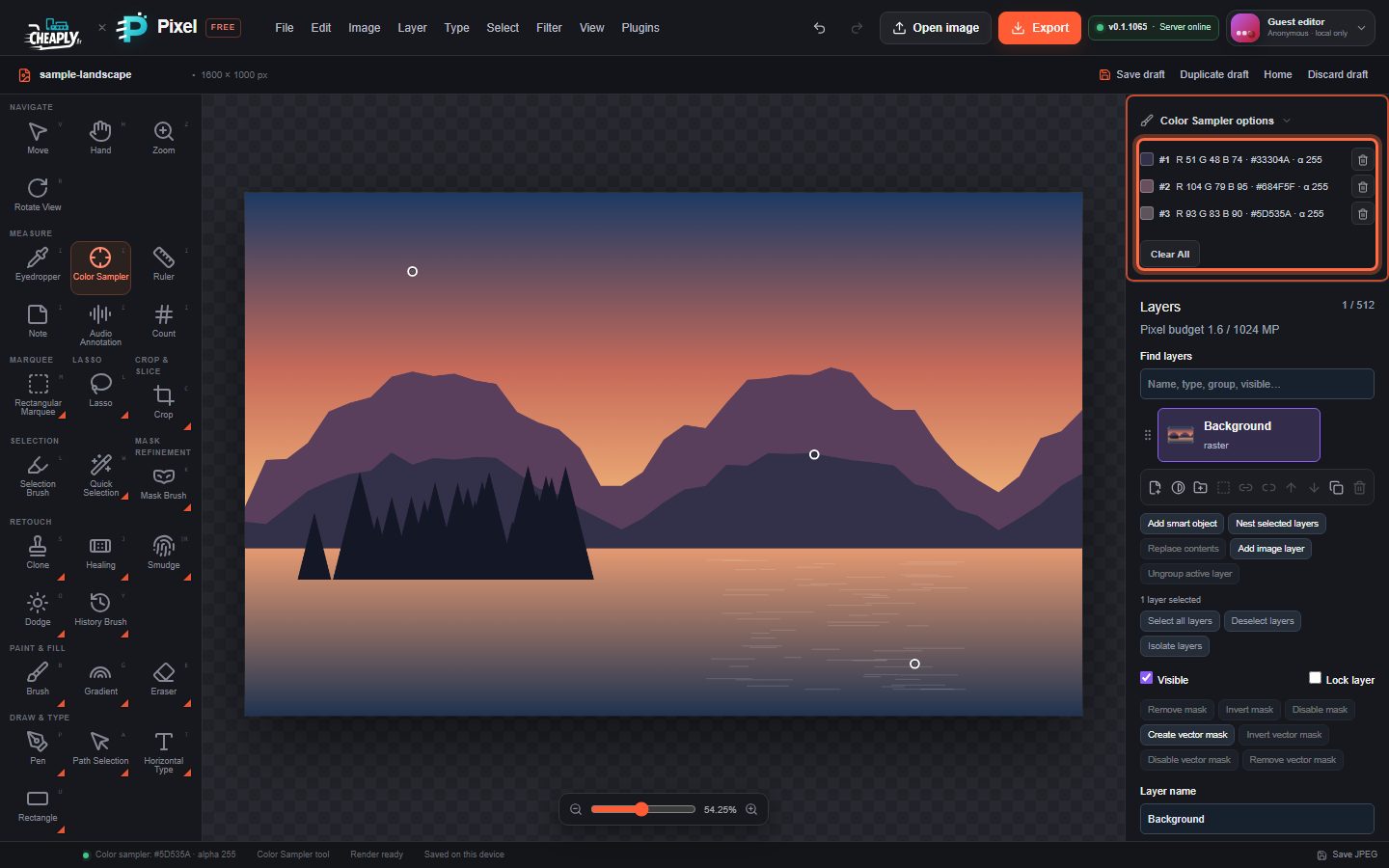
Each row shows the sampler number, its R, G and B values, the hex colour and the alpha (α). The values follow your edits: adjust a layer and the readouts update to the new result, which makes the samplers useful for checking that a grey stays neutral or a skin tone stays in range.
- Delete one sampler with its bin button, or all of them with Clear All.
- Samplers are saved with the document but never appear in exported images.
To pick a colour for painting instead, use the Eyedropper (Choosing colours). The other measuring tools are covered in Measure, count and notes.
Still stuck? See Troubleshooting or report a problem.