
Colour modes and profiles
Switch a document between RGB Color and Grayscale, and assign or convert between the sRGB and Display P3 colour profiles.
PixelForge documents are RGB images. You can show and export a document in grey with Image > Mode, and label or convert its colours between two colour profiles, sRGB and Display P3.
#Switch between RGB and Grayscale
Choose Image > Mode. Each time you choose it, the document switches between RGB Color and Grayscale, and the status bar shows the new mode (for example "Image mode: Grayscale").
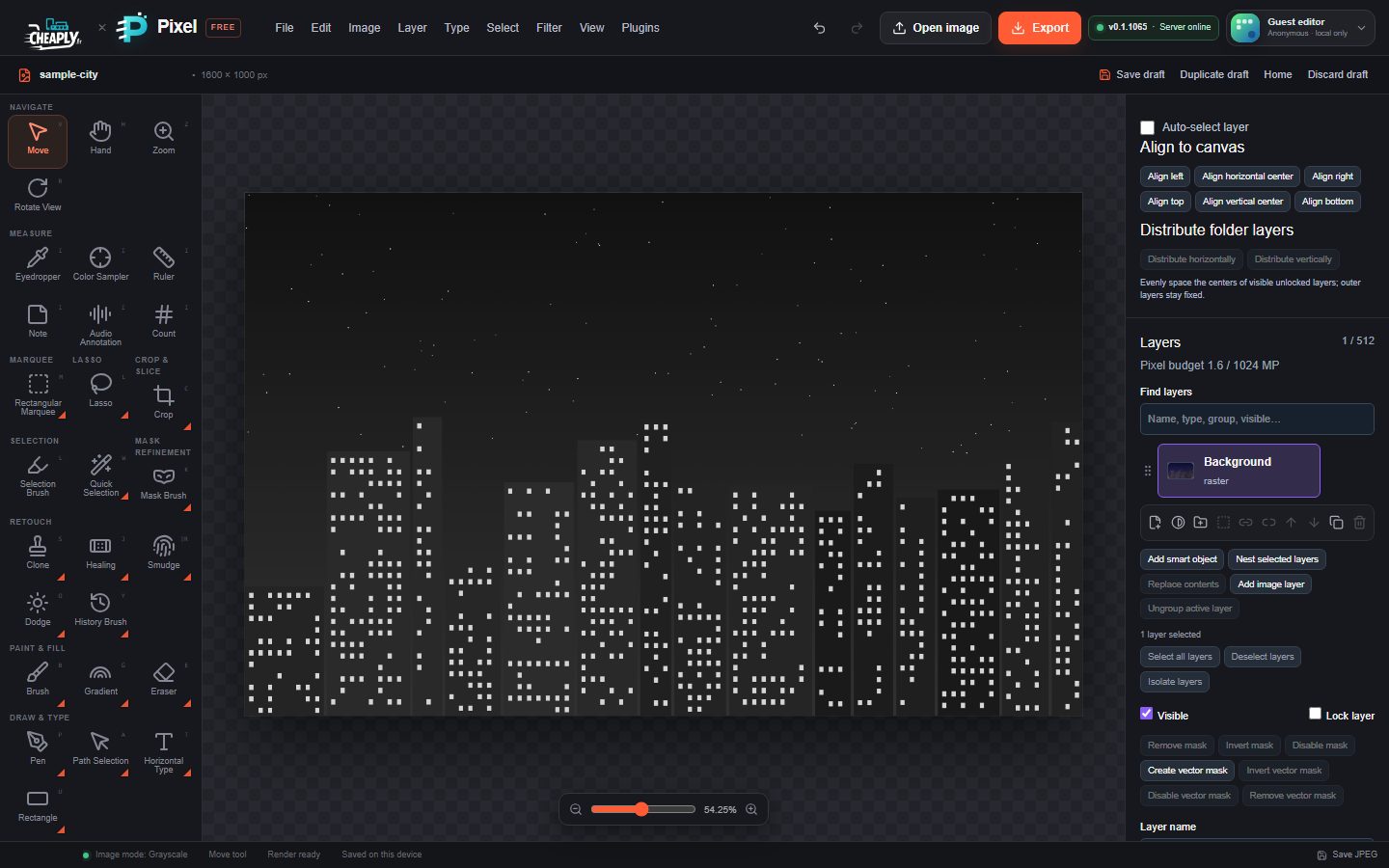
In Grayscale mode the whole composite is shown in greys, based on the brightness of each colour. Transparency is kept.
- The change is nondestructive. Your layers keep their colours, so switching back to RGB Color brings them back.
- The mode is saved with the draft and in project files, and can be undone.
- To make only one layer black and white, use the Black and White option in the Adjust panel instead (Other adjustments).
#Colour profiles
A colour profile tells other software how to interpret a document's RGB numbers. PixelForge supports two: sRGB IEC 61966-2.1 (the standard for the web and most screens) and Display P3 (a wider gamut used by many recent phones and laptops).
#Assign a profile
Edit > Assign Profile… changes only the profile label of the document. The RGB numbers stay the same, so colours may be interpreted differently.
- Choose Edit > Assign Profile….
- Pick a Target profile.
- Click Assign Profile.
#Convert to a profile
Edit > Convert to Profile… recalculates the pixels so colours keep their appearance in the new profile.
- Choose Edit > Convert to Profile….
- Pick a Target profile.
- Click Convert to Profile.
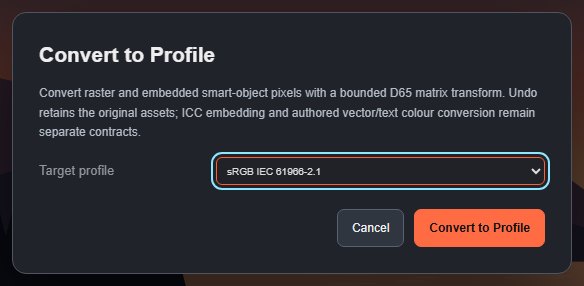
The conversion is one undo step and the original pixels can be restored with Undo. It converts image layers and the contents of embedded smart objects. Transparency and masks are not changed.
The working profile for the document can also be set in Edit > Color Settings… (Colour settings and preferences).
This is a bounded local conversion between two RGB profiles. It is not full colour management: there is no soft-proofing, printer profile, HDR or rendering-intent choice.
Still stuck? See Troubleshooting or report a problem.